





Optimize GPU settings for max FPS in competitive esports games?
The Quest for Maximum FPS: Why It Matters in Esports
In the high-stakes world of competitive esports, every frame counts. A higher Frames Per Second (FPS) directly translates to smoother gameplay, reduced input lag, and a more immediate response from your character, providing a crucial competitive edge. While powerful hardware is a great starting point, simply owning a high-end GPU isn’t enough; optimizing its settings is key to unlocking its full potential and consistently hitting those buttery-smooth frame rates needed for peak performance. This guide will walk you through the essential steps to fine-tune your graphics card for maximum FPS in your favorite competitive titles.
Driver Deep Dive: NVIDIA Control Panel & AMD Radeon Software
The foundation of any GPU optimization begins with your drivers. Always ensure your graphics drivers are up-to-date by downloading the latest version directly from NVIDIA or AMD’s official websites. Beyond updates, both manufacturers offer extensive control panels to fine-tune global and game-specific settings.
NVIDIA Control Panel Settings:
- Manage 3D Settings:
- Power Management Mode: Set to “Prefer Maximum Performance.” This ensures your GPU is always running at full clock speeds, rather than downclocking to save power.
- Low Latency Mode: Experiment with “On” or “Ultra.” Ultra mode queues frames just-in-time for the GPU, significantly reducing input lag in some scenarios, though it can introduce micro-stutters for some users.
- Texture Filtering – Quality: Set to “High Performance.”
- Vertical Sync: Set to “Off” (unless you experience severe screen tearing and your monitor lacks G-Sync/FreeSync). V-Sync caps your FPS to your monitor’s refresh rate, adding input lag.
AMD Radeon Software Settings:
- Gaming Tab: Go to Global Graphics.
- Radeon Anti-Lag: Enable this to reduce input lag by dynamically adjusting game workload.
- Radeon Boost: Enable this for certain games as it can dynamically lower resolution during fast motion to boost FPS, reverting when static.
- Wait for Vertical Refresh: Set to “Always Off” (similar to V-Sync).
- Texture Filtering Quality: Set to “Performance.”

In-Game Graphics Settings: The Art of Compromise
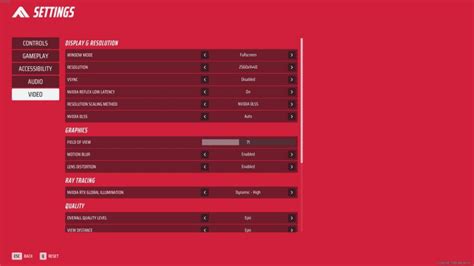
This is where you make the most significant sacrifices for performance. Competitive esports prioritizes clarity, visibility, and responsiveness over stunning visual fidelity. Your goal is to eliminate graphical features that are resource-intensive without offering a competitive advantage.
- Resolution: Always native resolution of your monitor. Lowering it can make targets blurry and harder to see, but if your GPU struggles, a slight reduction (e.g., from 1440p to 1080p) might be necessary.
- Texture Quality: Often has a minimal impact on FPS, especially if you have ample VRAM. Keep it at a medium or high setting if possible for better visual clarity.
- Shadows: One of the biggest FPS killers. Set shadows to “Low” or “Off.” High-detail shadows consume significant GPU resources and can obscure enemy players.
- Anti-Aliasing (AA): Techniques like MSAA or SSAA are very demanding. Opt for “Off” or lighter post-processing AA methods like FXAA or SMAA if absolutely necessary, but prioritize performance here.
- Post-Processing Effects: Bloom, depth of field, motion blur, lens flare – turn all of these “Off.” They are purely cosmetic and can obscure your vision or introduce visual clutter.
- View Distance/Foliage: Keep this at a setting that allows you to see distant enemies clearly, but don’t max it out. High foliage detail can hide enemies and reduce FPS.
- Reflections/Water Quality: Set to “Low” or “Off.” These are typically very demanding.
Windows Optimization & Background Processes
Your operating system can also impact your GPU’s performance. Ensure Windows isn’t hogging resources that your game needs.
- Game Mode: Ensure Windows Game Mode is enabled (Settings > Gaming > Game Mode). It prioritizes your game’s resources.
- Power Plan: Set your power plan to “High Performance” (Control Panel > Hardware and Sound > Power Options).
- Background Apps: Turn off unnecessary background applications (Settings > Privacy > Background apps). Streaming software, browser tabs, and other utilities can consume CPU and GPU resources.
- Notifications: Disable notifications during gaming sessions.
Consider Overclocking (With Caution)
For advanced users, carefully overclocking your GPU can yield additional FPS. Tools like MSI Afterburner or ASUS GPU Tweak allow you to increase core clock and memory clock speeds. However, this comes with risks: increased heat, potential instability, and reduced hardware lifespan if done improperly. Always research your specific GPU model and proceed with small increments, monitoring temperatures closely.
Monitor Your Performance & Test Thoroughly
After making changes, it’s crucial to monitor your FPS and temperatures to ensure stability and verify improvements. Tools like MSI Afterburner (with RivaTuner Statistics Server), FRAPS, or even built-in game FPS counters are invaluable. Make one change at a time, test, and then assess its impact before proceeding. What works perfectly for one system might be detrimental to another.
Game-Specific Optimizations and Community Wisdom
While global settings provide a good baseline, many esports titles have unique optimization tricks. Consult community forums, competitive player guides, and professional player settings for specific games like Valorant, CS:GO, Apex Legends, or League of Legends. These communities often discover nuanced settings or commands that can provide an extra performance boost.

Conclusion: The Pursuit of Peak Performance
Optimizing your GPU for maximum FPS in competitive esports is an ongoing process of tweaking, testing, and re-evaluating. By diligently updating drivers, fine-tuning control panel settings, making smart compromises in-game, and ensuring your operating system is lean, you can unlock your graphics card’s full potential. Remember that consistency and responsiveness are paramount. With these optimizations, you’ll be better equipped to react faster, track enemies more smoothly, and ultimately climb the ranks in your chosen competitive titles.


