





How can players easily find & vet safe, game-compatible mods to avoid corruption?
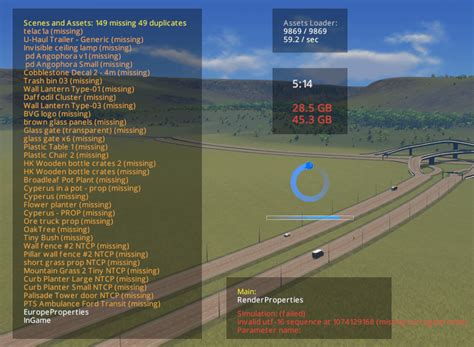
Embracing the World of Mods Safely
Modding can dramatically enhance your gaming experience, adding new content, improving graphics, or even completely transforming gameplay. However, the excitement of custom content comes with potential risks: game corruption, instability, or even malicious software. For new and experienced players alike, navigating the vast ocean of user-created modifications requires a strategic approach to ensure both safety and compatibility.
This guide will walk you through the essential steps to easily find, vet, and integrate mods into your games without fear of losing your progress or compromising your system.
Where to Find Reputable Mods
The first step in safe modding is knowing where to look. Sticking to well-known, community-supported platforms is paramount to avoiding risky downloads.
- Official Modding Hubs: Platforms like Steam Workshop, Nexus Mods, and CurseForge are industry standards. They often feature robust moderation, user reviews, and clear download statistics, helping you gauge a mod’s popularity and reliability.
- Game-Specific Forums and Discords: Many games have dedicated communities on official forums or Discord servers where players discuss, share, and troubleshoot mods. These are excellent places to get recommendations and direct links from experienced users.
- Developer-Sanctioned Tools: Some game developers provide official SDKs (Software Development Kits) or in-game modding tools. Mods created with these tools are generally more stable and less likely to cause issues.

Vetting Mods for Safety and Quality
Once you’ve found a potential mod, the next crucial step is to vet its safety and quality before downloading. This requires a bit of detective work.
Check the Mod Author’s Reputation
A reputable mod author is your best defense against bad mods. Look at their profile: do they have a history of creating popular, well-received mods? Are their other mods actively maintained? A consistent track record suggests reliability.
Read Reviews and Comments
The community is your greatest resource. Scrutinize the comments section and user reviews for any red flags:
- Bug Reports: Are users complaining about crashes, severe performance drops, or game-breaking bugs?
- Compatibility Issues: Do users mention conflicts with other popular mods or specific game versions?
- Malicious Content: Though rare on reputable sites, any mention of malware or suspicious behavior is a huge warning sign.
Examine Update Frequency and Last Update Date
Actively maintained mods are generally safer. If a mod hasn’t been updated in years, it might not be compatible with current game versions and could cause issues. Conversely, a recently updated mod shows the author is committed to keeping it functional and bug-free.

Ensuring Game Compatibility
Even a safe mod can corrupt your game if it’s not compatible. Compatibility issues are a leading cause of crashes and save file corruption.
Verify Mod Requirements
Always read the mod description carefully. Look for:
- Required Game Version: Ensure the mod is designed for your specific game version (e.g., 1.5, 2.0).
- Required DLCs or Other Mods: Many mods rely on specific DLCs or other foundational mods to function.
- Installation Instructions: Adhere strictly to the author’s installation guide. Missing a step can lead to immediate problems.
Utilize Mod Managers
For games with extensive modding communities (e.g., Skyrim, Fallout, Stardew Valley), mod managers like Vortex, Mod Organizer 2, or specific game launchers (e.g., Minecraft launchers) are indispensable. They help:
- Manage Load Order: Crucial for resolving conflicts between multiple mods.
- Isolate Mods: Many managers install mods into separate folders, making them easy to enable, disable, or uninstall without touching your core game files.
- Detect Conflicts: Some managers will warn you about potential conflicts before you even launch the game.

Preventing Corruption and Troubleshooting
Even with careful planning, issues can arise. Knowing how to prevent and resolve them is key to stress-free modding.
Backup Your Game Saves and Core Files
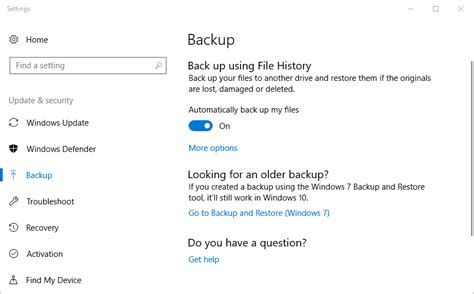
This is the golden rule of modding. Before installing any new mods, especially large or complex ones, make a backup of your game’s save files and, if possible, the entire game directory. This allows you to revert to a working state if something goes wrong.
Test Mods Incrementally
If you’re installing multiple mods, add them one by one or in small, logical groups. Launch the game after each addition to ensure stability. This makes it much easier to pinpoint which mod is causing a problem if one arises.
Monitor for Instability
After installing mods, play for a while. Watch out for:
- Frequent Crashes to Desktop (CTD)
- Game Freezes or Stuttering
- Graphical Glitches or Missing Textures
- Corrupted Save Files (unable to load, strange behaviors)
Conclusion
Modding offers an incredible way to extend and personalize your gaming adventures. By diligently choosing reputable sources, carefully vetting mods, prioritizing compatibility, and implementing smart backup strategies, you can minimize risks and enjoy a rich, customized gaming experience free from the headaches of game corruption. Dive in, explore, and let your creativity flourish, but always remember to mod smart and mod safe!


