When to reapply CPU thermal paste on laptop?
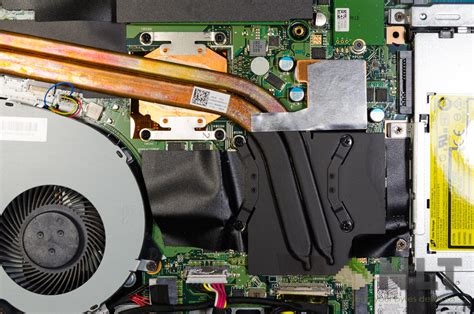
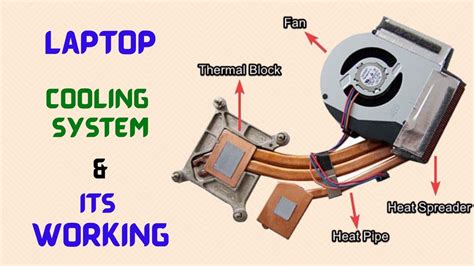
Thermal paste, also known as thermal grease or thermal compound, is a crucial interface material applied between your laptop’s CPU (and often GPU) and its heatsink. Its primary purpose is to fill microscopic air gaps that exist between these two surfaces, ensuring optimal heat transfer from the processor to the cooling system. Over time, however, this paste can degrade, losing its effectiveness and leading to potential performance issues or even hardware damage. Knowing when to refresh this vital component is key to maintaining your laptop’s longevity and performance.
Key Indicators You Need to Reapply Thermal Paste
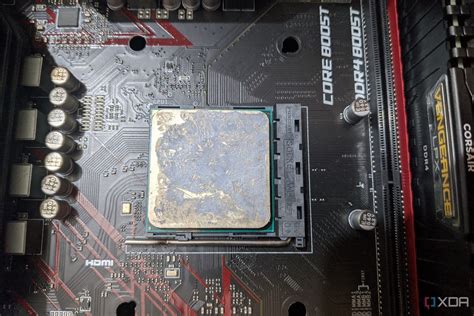
Several tell-tale signs suggest that your laptop’s thermal paste might be failing and needs replacement. Paying attention to these symptoms can save you from more severe problems down the line:
- Excessive Heat: Your laptop feels unusually hot to the touch, especially around the keyboard or exhaust vents, even during light tasks.
- Loud Fan Noise: The cooling fans constantly spin at high RPMs, making a significant amount of noise, even when the system isn’t under heavy load. This indicates the fans are working harder than usual to dissipate heat.
- Performance Throttling: Your laptop experiences unexpected slowdowns, stuttering, or drops in frame rates during gaming or demanding applications. CPUs and GPUs automatically reduce their clock speed to prevent overheating, a process known as thermal throttling.
- Sudden Shutdowns: In severe cases, your laptop might unexpectedly shut down without warning. This is a safety mechanism triggered when temperatures reach dangerously high levels.
- Higher-than-Normal Temperatures: Monitoring software (like HWMonitor, Core Temp, or SpeedFan) shows consistently high CPU temperatures (e.g., above 85-90°C) during moderate to heavy use, or even elevated idle temperatures.

Factors Influencing Thermal Paste Degradation
The lifespan of thermal paste isn’t fixed; it depends on several variables:
- Type and Quality of Paste: High-quality thermal compounds (e.g., those based on metallic or ceramic compounds) generally last longer than cheaper, silicone-based alternatives. Premium pastes can last 3-5 years or even more, while generic ones might degrade in 1-2 years.
- Laptop Usage Patterns: A laptop constantly under heavy load (e.g., gaming, video editing, CAD work) will generate more heat, accelerating the drying and hardening of the thermal paste compared to a laptop used primarily for web browsing and office tasks.
- Environmental Conditions: High ambient temperatures and dusty environments can contribute to faster degradation of thermal paste and clogging of cooling fins, further exacerbating heat issues.
- Original Application: Poor application from the factory (too little, too much, or uneven spread) can lead to premature failure.
When Should You Proactively Reapply?
While reacting to the symptoms is one approach, a proactive schedule can often prevent issues. For most laptops, especially those used moderately:
- Every 2-3 Years: This is a common recommendation for general users. Even if you don’t notice severe symptoms, a fresh application can restore optimal cooling efficiency.
- Every 1-2 Years: If you frequently engage in demanding tasks like gaming, video rendering, or scientific computing, or if your laptop consistently runs hot, consider reapplying more frequently.
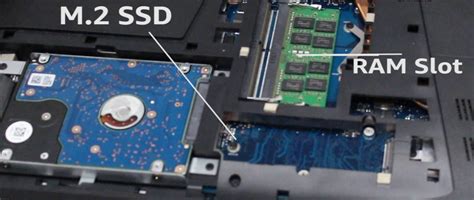
- After Any Major Disassembly: If you’ve opened your laptop for other reasons (e.g., RAM upgrade, SSD installation, fan cleaning) and have separated the heatsink from the CPU/GPU, it’s always best practice to clean off the old paste and apply new.
- When Buying a Used Laptop: Especially if it’s an older model, reapplying thermal paste can be a great first step to ensure its performance and longevity.
It’s important to note that opening a laptop to reapply thermal paste can void your warranty if not done by an authorized service center. Always check your warranty terms first.

The Reapplication Process Briefly
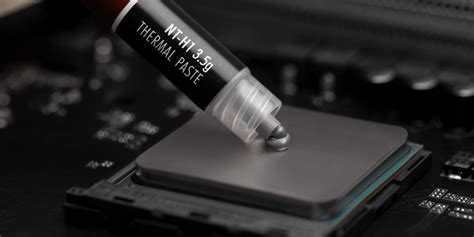
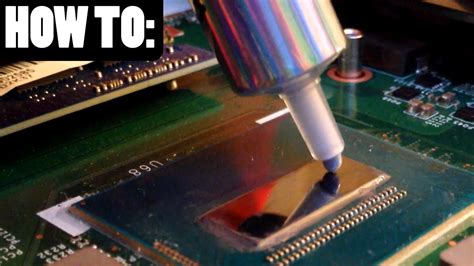
Reapplying thermal paste typically involves disassembling your laptop to access the CPU and heatsink, carefully cleaning off the old, dried paste using isopropyl alcohol, and then applying a small, rice-grain sized dot of new, high-quality thermal paste to the center of the CPU die before reattaching the heatsink. This process requires patience, the right tools, and a careful hand, as laptop components are delicate.
Maintain Your Laptop’s Cool
Ensuring your CPU has fresh, effective thermal paste is a critical but often overlooked aspect of laptop maintenance. By monitoring your laptop’s temperatures, listening to its fans, and observing its performance, you can identify when a reapplication is due. Whether you’re a casual user or a power user, refreshing the thermal paste every couple of years is a smart investment in your laptop’s health, ensuring it continues to run cool, quiet, and efficiently for years to come.