





Why is my gaming PC underperforming? Common bottlenecks & fixes?
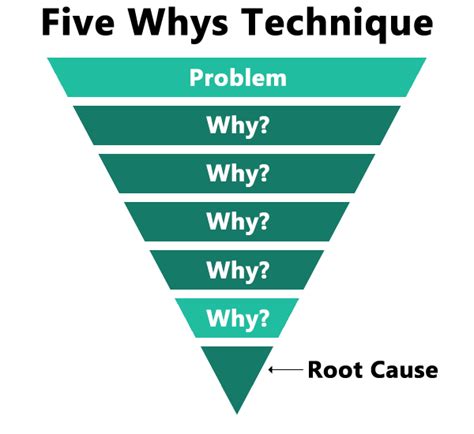
There’s nothing quite as frustrating as a gaming PC that refuses to deliver the smooth, high-fidelity experience it’s designed for. Whether you’ve just built a new rig or your trusty machine is starting to show its age, encountering low frame rates, stuttering, or general sluggishness can quickly turn excitement into exasperation. But before you panic or start budgeting for an entirely new system, understanding the common culprits behind underperformance can help you diagnose and fix the issues.
Understanding Performance Bottlenecks
A “bottleneck” occurs when one component in your PC limits the potential performance of other components. Imagine water flowing through a pipe; if one section is narrower, it restricts the flow of the entire system. In a gaming PC, this means a powerful GPU might be held back by a weaker CPU, or fast components might be waiting on a slow hard drive.

Common Bottlenecks and How to Fix Them
1. CPU (Central Processing Unit) Bottleneck
Your CPU is the brain of your computer, handling game logic, physics, AI, and managing other hardware. If your CPU is struggling, your powerful GPU might be sitting idle, waiting for instructions.
Symptoms:
- High CPU usage (often 90-100%) while GPU usage is low (e.g., 50-70%).
- Stuttering, especially in open-world or CPU-intensive strategy games.
- Lower than expected average frame rates.
Fixes:
- Close Background Applications: Free up CPU cycles by closing web browsers, streaming apps, or other programs running in the background.
- Update Drivers: Ensure chipset drivers and BIOS are up to date.
- Optimize Game Settings: Reduce CPU-intensive settings like crowd density, draw distance, physics, or AI complexity.
- Upgrade CPU: If your CPU is significantly older or weaker than your GPU, an upgrade might be necessary (often requiring a new motherboard and RAM too).
2. GPU (Graphics Processing Unit) Bottleneck
The GPU renders all the visuals you see on your screen. This is the most common bottleneck in gaming, as games become increasingly graphically demanding.
Symptoms:
- High GPU usage (90-100%) while CPU usage is relatively low.
- Low frame rates, especially at higher resolutions or graphic settings.
- Visual stuttering or screen tearing (without V-Sync).
Fixes:
- Update Graphics Drivers: Always keep your GPU drivers updated to the latest stable version. Use NVIDIA GeForce Experience or AMD Adrenalin Software.
- Lower Graphics Settings: Reduce resolution, texture quality, anti-aliasing, shadow quality, or other demanding graphical options.
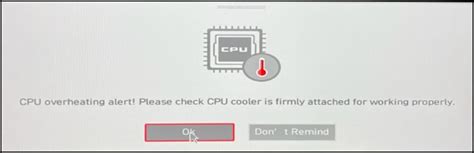
- Monitor Temperatures: Overheating GPUs can throttle performance. Ensure proper cooling.
- Upgrade GPU: If your GPU is struggling to meet modern game demands, an upgrade is the most effective solution.
3. RAM (Random Access Memory) Bottleneck
RAM is your PC’s short-term memory, used to store data that the CPU needs to access quickly. Insufficient or slow RAM can cause significant performance hits.
Symptoms:
- Frequent stuttering, especially when loading new areas or assets.
- “Out of Memory” errors.
- Slow loading times for games and applications.
- Windows often using the page file extensively (virtual RAM on your drive).
Fixes:
- Increase RAM: 16GB is the current sweet spot for most gaming PCs. 8GB can be a bottleneck.
- Enable XMP/DOCP: Ensure your RAM is running at its advertised speed in your motherboard’s BIOS/UEFI.
- Dual-Channel Configuration: Always install RAM in matched pairs in the correct slots for dual-channel operation, which significantly boosts performance.
- Close Memory-Hogging Apps: Similar to CPU, close unnecessary background apps.
4. Storage Bottleneck (HDD vs. SSD)
While often overlooked for raw FPS, your storage drive significantly impacts loading times, texture streaming, and overall system responsiveness.
Symptoms:
- Very long game loading screens.
- Texture pop-in (textures loading slowly after entering an area).
- General system sluggishness, especially when launching programs.
Fixes:
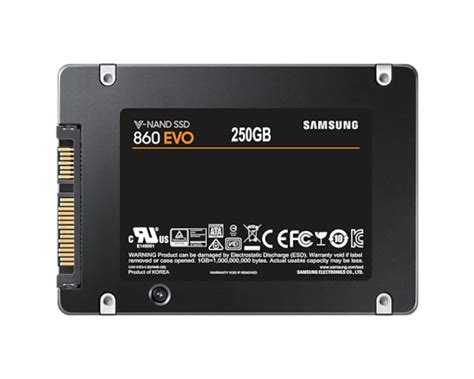
- Upgrade to an SSD: If you’re still using an HDD for your operating system and games, upgrading to an SSD (SATA or NVMe M.2) will provide a massive performance boost.
- Ensure Free Space: Keep at least 15-20% of your drive free for optimal performance and OS operations.
- Defragment (for HDDs only): Periodically defragment HDDs (never SSDs!) to optimize file access.
5. Software and Driver Issues
Even the best hardware can be crippled by bad software or outdated drivers.
Symptoms:
- Random crashes, blue screens of death (BSODs).
- Unexplained low frame rates or stuttering despite good hardware.
- Graphical glitches or artifacts.
Fixes:
- Update All Drivers: Especially GPU drivers, but also chipset, audio, and network drivers.
- Update Operating System: Keep Windows (or Linux) up to date.
- Scan for Malware/Viruses: Malicious software can consume system resources.
- Verify Game Files: Use launchers (Steam, Epic Games) to verify game file integrity.
- Reinstall Problematic Software: If a specific game or application is consistently crashing, try a clean reinstall.

6. Overheating
Excessive heat is a silent killer of performance. Components will “throttle” (intentionally slow down) to prevent damage.
Symptoms:
- Sudden, drastic drops in frame rates after playing for a while.
- System instability, crashes, or automatic shutdowns.
- Loud fan noise.
Fixes:
- Clean Dust: Regularly clean dust from CPU cooler, GPU heatsink, and case fans.
- Improve Airflow: Ensure your case has good intake and exhaust fan configuration.
- Replace Thermal Paste: On older CPUs and GPUs, dried thermal paste can severely hinder heat transfer.
- Upgrade Cooler: If stock coolers aren’t enough, invest in an aftermarket CPU cooler or better case fans.
7. Power Supply Unit (PSU) Issues
An insufficient or failing PSU can lead to instability and underperformance, especially under load.
Symptoms:
- Random system reboots or shutdowns during demanding tasks.
- System fails to boot.
- Components not receiving enough power, leading to erratic behavior.
Fixes:
- Check Wattage: Ensure your PSU has sufficient wattage for all your components, especially your GPU and CPU.
- Verify Connections: Make sure all power cables are securely connected to the motherboard, GPU, and other components.
- Test PSU: If suspected, a PSU tester can help diagnose issues, or try swapping with a known good PSU.
Systematic Troubleshooting: Your Best Approach
When facing performance issues, a systematic approach is key. Start by monitoring your system’s resource usage (CPU, GPU, RAM, disk I/O, temperatures) using tools like MSI Afterburner, HWiNFO, or Task Manager while gaming. This will quickly reveal where the bottleneck lies.
Once you identify the primary bottleneck, work through the relevant fixes one by one, testing after each change. Sometimes, a combination of small tweaks can make a significant difference. Don’t be afraid to experiment with settings, but remember to change one thing at a time to isolate the impact.
Conclusion
A gaming PC underperforming can be disheartening, but it’s rarely a death sentence for your hardware. By understanding the common bottlenecks – from CPU and GPU limitations to RAM, storage, software, and cooling issues – you can effectively diagnose the root cause. With a bit of patience and systematic troubleshooting, you can often restore your rig to its peak performance, ensuring your gaming experience is as smooth and immersive as it should be.


