Avoiding mod conflicts: Best practices for stable, safe game modding?

The Modding Minefield: Understanding Conflicts
Modding can breathe new life into your favorite games, offering endless customization, new content, and improved experiences. However, the path to a perfectly modded game is often fraught with peril, primarily in the form of mod conflicts. These occur when two or more modifications attempt to alter the same game files, scripts, or assets in incompatible ways, leading to crashes, glitches, corrupted saves, or simply preventing mods from working as intended.
Understanding the root causes of conflicts is the first step towards avoiding them. Often, conflicts arise from simple overlaps where multiple mods touch the same part of the game. Other times, it’s more complex, involving script overrides or conflicting resource paths. Regardless of the cause, proactive measures and a methodical approach are key to maintaining a stable and enjoyable modded experience.
Foundation First: Tools and Preparation
Before you even download your first mod, establishing a solid foundation is crucial. This begins with installing a reliable mod manager specific to your game (e.g., Mod Organizer 2 for Bethesda games, Vortex, or manual tools for others). A good mod manager isolates your mod installations from your core game directory, making it easier to identify and resolve conflicts, as well as to uninstall mods cleanly without leaving residual files.
Equally important is reading mod descriptions thoroughly. Many mod authors explicitly state known incompatibilities, required patches, or specific load order instructions. Ignoring these vital pieces of information is a surefire way to invite instability. Always check for prerequisites and recommended companion mods.

The Art of Installation and Load Order
Once you’ve chosen your mods, install them methodically. Avoid mass-installing dozens of mods at once; instead, install a few at a time and test thoroughly. This incremental approach allows you to pinpoint exactly which mod is causing an issue if one arises. Pay close attention to any prompts from your mod manager regarding file overwrites, as these are often indicators of potential conflicts.
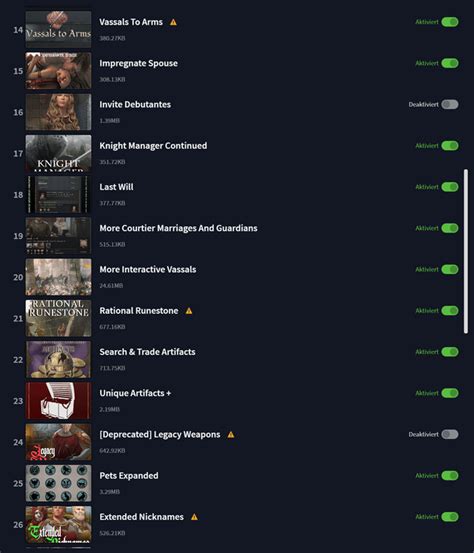
Load order is paramount. The order in which your mods load can dictate which mod ‘wins’ in a conflict, meaning its changes are applied over another’s. Mod managers often provide tools for sorting load order, sometimes even with built-in rules or community-sourced master lists. For more complex setups, tools like LOOT (Load Order Optimization Tool) can provide an excellent starting point, though manual adjustments based on mod descriptions and personal preference may still be necessary.
Testing, Troubleshooting, and Recovery
Regular testing is not optional; it’s fundamental. After installing a batch of mods or making significant changes to your load order, launch the game and play for a while. Test different areas, features, and quests that your new mods might affect. Keep an eye out for visual glitches, crashes, or unexpected behavior.
If you encounter issues, don’t panic. Revert your changes one by one or disable recently added mods to isolate the problem. Tools like xEdit (TES5Edit/FO4Edit) can be invaluable for advanced users to directly examine conflicting records and create custom patches. Most importantly, always back up your game saves and, ideally, your entire game directory before embarking on a modding spree. This provides a safety net, allowing you to quickly revert to a stable state if something goes wrong.
Community and Ongoing Maintenance
The modding community is a vast resource. Forums, Discord servers, and modding wikis dedicated to specific games are filled with experienced users who can offer guidance and solutions. Don’t hesitate to search for common issues or ask for help, always providing clear details about your setup and the problem you’re facing.
Finally, remember that modding is an ongoing process. Game updates can break mods, and mod authors frequently release new versions or patches. Regularly check for updates to your installed mods and be prepared to adjust your setup accordingly. Sometimes, a completely clean reinstallation of the game and mods is the best way to resolve deep-seated issues that have accumulated over time.

Conclusion: A Stable, Safe Modding Journey
Avoiding mod conflicts isn’t about magical solutions; it’s about disciplined practices. By understanding how conflicts arise, utilizing proper tools, meticulously managing your load order, and consistently testing your setup, you can dramatically improve the stability and safety of your modded game. Embrace the process, be patient, and soon you’ll be enjoying a highly customized, crash-free gaming experience that truly reflects your vision.