How to fix severe FPS drops in PC games after a GPU driver update or system patch?
Understanding the Cause of Post-Update FPS Drops
Few things are as frustrating for a PC gamer as experiencing smooth gameplay one day, only for it to be crippled by severe FPS (Frames Per Second) drops after a seemingly innocuous GPU driver update or system patch. While these updates are designed to improve performance, add features, and fix bugs, they can sometimes introduce unforeseen conflicts or regressions that negatively impact gaming performance.
The culprit can range from corrupted driver installations and conflicting software to changes in operating system behavior or even subtle hardware misconfigurations. Pinpointing the exact cause requires a systematic approach to troubleshooting. This guide will walk you through common solutions, from the simplest checks to more advanced fixes, to help you reclaim your smooth gaming experience.
Step 1: Initial Checks & Basic Solutions
Restart Your PC
It sounds simple, but a fresh reboot can often resolve temporary software glitches or memory issues that might be causing performance dips. Always start here.
Check Game Settings
Sometimes updates can reset game settings or introduce new graphics options that are more demanding. Verify your in-game graphics settings haven’t been drastically altered to unreasonably high levels for your hardware.
Monitor Temperatures
Overheating components (CPU or GPU) will throttle their performance to prevent damage, leading to significant FPS drops. Use monitoring software like HWMonitor, MSI Afterburner, or NZXT CAM to check your CPU and GPU temperatures while gaming. If temperatures are consistently high (e.g., GPU above 85°C, CPU above 90°C), address cooling issues (clean fans, reapply thermal paste).
Verify Game Files
Corrupted game files can also cause performance issues. Most game launchers (Steam, Epic Games Store, Battle.net) have a built-in feature to verify the integrity of game files, which will download and replace any damaged data.
Step 2: Addressing GPU Driver Issues
GPU drivers are the most common source of post-update FPS drops. It’s crucial to manage them correctly.
Perform a Clean Reinstallation of GPU Drivers
A standard driver update can sometimes leave behind remnants of old drivers or encounter issues during installation. A clean installation is often the most effective solution:
- Download the latest stable drivers: Visit the official website of your GPU manufacturer (NVIDIA, AMD, Intel) and download the latest WHQL-certified drivers for your specific graphics card model.
- Use DDU (Display Driver Uninstaller): Download and run DDU in Windows Safe Mode. This tool thoroughly removes all traces of previous GPU drivers.
- Install the new drivers: Reboot your PC into normal mode and install the drivers you downloaded. Choose the “Custom” or “Clean Installation” option if available in the installer.
Roll Back Your GPU Drivers
If the latest drivers are indeed the problem, rolling back to a previously working version is a quick fix:
- Press
Windows Key + Xand select ‘Device Manager’. - Expand ‘Display adapters’, right-click on your GPU, and select ‘Properties’.
- Go to the ‘Driver’ tab and click ‘Roll Back Driver’ if the option is available. Follow the on-screen instructions.
If the ‘Roll Back Driver’ option is grayed out, you’ll need to manually download an older, known-stable driver version from your GPU manufacturer’s website and perform a clean installation using DDU as described above.
Step 3: Investigating System Patch & Software Conflicts
Windows updates or other software can sometimes interfere with game performance.
Roll Back Recent Windows Updates
If the issue started immediately after a Windows update, consider rolling it back:
- Go to
Settings > Update & Security > Windows Update. - Click ‘View update history’, then ‘Uninstall updates’.
- Find the problematic update, right-click it, and choose ‘Uninstall’.
Be cautious, as rolling back critical security updates might leave your system vulnerable.
Check Power Settings
Ensure your Windows power plan is set to ‘High performance’ or ‘Ultimate Performance’ (if available). Even on laptops, some power-saving features can limit GPU performance. Navigate to Control Panel > Hardware and Sound > Power Options.
Disable Game Bar and Game Mode
While intended to improve gaming, Windows Game Bar and Game Mode can sometimes cause conflicts. Try disabling them via Settings > Gaming.
Identify Background Applications
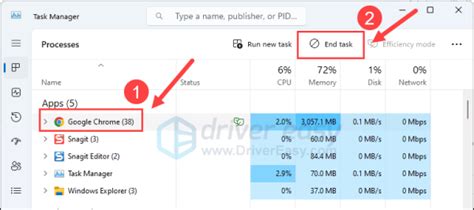
Heavy background applications, especially those that overlay or capture gameplay (like Discord overlays, GeForce Experience overlay, or other recording software), can consume resources. Disable unnecessary background programs via Task Manager (Ctrl+Shift+Esc).
Update Chipset Drivers
While less common, outdated chipset drivers can sometimes impact overall system stability and communication between components. Visit your motherboard manufacturer’s website to download and install the latest chipset drivers.

Step 4: Advanced Troubleshooting and Hardware Considerations
Check for BIOS/UEFI Updates
A new BIOS/UEFI version might offer compatibility improvements or performance fixes, especially if your hardware is relatively new or if the system patch was substantial. Consult your motherboard manual and manufacturer’s website for instructions – proceed with caution as a failed BIOS update can brick your motherboard.
Reinstall the Game
As a last resort for specific games, a complete reinstallation might resolve deeply ingrained file corruption or conflicts that verification tools miss.
Scan for Malware
Malware can secretly consume system resources, leading to performance drops. Run a full scan with a reputable antivirus program.
Check for Resource Hogs with Task Manager
During gameplay, use Task Manager (Ctrl+Shift+Esc) to monitor CPU, GPU, and RAM usage. See if any process is unusually high, indicating a problem.
Conclusion
Experiencing severe FPS drops after an update is a frustrating but often fixable problem. By systematically working through the steps outlined in this guide—starting with basic checks, moving to driver-specific solutions, and then addressing potential system and software conflicts—you significantly increase your chances of identifying and resolving the root cause. Remember to test your games after each potential fix to pinpoint what worked. Patience and methodical troubleshooting are key to restoring your PC’s optimal gaming performance.