





Best GPU settings for maximum FPS in competitive games?

Unlocking Peak Performance: Optimizing Your GPU for Competitive Gaming
In the high-stakes world of competitive gaming, every frame per second (FPS) counts. A higher frame rate translates to smoother gameplay, reduced input lag, and a significant edge over opponents. While a powerful GPU is the foundation, correctly configuring its settings is paramount to squeezing out every last frame. This guide will walk you through the essential GPU optimizations, covering both global driver settings and in-game adjustments, to ensure you’re performing at your absolute best.
The Foundation: Driver Updates and Software Management
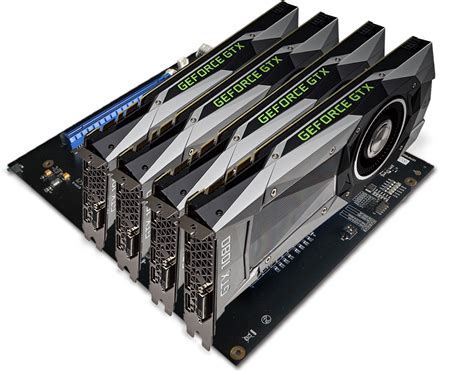
Before diving into specific settings, ensure your graphics drivers are up to date. Both NVIDIA and AMD frequently release driver updates that include performance optimizations for new games and general stability improvements. Always download the latest stable drivers directly from the manufacturer’s website.
NVIDIA Control Panel (Global Settings)
- Power Management Mode: Set this to ‘Prefer maximum performance’. This ensures your GPU consistently operates at its highest clock speeds, preventing throttling.
- Low Latency Mode: Experiment with ‘On’ or ‘Ultra’. This setting aims to reduce input lag by submitting frames to the GPU just-in-time, especially beneficial for CPU-bound scenarios.
- Texture Filtering – Quality: Set to ‘High performance’. This prioritizes frame rate over subtle texture detail.
- Vertical Sync: Always set to ‘Off’. V-Sync can introduce input lag and cap your FPS to your monitor’s refresh rate, which is counterproductive in competitive play where you want frames beyond that.
- Threaded Optimization: Set to ‘On’ for multi-core CPUs.
AMD Radeon Software (Global Settings)
- Radeon Anti-Lag: Enable this feature. Similar to NVIDIA’s Low Latency Mode, it helps reduce input lag by dynamically adjusting CPU work to keep pace with the GPU.
- Radeon Chill: Ensure this is ‘Disabled’. Radeon Chill is designed to save power and reduce heat by capping FPS when you’re less active, which is not what you want for maximum performance.
- Image Sharpening: Keep this ‘Disabled’ or adjust to your preference. While it can make images appear clearer, it’s a post-processing effect that can subtly impact performance.
- Texture Filtering Quality: Set to ‘Performance’.
- Wait for Vertical Refresh: Set to ‘Always Off’.
In-Game Settings: The Final Frontier
Even with optimized global settings, individual game settings have the most significant impact on FPS. Prioritize the following settings for maximum performance, often at the cost of some visual fidelity:
- Resolution: Always play at your monitor’s native resolution. Downscaling can make the image blurry and offers diminishing returns.
- Texture Quality: Lower this to ‘Medium’ or ‘Low’. High-resolution textures consume significant VRAM and can heavily impact performance.
- Shadows: Set to ‘Low’ or ‘Off’. Shadows are notoriously resource-intensive and offer little competitive advantage.
- Anti-Aliasing (AA): Set to ‘Off’ or the lowest possible setting (e.g., FXAA, SMAA). While AA smooths jagged edges, it’s a major performance drain.
- Post-Processing Effects: Disable or set to ‘Low’. This includes effects like Bloom, Depth of Field, Motion Blur, and Lens Flare, all of which consume resources and can obscure vision.
- V-Sync / G-Sync / FreeSync: Always disable V-Sync within the game. If you have a G-Sync or FreeSync monitor, ensure it’s properly configured and enabled at the driver level, not in-game, to avoid tearing without the input lag of traditional V-Sync.
- View Distance / Draw Distance: Adjust to ‘Medium’. While important for seeing enemies, excessively high settings can strain your GPU.
- Volumetric Lighting / God Rays: Disable or set to ‘Low’. These atmospheric effects are beautiful but extremely demanding.
Testing and Fine-Tuning
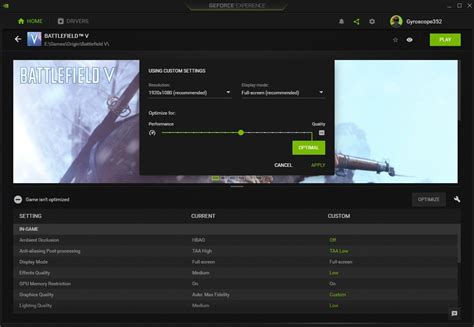
After adjusting your settings, it’s crucial to test them in a real game environment. Use in-game FPS counters or external tools like MSI Afterburner to monitor your frame rate. Make incremental changes, testing after each adjustment, to find the sweet spot between performance and visual quality that you’re comfortable with. Remember, different games will respond differently to various settings, so be prepared to optimize on a per-game basis.
Conclusion
Optimizing your GPU settings for maximum FPS in competitive games is an ongoing process of tweaking and testing. By meticulously adjusting your global driver settings and making smart choices with in-game graphics options, you can significantly boost your frame rate, reduce input lag, and ultimately enhance your competitive edge. Prioritize performance above all else, and you’ll be well on your way to dominating the leaderboard.


