





How to boost FPS in new AAA games without a GPU upgrade?
Unlock Higher FPS: No GPU Upgrade Needed
The latest AAA games push hardware to its limits, often leading to a dilemma: upgrade your graphics card or settle for lower frame rates. However, before you open your wallet, there are numerous powerful optimization techniques you can employ to squeeze more performance out of your current setup. This guide will walk you through actionable steps to boost your FPS without investing in new GPU hardware.
1. Master Your In-Game Graphics Settings
The most direct way to influence your frame rate is through a game’s own graphics settings. Understanding which settings impact performance the most is key:
- Resolution: This is often the biggest FPS killer. If running native resolution is too demanding, consider lowering it or using resolution scaling features (e.g., FSR, DLSS if supported by your GPU, or simply a lower render scale).
- Shadows: Shadows are notoriously performance-intensive. Reducing shadow quality, distance, or even disabling them entirely can yield significant gains.
- Anti-Aliasing: While crucial for smooth edges, higher anti-aliasing settings (like MSAA) can be very demanding. Experiment with TAA or FXAA, or even turn it off if you can tolerate a bit of jagginess.
- Reflections & Volumetric Effects: Realistic reflections and complex volumetric lighting (fog, smoke) consume considerable GPU resources. Lowering these settings can free up a lot of power.
- Texture Quality: This primarily affects VRAM usage. If you have a GPU with limited VRAM, lowering texture quality can prevent stuttering, but usually has less direct impact on pure FPS unless VRAM is maxed out.
- Draw Distance / Level of Detail (LOD): Reducing the distance at which objects and details render can improve performance, especially in open-world games.

2. Keep Your Drivers & OS Up-to-Date
Outdated drivers are a common bottleneck for gaming performance. Graphics card manufacturers (NVIDIA, AMD) frequently release game-ready drivers that include optimizations for new titles, often providing substantial FPS improvements. Always download these directly from the official manufacturer’s website.
Beyond GPU drivers, ensure your motherboard’s chipset drivers are current. These drivers manage communication between your CPU, RAM, and other components, and updates can sometimes improve overall system efficiency. Additionally, a fully updated operating system (Windows) often includes performance enhancements and bug fixes that can indirectly benefit gaming.
3. Optimize Your Operating System Settings
Your operating system’s configuration can significantly impact gaming performance:
- Windows Game Mode: Enable Windows Game Mode (Settings > Gaming > Game Mode) as it optimizes your PC for gaming by prioritizing game processes and suspending background tasks.
- Power Plan: Set your power plan to “High Performance” (or “Ultimate Performance” if available) through the Control Panel > Hardware and Sound > Power Options. This ensures your CPU and other components are running at their maximum clock speeds.
- Disable Background Apps: Close any unnecessary applications running in the background while gaming. Browsers, chat clients, and other software can consume CPU, RAM, and even GPU resources.
- Startup Programs: Reduce the number of programs that launch with Windows. Use Task Manager (Ctrl+Shift+Esc > Startup tab) to disable non-essential startup items.
4. Maximize Your Existing Hardware Efficiency
Even without upgrading your GPU, other components play a critical role:
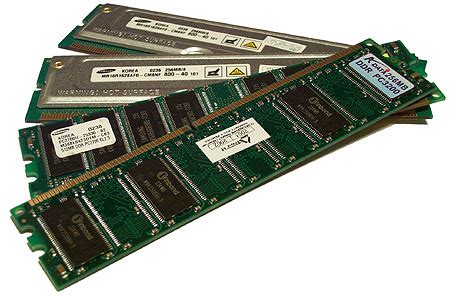
- RAM: Ensure you have sufficient RAM (16GB is ideal for most AAA titles). Also, check if your RAM is running at its advertised speed (e.g., 3200MHz) by enabling XMP (Extreme Memory Profile) or DOCP in your BIOS. Faster RAM can provide a noticeable FPS boost, especially for Ryzen CPUs.
- CPU: While you’re not upgrading, ensure your CPU isn’t throttling due to overheating. Monitor temperatures and consider reapplying thermal paste or improving case airflow if necessary. A cool CPU performs better.
- Storage: Install your games on an SSD (Solid State Drive) rather than an HDD (Hard Disk Drive). While it doesn’t directly increase FPS, it drastically reduces loading times and can prevent stuttering from texture streaming in large open-world games.
5. Consider CPU and RAM Overclocking (With Caution)
If you have a compatible CPU (usually K-series Intel or any AMD Ryzen) and motherboard, carefully overclocking your CPU can provide a measurable performance boost. Similarly, tightening RAM timings or increasing its frequency can also yield gains. However, this comes with risks:
- Stability: Overclocking can lead to system instability if not done correctly.
- Heat: Increased voltage and clock speeds generate more heat, requiring adequate cooling.
- Voiding Warranty: Some manufacturers may void warranties if components are damaged due to overclocking.
Always research thoroughly and proceed with caution if you decide to explore overclocking.
6. Maintain a Clean System
A physically and digitally clean system performs better:
- Dust Cleanup: Over time, dust accumulates inside your PC, clogging fans and heatsinks, leading to higher temperatures and thermal throttling. Regularly clean your PC’s interior with compressed air. Pay special attention to your CPU cooler and case fans.
- Disk Cleanup: Regularly run Windows’ built-in Disk Cleanup tool to remove temporary files and other junk data. For HDDs, occasional defragmentation can also help, though it’s unnecessary for SSDs.
- Malware Scan: Ensure your system is free of viruses and malware, which can consume system resources in the background.

Conclusion
Boosting your FPS in new AAA games without a GPU upgrade is entirely possible with a combination of smart in-game settings adjustments, diligent driver management, operating system optimization, and efficient use of your existing hardware. By systematically going through these steps, you can significantly improve your gaming experience and postpone that expensive GPU upgrade, allowing you to enjoy the latest titles with smoother frame rates.


