My gaming PC overheats. What are quick fixes for better airflow and cooling?
Understanding and Tackling PC Overheating
An overheating gaming PC isn’t just a nuisance; it can lead to performance throttling, system instability, and even long-term damage to components. When your PC gets too hot, especially during intense gaming sessions, it’s a clear signal that its cooling system isn’t keeping up. Fortunately, many common overheating issues can be addressed with quick, actionable fixes focused on improving airflow and cooling efficiency.
The First Line of Defense: Dust Removal
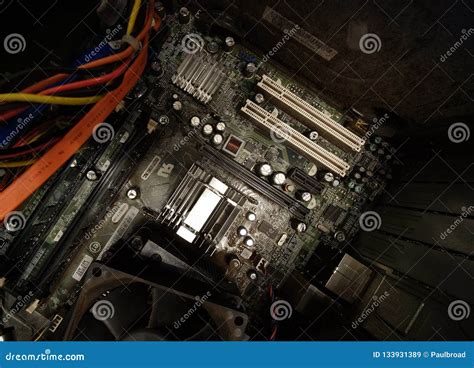
Dust is the silent killer of PC performance and cooling. Over time, it accumulates on fans, heatsinks, and vents, acting as an insulating layer that traps heat. This significantly impedes heat dissipation. A thorough cleaning is often the most effective and easiest first step.
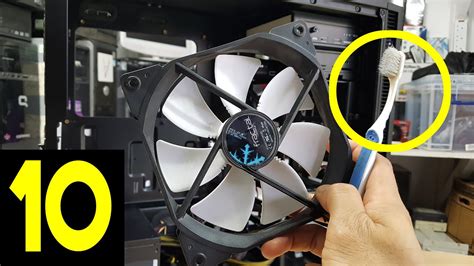
- Compressed Air: Use short bursts of compressed air to clear dust from all fans (CPU cooler, GPU, case fans, PSU fan). Hold the fan blades in place to prevent over-spinning and potential damage.
- Heatsinks: Pay special attention to the fins of your CPU cooler and GPU heatsink, as these are critical for heat transfer.
- Vents and Filters: Clean any dust filters on your case and ensure all intake and exhaust vents are clear.
Optimize Cable Management for Unobstructed Airflow
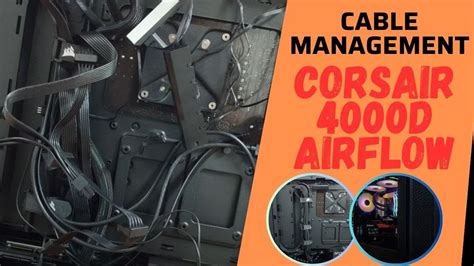
Messy cables inside your PC case can create significant airflow blockages, preventing cool air from reaching components and hot air from escaping efficiently. Spending a little time on cable management can yield surprisingly good results.
- Route Cables Behind the Motherboard Tray: Most modern cases offer channels and tie-down points behind the motherboard tray for routing power and data cables.
- Use Cable Ties: Bundle cables neatly together and secure them with zip ties or Velcro straps to keep them out of the main airflow path.
- Minimize Obstructions: Ensure that no cables are directly blocking fan intakes or exhaust points.
Evaluate and Adjust Fan Configuration
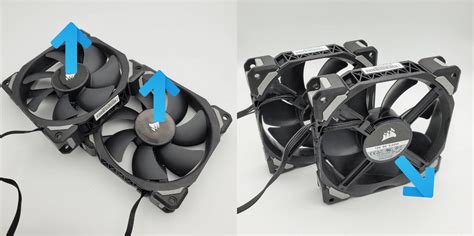
The direction and speed of your case fans play a crucial role in creating effective airflow. You want to establish a clear path for air to enter, circulate, and exit your case.
- Intake vs. Exhaust: Generally, you want more intake fans (pulling cool air in, typically from the front or bottom) than exhaust fans (pushing hot air out, typically from the top or rear). A slightly positive pressure helps prevent dust buildup.
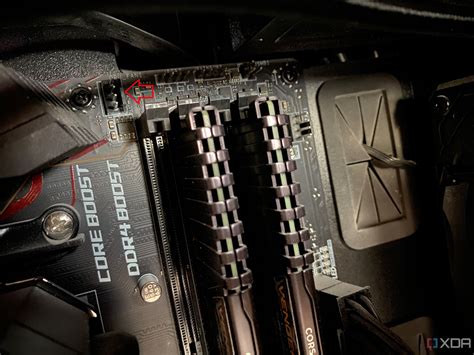
- Check Fan Speeds: Access your motherboard’s BIOS/UEFI settings or use software like FanControl, MSI Afterburner (for GPU fans), or your motherboard’s utility to ensure fans are running at appropriate speeds. Don’t be afraid to increase speeds if temperatures are high, though this will increase noise.
- Direction: Ensure all fans are oriented correctly. Most fans have an arrow indicating airflow direction on their side.
Improve Your PC’s Environment and Placement
Sometimes, the problem isn’t inside your PC, but around it. Where your computer sits and the ambient temperature of your room can significantly impact its cooling performance.
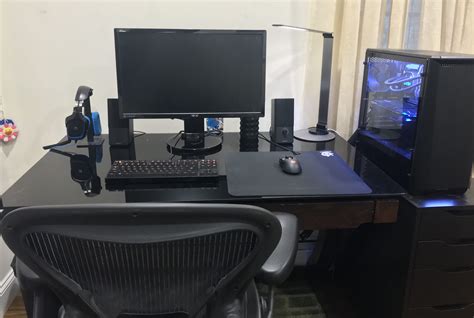
- Keep it Off the Carpet: If your PC is on the floor, especially on carpet, it can restrict the airflow to bottom-mounted power supplies or intake fans. Place it on a hard surface or a small stand.
- Away From Walls: Ensure there’s ample space (at least a few inches) behind and around your PC for hot air to exhaust and cool air to intake freely.
- Room Temperature: A cooler room means cooler intake air. If possible, lower your room’s ambient temperature or use a room fan to direct cool air towards your PC’s intake.
Monitor Temperatures and Plan Ahead
While these are quick fixes, it’s essential to verify their effectiveness. Use monitoring software to keep an eye on your CPU and GPU temperatures before and after implementing these changes. Tools like HWMonitor, MSI Afterburner, or NZXT CAM can provide real-time data.
If these quick fixes don’t sufficiently resolve your overheating issues, it might be time to consider more involved solutions such as reapplying thermal paste, upgrading your CPU cooler, adding more case fans, or even investing in a case with better airflow design.