





How to diagnose & fix low FPS issues in my gaming PC?
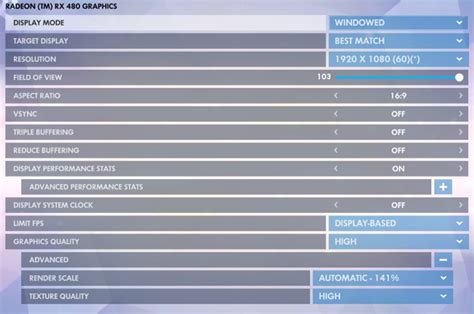
Experiencing stuttering, lag, or generally poor performance in your favorite PC games can be incredibly frustrating. Low Frame Per Second (FPS) not only ruins the immersive experience but can also put you at a competitive disadvantage. Fortunately, most low FPS issues can be diagnosed and fixed with a methodical approach. This guide will walk you through the essential steps to identify the root cause and restore your gaming PC’s performance.
Understanding Low FPS and Its Causes
FPS, or Frames Per Second, is a measure of how many frames your graphics card renders and displays on your monitor each second. A higher FPS generally translates to a smoother, more responsive gaming experience. Anything below 30 FPS is often considered unplayable for fast-paced games, while 60 FPS and above is the sweet spot for many gamers. Common culprits for low FPS include outdated drivers, overheating components, insufficient hardware, background processes, and incorrect in-game or system settings.

Initial Diagnostic Steps
Monitor Your FPS
Before you can fix a problem, you need to confirm it exists and understand its severity. Many games have built-in FPS counters (often accessible via F3, F11, or in settings). Alternatively, use third-party tools like MSI Afterburner, NVIDIA’s GeForce Experience overlay, or AMD’s Radeon Software to monitor FPS, GPU usage, CPU usage, and temperatures while gaming. This data is crucial for pinpointing bottlenecks.
Update Your Drivers
Outdated or corrupted graphics drivers are one of the most frequent causes of performance issues. Always ensure your graphics card drivers (NVIDIA GeForce, AMD Radeon) are up to date. Visit the manufacturer’s official website or use their respective software (GeForce Experience, AMD Adrenalin Software) to download and install the latest versions. Don’t forget to update your motherboard chipset drivers as well, as these can impact system communication and overall stability.

Hardware-Related Solutions
Check for Overheating
Thermal throttling occurs when your CPU or GPU gets too hot and automatically reduces its clock speed to prevent damage, leading to a significant drop in FPS. Use monitoring software (like HWMonitor or MSI Afterburner) to check component temperatures during gaming. If temperatures are consistently high (e.g., above 85°C for GPU or CPU), consider:
- Cleaning dust from fans and heatsinks using compressed air.
- Replacing thermal paste on your CPU and/or GPU.
- Improving case airflow with additional fans or better cable management.
- Upgrading to a more effective CPU cooler or a liquid cooling solution.
Assess Your Hardware
Sometimes, your hardware simply isn’t powerful enough to run modern games at your desired settings and resolution. Compare your PC’s specifications (CPU, GPU, RAM) against the game’s recommended system requirements. If your components are significantly below recommended specs, an upgrade may be necessary. The GPU is typically the most critical component for gaming performance, followed by the CPU and sufficient RAM (16GB is generally recommended for modern gaming).

Software & Settings Optimization
Adjust In-Game Settings
This is often the quickest way to gain FPS. Experiment with graphics settings within the game. Start by lowering demanding options like:
- Resolution: Lowering from 4K to 1440p or 1080p will yield significant FPS gains.
- Texture Quality: Impacts VRAM usage; lower if you have less VRAM.
- Shadows: Often very resource-intensive.
- Anti-Aliasing: Can be a major performance hog.
- View Distance/Draw Distance: Reduces the detail of distant objects.
- Post-processing Effects: (e.g., Motion Blur, Depth of Field, Ambient Occlusion) can be demanding.
Look for guides specific to the game you’re playing, as some settings have a disproportionately large impact on performance.
Optimize Operating System & Background Processes
Ensure Windows is optimized for gaming:
- Set your power plan to “High Performance.”
- Disable unnecessary startup programs via Task Manager.
- Close background applications (browsers, streaming services, other games) while gaming.
- Run a disk cleanup and defragment (for HDDs) or optimize (for SSDs).
- Check for and remove any malware or viruses that might be consuming resources.

Graphics Control Panel Settings
NVIDIA Control Panel and AMD Radeon Software offer global and per-game settings that can impact performance. Ensure “Prefer maximum performance” is selected for power management, and experiment with settings like V-Sync, Anisotropic Filtering, and Texture Filtering Quality. Sometimes, resetting these to default or using application-controlled settings can resolve conflicts.
Advanced Troubleshooting and Considerations
BIOS/UEFI Settings
Check your BIOS/UEFI settings. Ensure XMP (Extreme Memory Profile) or DOCP is enabled for your RAM to run at its advertised speeds. Also, confirm your PCIe slot is configured to run at the correct generation (e.g., PCIe 4.0 if your GPU and motherboard support it) and full bandwidth (e.g., x16).
Reinstalling Games or Windows
If a specific game is consistently performing poorly despite all other troubleshooting, a clean reinstallation of the game might resolve corrupted files. As a last resort, a clean install of Windows can eliminate deep-seated software conflicts or driver issues, effectively giving your system a fresh start.

Conclusion
Tackling low FPS issues requires patience and a systematic approach. By methodically checking drivers, monitoring temperatures, optimizing settings, and identifying potential hardware bottlenecks, you can significantly improve your gaming experience. Remember to test changes one by one to isolate the impact of each adjustment. Happy gaming!


