





How to optimize Windows 10/11 for maximum gaming FPS?
Unlock Peak Gaming Performance in Windows 10/11
Achieving the highest possible frames per second (FPS) is crucial for a smooth and competitive gaming experience. While hardware plays a significant role, your operating system’s configuration can either bottleneck or unleash your PC’s true gaming potential. This guide will walk you through a series of actionable steps to optimize Windows 10 and 11, ensuring your games run as smoothly and efficiently as possible.
By tweaking a few key settings, managing background processes, and ensuring your drivers are up to date, you can often gain a noticeable performance boost without spending a dime on new components.
1. Adjust Power Settings for Maximum Performance
Windows typically defaults to a balanced power plan, which conserves energy but can limit your CPU and GPU’s maximum potential. Switching to a high-performance plan is one of the quickest ways to see a difference.
Enable High Performance Power Plan:
- Go to Control Panel > Hardware and Sound > Power Options.
- Select High Performance. If you don’t see it, click Show additional plans.
- For even more granular control, click Change plan settings next to High Performance, then Change advanced power settings. Ensure settings like ‘Processor power management’ are set for maximum performance.
2. Optimize Windows Game Mode and Graphics Settings
Windows 10 and 11 include dedicated features designed to improve gaming performance.
Activate Game Mode:
- Open Settings > Gaming > Game Mode.
- Ensure Game Mode is set to On. This helps prioritize your game’s processes and resources.
Configure Graphics Settings:
- In Settings > Gaming > Graphics.
- Enable Hardware-accelerated GPU scheduling (if your hardware supports it). This can reduce latency and improve performance.
- Below this option, you can add specific games to set high-performance preferences. Click Browse, select your game’s executable, then click Options and choose High performance.
3. Minimize Background Processes and Startup Programs
Unnecessary applications running in the background can consume valuable CPU, RAM, and GPU resources, negatively impacting your FPS.
Disable Startup Programs:
- Press Ctrl + Shift + Esc to open Task Manager.
- Go to the Startup tab.
- Review the list and disable any programs you don’t need to launch with Windows by right-clicking them and selecting Disable. Focus on non-essential apps.
Manage Background Apps:
- (Windows 10) Go to Settings > Privacy > Background apps. Turn off apps you don’t need running in the background.
- (Windows 11) Background app control is more integrated. For specific apps, go to Settings > Apps > Apps & features, click the three dots next to an app, choose Advanced options, and adjust ‘Let this app run in background’ to ‘Never’ for non-essential apps.

4. Update Graphics Drivers and Windows
Outdated drivers are a common cause of poor gaming performance and stability issues. Always ensure your graphics drivers are current.
Update Graphics Drivers:
- Visit the official website for your GPU manufacturer (NVIDIA, AMD, or Intel).
- Download and install the latest stable drivers for your specific graphics card. A clean installation is often recommended to remove old driver files.
Keep Windows Updated:
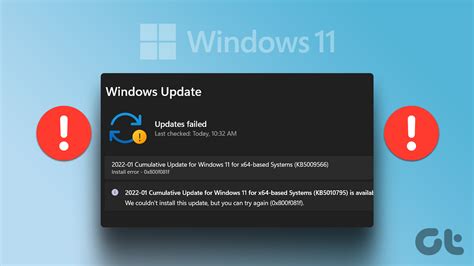
- Go to Settings > Windows Update.
- Check for and install any available updates. Microsoft often releases performance improvements and bug fixes that can benefit gaming.
5. Tweak Visual Effects and Notifications
Reducing visual clutter and distractions can free up system resources.
Adjust Visual Effects for Performance:
- Search for “Adjust the appearance and performance of Windows” in the Start Menu and open it.
- In the Visual Effects tab, select Adjust for best performance, then click Apply. You can then selectively re-enable a few effects if desired (e.g., “Smooth edges of screen fonts”).
Disable Notifications and Focus Assist:
- Go to Settings > System > Notifications. Turn off unnecessary notifications.
- Activate Focus Assist (or Quiet Hours in Windows 10) or configure it to turn on automatically when playing games. This suppresses notifications during gameplay.
Conclusion
By systematically applying these optimization techniques, you should experience a noticeable improvement in your gaming FPS and overall system responsiveness. Remember that the impact of each tweak can vary depending on your specific hardware and the games you play. Regularly review these settings, especially after major Windows updates or driver installations, to maintain peak performance. Happy gaming!


