





How to lower GPU temps for stable gaming performance?

A graphics processing unit (GPU) running too hot can lead to frustrating performance drops, system instability, and even shorten the lifespan of your valuable hardware. Maintaining optimal GPU temperatures is paramount for stable gaming performance, ensuring your frames per second remain high and consistent, even during the most demanding titles. Fortunately, there are several effective strategies you can employ to bring those temperatures down.
Understanding GPU Overheating and Its Impact
Your GPU generates a significant amount of heat during operation, especially when under heavy load from gaming. When this heat isn’t effectively dissipated, the GPU’s internal temperature rises. To prevent damage, the GPU’s firmware will automatically reduce its clock speed (a process known as thermal throttling), leading to a noticeable drop in gaming performance and frame rates. In severe cases, it can cause crashes or system freezes.

1. Optimize Your PC Case Airflow
The most fundamental aspect of PC cooling is proper airflow. Your case needs to efficiently pull in cool air and expel hot air. Here’s how to improve it:
- Fan Configuration: Generally, you want more intake fans than exhaust fans to create positive air pressure, which helps keep dust out. A common setup is front intake, rear exhaust, and top exhaust.
- Cable Management: Untidy cables obstruct airflow, creating dead zones where hot air can accumulate. Spend time routing cables neatly behind the motherboard tray or out of the direct path of air.
- Clean Dust Filters: Ensure your case’s dust filters are clean to allow maximum airflow.
2. Regular Cleaning and Maintenance
Dust is the nemesis of PC cooling. Over time, dust accumulates on fan blades, heatsinks, and vents, acting as an insulating layer that traps heat. It also impedes fan efficiency.
- Clean Your GPU: Carefully open your PC case and use compressed air to blast dust out of your GPU’s heatsink fins and fans. Hold the fan blades in place while spraying to prevent over-spinning and damage.
- Clean Case Fans: Do the same for all your case fans.
- Full PC Dusting: Give your entire PC a thorough dusting, including CPU coolers and power supply vents.

3. Adjust GPU Fan Curves
Most modern GPUs allow you to customize their fan speeds based on temperature using software like MSI Afterburner, EVGA Precision X1, or your GPU manufacturer’s utility. By default, fan curves might be set conservatively for noise reduction. You can create a more aggressive curve to spin the fans faster at lower temperatures, effectively lowering peak temperatures at the cost of slightly increased noise.

4. Consider Undervolting Your GPU
Undervolting involves reducing the voltage supplied to your GPU while maintaining or slightly adjusting its clock speed. Lower voltage means less power consumption and, consequently, less heat generated, often with minimal to no performance loss. This is an advanced technique and requires careful testing to ensure stability, but it can be highly effective for temperature reduction.
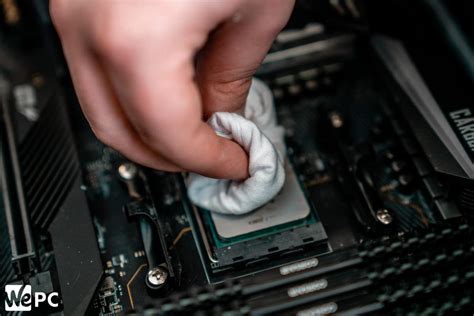
5. Replace Thermal Paste on Your GPU
Over several years, the thermal paste between your GPU die and its heatsink can dry out and lose effectiveness, impairing heat transfer. If your GPU is old and consistently runs hot despite other efforts, replacing the thermal paste can make a significant difference. This is a more advanced procedure that involves disassembling the GPU cooler, so proceed with caution or seek professional help if you’re uncomfortable.
6. Upgrade Your Cooling Solution
If stock cooling isn’t sufficient, or if you have a blower-style card known for higher temperatures, consider an upgrade:
- Aftermarket Air Coolers: Solutions from brands like Arctic (e.g., Accelero series) can significantly outperform stock coolers, offering larger heatsinks and more efficient fans.
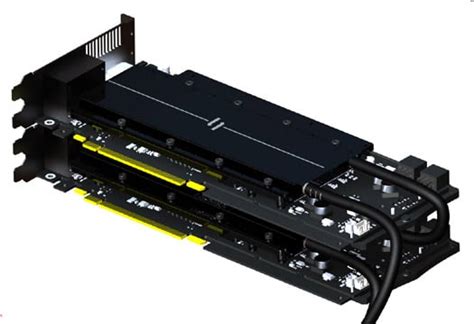
- All-in-One (AIO) Liquid Coolers: Some GPUs support AIO kits, which use a radiator and pump to cool the GPU with liquid, offering superior thermal performance.
- Custom Loop Water Cooling: For enthusiasts, a full custom water cooling loop provides the best thermal performance for both CPU and GPU, though it’s a significant investment and complex to install.
7. Environmental Factors and Room Temperature
Don’t overlook the impact of your room’s ambient temperature. A cooler room naturally helps your PC stay cooler. Ensure your PC isn’t placed in an enclosed space like a cabinet, which can trap heat, and consider air conditioning or improved room ventilation.
Conclusion
Lowering your GPU temperatures is a multi-faceted approach. Start with the simpler steps like optimizing airflow and regular cleaning, then move on to software adjustments like fan curves and undervolting. For older cards or those consistently running hot, considering a thermal paste replacement or even a cooling upgrade can provide significant benefits. By implementing these strategies, you’ll ensure your GPU runs cooler, leading to a more stable, enjoyable, and high-performance gaming experience.


