What are the best GPU settings for maximizing FPS in competitive shooters?

Unleashing Maximum FPS: Why GPU Settings Matter for Competitive Play
In the high-stakes world of competitive first-person shooters, every millisecond counts. Maximizing your Frames Per Second (FPS) isn’t just about smoother visuals; it’s about gaining a tangible competitive advantage. Higher FPS means reduced input lag, more up-to-date visual information, and a more responsive aiming experience. While a powerful GPU is the foundation, correctly configuring its settings can unlock significant performance gains, turning potential bottlenecks into fluid gameplay.
This guide will walk you through the essential GPU settings, both within your graphics driver control panel and in-game, that will help you squeeze every last frame out of your system, ensuring you’re always one step ahead of the competition.
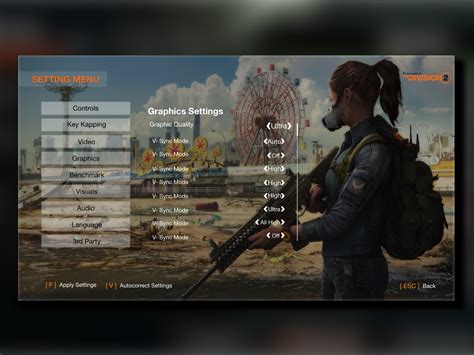
Graphics Driver Control Panel: The Foundation of Performance
Your graphics card’s control panel (NVIDIA Control Panel or AMD Radeon Software) is where you’ll make system-wide adjustments that dictate how your GPU performs across all applications. These settings often override in-game options, making them a critical starting point.
NVIDIA Control Panel Settings:
- Power Management Mode: Prefer Maximum Performance
Ensures your GPU is always running at its highest clock speeds, preventing downclocking during intense moments. - Low Latency Mode: Ultra
Minimizes the render queue, reducing input lag. This is a game-changer for competitive titles. - Texture Filtering – Quality: High Performance
Prioritizes performance over visual fidelity for texture filtering. - Vertical Sync (V-Sync): Off
V-Sync synchronizes your frame rate with your monitor’s refresh rate to prevent screen tearing, but it introduces input lag. For competitive play, always turn it off. If tearing is unbearable, consider an adaptive sync monitor (G-Sync/FreeSync) with V-Sync still off, or cap FPS just below your refresh rate. - Shader Cache Size: Driver Default (or Unlimited)
Allows the driver to store compiled shaders, reducing stuttering in games.
AMD Radeon Software Settings:
- Radeon Anti-Lag: Enabled
Similar to NVIDIA’s Low Latency Mode, this reduces input lag by dynamically adjusting CPU work to keep up with the GPU. - Radeon Chill: Disabled
This feature saves power by limiting FPS; disable it for competitive play. - Image Sharpening: Off (or per-game basis)
While it can make visuals crisper, it can introduce a slight performance hit. Disable it globally and only enable per-game if desired. - Texture Filtering Quality: Performance
Prioritizes frame rate over texture fidelity. - Wait for Vertical Refresh: Always Off
AMD’s equivalent to V-Sync. Turn it off to minimize input lag.
In-Game Settings: Fine-Tuning for Performance
Once your driver settings are optimized, it’s time to dive into the individual game settings. While specific options vary by title, the general principle remains the same: prioritize competitive advantage and FPS over visual flair.
Core Settings to Adjust:
- Resolution: Native Monitor Resolution
Running at your monitor’s native resolution is almost always best for clarity and aiming. Only consider lowering it if your GPU struggles significantly, but be aware of the blurriness it introduces. - Texture Quality: Medium to High
Texture quality primarily affects VRAM usage. If you have 6GB+ VRAM, High is usually fine. If less, opt for Medium. It generally has a low impact on core FPS unless VRAM is saturated. - Shadow Quality: Low or Off
Shadows are notoriously performance-intensive. Setting them to Low or turning them off entirely provides a huge FPS boost and can sometimes even make enemies easier to spot. - Anti-Aliasing (AA): Off, FXAA, or SMAA
AA smooths jagged edges. MSAA is very demanding. TAA (Temporal Anti-Aliasing) often introduces blur and input lag. For competitive play, try turning it off, or use a lightweight solution like FXAA or SMAA if the jaggies are too distracting. - Post-Processing Effects: Low or Off
Effects like motion blur, depth of field, lens flares, and bloom can significantly reduce FPS and often obscure your vision. Turn them off. - Ambient Occlusion: Off
Adds realistic shadows where objects meet, but it’s very demanding. Disable it. - Reflections: Low or Off
Reflections (especially screen-space reflections) are costly. Disable them for maximum performance. - Volumetric Lighting/Fog: Low or Off
These effects can look good but often come at a significant FPS cost and can reduce visibility. - View Distance/Draw Distance: Medium to High
This setting affects how far objects and details are rendered. While often performance-intensive, lowering it too much might put you at a disadvantage by not seeing distant enemies or objects. Aim for a balance, keeping it high enough to spot distant threats.

Operating System & Other Tweaks
Beyond your GPU settings, a few operating system adjustments can further enhance your gaming experience.
- Windows Game Mode: On
Windows Game Mode prioritizes your game’s resources, attempting to reduce background processes and optimize performance. - Hardware-Accelerated GPU Scheduling: On (Windows 10/11)
If supported by your GPU (NVIDIA GTX 10-series or newer, AMD Radeon RX 5000-series or newer), enabling this can sometimes reduce latency and improve performance by allowing the GPU to manage its own VRAM more efficiently. - Close Background Applications:
Ensure no unnecessary applications, browsers, or streaming software are running in the background, consuming CPU, RAM, or network resources. - Monitor Refresh Rate: Set to Max
Always ensure your monitor’s refresh rate is set to its highest available value in Windows Display Settings (e.g., 144Hz, 240Hz).
Conclusion: Test, Adjust, and Conquer
Optimizing your GPU settings for competitive shooters is an ongoing process. Start with the recommended settings, then test them in your favorite games. Pay attention to how changes affect your FPS stability, input lag, and visual clarity. Every system and game is slightly different, so don’t be afraid to experiment and find the sweet spot that gives you the best balance of performance and competitive advantage.
Remember, the goal is not just high FPS, but consistent, stable FPS with minimal input lag. By diligently applying these GPU and system tweaks, you’ll ensure your hardware is performing at its peak, giving you the best possible chance to dominate the leaderboards.