What key settings boost FPS in modern PC games without expensive hardware?

Struggling with low frame rates in your favorite modern PC games? Before you even consider upgrading your graphics card or CPU, there’s a wealth of performance waiting to be unlocked through smart adjustments to your in-game and system settings. Optimizing these can lead to smoother gameplay, more responsive controls, and a much more enjoyable experience, all without spending a single dollar on new components.
Mastering In-Game Graphics Settings
The first place to look for FPS gains is within each game’s graphics options. These settings directly control how visually complex the game renders, and consequently, how much strain it puts on your GPU and CPU. Understanding what each setting does is crucial for making informed decisions.
Resolution and Render Scale
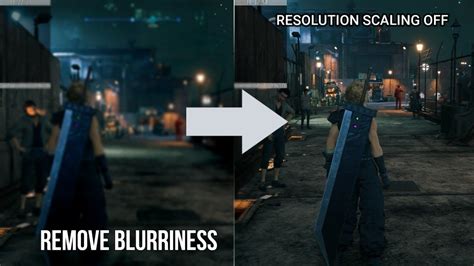
Your screen’s resolution is the single biggest factor affecting performance. Running a game at 1080p (1920×1080) requires far less horsepower than 1440p or 4K. If your FPS is consistently low, try lowering the resolution. Many games also offer a ‘render scale’ or ‘resolution scale’ option, which allows the game to render internally at a lower resolution (e.g., 80% of native) while upscaling it to your monitor’s native resolution. This can offer a significant FPS boost with a tolerable hit to visual clarity.
Texture Quality and Filtering
Texture quality dictates the sharpness and detail of surfaces in the game. Higher settings demand more VRAM (video memory) from your graphics card. If your GPU has limited VRAM (e.g., 4GB or less), lowering texture quality can free up valuable resources without drastically altering the game’s overall look. Texture filtering (Anisotropic Filtering or AF) affects how textures appear at oblique angles. While it has a moderate impact, lowering it slightly can contribute to small gains.
Shadows, Reflections, and Ambient Occlusion
These three settings are notorious performance hogs. Shadows, especially high-resolution, complex shadows, require immense processing power. Reflections (especially ray-traced or screen-space reflections) and Ambient Occlusion (which adds realistic depth by calculating light interaction) also place heavy demands on your GPU. Reducing their quality or even disabling them entirely can yield massive FPS improvements, often for a visual sacrifice that isn’t immediately noticeable during fast-paced gameplay.
Anti-Aliasing (AA)
Anti-aliasing smooths out jagged edges on objects. While it makes visuals much cleaner, some AA methods (like MSAA) are incredibly demanding. TAA (Temporal Anti-Aliasing) is common now and less performance-intensive but can introduce blurriness. If you’re struggling, try disabling AA or switching to a less demanding method like FXAA or SMAA, which have a lower performance cost.

Draw Distance, Clutter, and Environmental Detail
These settings dictate how far into the distance objects, foliage, and other environmental elements are rendered. They heavily impact your CPU, as it needs to process and send data for all these elements to the GPU. Reducing draw distance or the density of environmental clutter can significantly reduce CPU load, especially in open-world games.
System-Level Optimizations for Gaming
Beyond the game’s own settings, your operating system and drivers can also be tweaked for better gaming performance.
Update Your Graphics Drivers
This is perhaps the simplest yet most effective step. NVIDIA, AMD, and Intel regularly release driver updates that include performance optimizations for new game titles and general bug fixes. Always ensure your graphics drivers are up-to-date.
Windows Game Mode and Focus Assist
Windows 10 and 11 offer ‘Game Mode,’ which prioritizes your game’s resources and suppresses background activity. While its impact varies, it’s worth enabling. Similarly, ‘Focus Assist’ (previously ‘Quiet Hours’) can prevent distracting notifications from popping up and potentially hogging resources.
Manage Background Applications
Before launching a demanding game, close any unnecessary background applications. Web browsers with many tabs, streaming services, video editors, or even chat applications can consume valuable CPU, RAM, and network resources that your game could use. Use Task Manager to identify and end processes that aren’t critical.

Power Plan Settings
Ensure your Windows power plan is set to ‘High Performance’ or ‘Ultimate Performance’ if available. This prevents your CPU and other components from throttling down to save power, ensuring they operate at their maximum clock speeds during gaming.
Disk Cleanup and Defragmentation (for HDDs)
While this doesn’t directly boost FPS, a clean and optimized storage drive can improve load times and overall system responsiveness. For older HDDs, defragmentation can help. For SSDs, ensure you have sufficient free space (ideally 15-20% free) for optimal performance, and avoid defragmenting them.
Advanced Tweaks and Considerations
In-Game Overlays and Monitoring
Overlays from Steam, Discord, NVIDIA GeForce Experience, or AMD Radeon Software can sometimes introduce minor performance overhead. If you’re chasing every last frame, consider disabling unnecessary overlays during gameplay.
Custom Game Configuration Files
Some games allow for deeper customization through configuration files (.ini, .cfg). Communities often discover advanced tweaks that aren’t exposed in the in-game settings. Proceed with caution and always back up your original files before making changes.
A Systematic Approach to Optimization
When making changes, adopt a systematic approach: change one setting at a time, test the game’s performance, and then decide if the change was beneficial. Use in-game FPS counters or external tools like MSI Afterburner to monitor your frame rate. This way, you’ll understand which specific settings yield the best results for your unique hardware configuration.
Boosting your FPS doesn’t always require a hefty investment in new hardware. By intelligently adjusting in-game graphics settings and optimizing your operating system, you can unlock significant performance gains, ensuring a smoother, more enjoyable gaming experience. Experiment with these settings, find the balance between visual fidelity and performance that suits you, and reclaim those lost frames!