





How to vet and choose safe, compatible mods to avoid game crashes and community issues?

Modifying games can unlock incredible new experiences, from visual overhauls and new quests to quality-of-life improvements. However, diving into the world of mods without proper vetting can quickly lead to frustrating game crashes, corrupted save files, and even potential security risks. Furthermore, navigating modding communities requires a degree of etiquette to ensure positive interactions. This guide will walk you through the essential steps to choose safe, compatible mods and become a responsible member of the modding community.
Understanding Mod Safety and Compatibility
Before downloading anything, it’s crucial to grasp what makes a mod ‘safe’ and ‘compatible’. A safe mod is free from malicious software, doesn’t introduce severe performance issues, and is built to be stable with the core game. Compatibility, on the other hand, refers to a mod’s ability to work seamlessly with your specific game version, other installed mods, and your system hardware. Ignoring either can lead to game-breaking issues.
Where to Find Mods and Initial Checks
The first step to safe modding is sourcing your mods from reputable platforms. Websites like Nexus Mods, Mod DB, or official game forums are generally reliable. Avoid obscure sites or direct downloads from untrusted sources, which can be vectors for malware.
- Read the Mod Description: Always thoroughly read the mod page. Look for details on what the mod does, its requirements (DLCs, specific game versions), known conflicts with other mods, and any potential performance impacts.
- Check Requirements: Ensure you meet all listed requirements, including specific game versions, DLCs, or other prerequisite mods (like script extenders).
Deep Dive into Mod Vetting
Once you’ve found a mod that interests you, it’s time to dig deeper into its legitimacy and quality:
Community Feedback and Endorsements
The modding community is often your best resource. Check:
- User Reviews and Comments: Pay close attention to the comments section. Are users reporting frequent crashes, bugs, or installation difficulties? Positive feedback and bug reports with active creator responses are good signs.
- Endorsements/Downloads: High numbers of unique downloads and endorsements (if applicable on the platform) usually indicate a well-tested and popular mod.
- Bug Reports Section: See how the creator handles bug reports. Active engagement and solutions demonstrate a commitment to quality.
Mod Creator Reputation and Activity
Investigate the mod author:
- Creator’s Profile: Do they have a history of creating stable, well-received mods?
- Last Updated Date: A mod that hasn’t been updated in years for an actively patched game might be outdated and prone to issues. However, simple mods that don’t interact with complex game systems might be fine even if older.
- Responsiveness: Does the creator respond to questions and bug reports? An engaged creator is more likely to maintain their mods.
Ensuring Compatibility with Your Setup
Even a safe mod can cause issues if it’s incompatible with your specific game setup. This is where meticulous planning comes into play.
Using Mod Managers
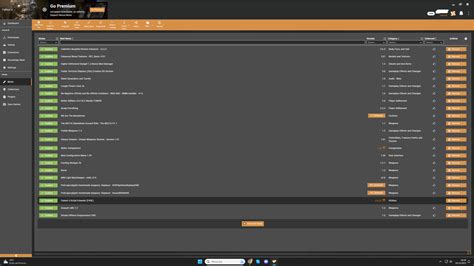
For most modern games, using a dedicated mod manager (like Vortex, Mod Organizer 2, or game-specific tools) is essential. These tools simplify installation, uninstallation, conflict detection, and load order management, drastically reducing the risk of issues.
Load Order Optimization
The order in which your mods load can significantly impact stability. Conflicting changes might overwrite each other in unexpected ways, leading to crashes or strange in-game behavior. Mod managers often have built-in tools for optimizing load order, or you can consult community guides for specific games.
Testing Mods Incrementally
Never install dozens of mods at once. Install one or a small batch of related mods, launch the game, and test thoroughly. If you encounter an issue, you’ll know exactly which mod is causing it, making troubleshooting much easier.
Avoiding Community Issues: Modding Etiquette
Being part of a modding community means respecting the work of others and contributing positively.
Respect Mod Creator Permissions
- Don’t Re-upload: Never re-upload a mod without explicit permission from the original creator.
- Read Permissions: Check the mod page for specific permissions regarding translations, patches, or integration into other projects.
Constructive Feedback and Bug Reporting
If you encounter a bug:
- Be Polite: Creators spend countless hours on their mods; approach them respectfully.
- Provide Details: Clearly describe the issue, provide steps to reproduce it, list your game version, relevant mods, and any error messages or crash logs.
- Search First: Before posting, check if the issue has already been reported and addressed.

Backup and Troubleshooting
Even with careful planning, issues can arise. Always be prepared.
Backup Your Game Files and Saves
Before you start modding, create a backup of your entire game installation folder and all your save files. This will be your lifeline if something goes wrong and you need to revert to a clean state.
Troubleshooting Crashes
- Disable Recent Mods: If your game crashes after adding new mods, disable them one by one to identify the culprit.
- Check Crash Logs: Many games or modding tools generate crash logs, which can provide clues about the source of the problem.
- Consult Community Forums: Describe your issue in relevant modding forums; experienced users might have encountered similar problems.
Conclusion
Modding can immensely enhance your gaming experience, but it requires patience, research, and a methodical approach. By carefully vetting mods, ensuring compatibility, utilizing mod managers, and engaging positively with the modding community, you can enjoy a stable, personalized game without the frustration of crashes or interpersonal issues. Remember to always back up your files and test incrementally – a little caution goes a long way in the world of game modification.

