





How to identify and fix common gaming PC bottlenecks for better FPS?
Understanding Gaming PC Bottlenecks
For any PC gamer, smooth gameplay and high frame rates (FPS) are paramount. However, even powerful systems can sometimes underperform due to a bottleneck – a component that limits the potential of other, faster components. Identifying and resolving these bottlenecks is crucial for unlocking your PC’s full gaming potential.
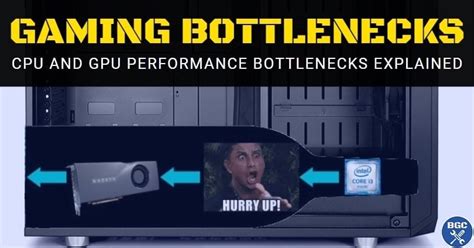
A bottleneck occurs when one hardware component can’t keep up with the demands placed on it by other parts of the system, forcing the entire system to slow down. Think of it like a traffic jam: even if you have a powerful engine (GPU) and a fast road ahead (game engine), a narrow bridge (CPU, RAM, or storage) will limit how quickly traffic can flow.
Common Bottleneck Culprits
Several components can become a bottleneck in a gaming PC:
CPU Bottleneck
Your Central Processing Unit (CPU) is responsible for processing game logic, AI, physics, and drawing calls. If your CPU is too slow, it can’t feed frames to your graphics card (GPU) fast enough, causing the GPU to wait and run below its full capacity. This often manifests in games that are CPU-intensive, like open-world titles or strategy games with many units.
GPU Bottleneck
The Graphics Processing Unit (GPU) renders all the visual elements on your screen. A GPU bottleneck means your graphics card isn’t powerful enough to render frames at the desired resolution and graphical settings, even if your CPU is fast. This is the most common bottleneck in gaming and often leads to lower FPS and stuttering, especially at higher resolutions or graphic presets.
RAM Bottleneck
Insufficient or slow Random Access Memory (RAM) can also be a bottleneck. If you don’t have enough RAM (e.g., 8GB for modern games) or if your RAM is running at a low speed, the system might have to offload data to the slower storage drive (paging file), causing significant performance hitches and stuttering.
Storage Bottleneck
While less impactful on in-game FPS once a game is loaded, a slow storage drive (like a traditional HDD) can cause long loading times and even micro-stutters as game assets are streamed. An SSD (Solid State Drive) is virtually essential for modern gaming PCs to eliminate this bottleneck.
How to Identify Bottlenecks
The key to identifying a bottleneck is monitoring your system’s performance metrics while gaming:
-
Monitoring Software: Tools like MSI Afterburner (with RivaTuner Statistics Server), HWMonitor, or even Task Manager can display real-time usage for your CPU, GPU, RAM, and storage.
- GPU Bottleneck: If your GPU usage is consistently at 95-100% while your CPU usage is much lower (e.g., 50-70%), your GPU is likely the bottleneck.
- CPU Bottleneck: If your CPU usage (or specific core usage) is consistently at 95-100% and your GPU usage is significantly lower (e.g., 60-80%), your CPU is the bottleneck.
- RAM Bottleneck: If your RAM usage is near 100% and you experience frequent stuttering or disk activity, RAM might be the issue.
- Storage Bottleneck: Long loading screens and significant lag when new areas load can point to a slow drive.
- In-Game Metrics: Many games have built-in FPS counters and performance monitors that can give you a quick overview.
- Benchmarking Tools: Running benchmarks like 3DMark or Heaven Benchmark can provide scores and detailed performance data, helping you compare your system against similar configurations.
Fixing Common Gaming PC Bottlenecks
Resolving a GPU Bottleneck
- Upgrade your GPU: The most effective solution, though often the most expensive.
- Lower in-game settings: Reduce resolution, texture quality, anti-aliasing, and other graphical options.
- Update graphics drivers: Always ensure you have the latest drivers from NVIDIA or AMD.
- Overclock your GPU: If comfortable, a modest overclock can yield a small performance boost.
Resolving a CPU Bottleneck
- Upgrade your CPU: If your motherboard supports it, upgrading to a faster CPU is ideal. Otherwise, a motherboard and CPU upgrade might be necessary.
- Overclock your CPU: If your CPU and motherboard support it, this can provide extra performance.
- Close background applications: Free up CPU cycles by shutting down unnecessary programs while gaming.
- Check cooling: Ensure your CPU isn’t throttling due to high temperatures.
Resolving a RAM Bottleneck
- Increase RAM capacity: Upgrade to 16GB or 32GB if you currently have less.
- Upgrade RAM speed: Ensure your RAM is running at its advertised speed by enabling XMP (Extreme Memory Profile) in your BIOS. Faster RAM can also reduce CPU bottlenecks in some scenarios.
Resolving a Storage Bottleneck
- Upgrade to an SSD/NVMe drive: Replace your old HDD with a SATA SSD or an even faster NVMe M.2 SSD for your operating system and games.
- Free up space: Ensure your drives aren’t overly full, as this can degrade performance.
Other Considerations
- Power Supply (PSU): Ensure your power supply has enough wattage to handle all your components, especially after upgrades.
- Cooling: Overheating components (CPU, GPU) will throttle their performance. Good cooling is essential.
- Drivers and Software: Keep all drivers (chipset, audio, etc.) up to date and ensure your operating system is optimized for gaming.
Conclusion
Identifying and fixing bottlenecks is a crucial step in optimizing your gaming PC for peak performance. By carefully monitoring your hardware and understanding the role each component plays, you can make informed decisions about upgrades or setting adjustments, ultimately leading to a smoother, more enjoyable gaming experience with better FPS.


