





My gaming PC runs hot. How can I improve airflow & lower GPU temps?

Understanding Why Your Gaming PC Overheats
A gaming PC is a powerhouse, but all that power generates significant heat. High temperatures, particularly for your Graphics Processing Unit (GPU), can lead to performance throttling, reduced component lifespan, and even system instability. Before diving into solutions, it’s crucial to understand the common culprits behind a hot-running system: inadequate airflow, dust buildup, poorly configured fans, or even the ambient room temperature.
Ensuring optimal thermal management isn’t just about chasing higher frame rates; it’s about protecting your investment and maintaining a smooth, consistent gaming experience. Let’s explore practical steps to turn your furnace into a well-ventilated gaming rig.
Optimizing Internal Airflow: The Foundation of a Cool PC
Effective airflow is the single most critical factor in PC cooling. It’s about getting cool air in and hot air out efficiently. Think of your PC case as a wind tunnel; every component, every cable, and every fan plays a role in directing that flow.
1. Master Your Fan Configuration
The placement and orientation of your case fans are paramount. Generally, you want a positive pressure setup or a balanced one. Positive pressure means more air is pushed into the case than exhausted, helping to keep dust out.
- Intake Fans: Positioned at the front and sometimes bottom of the case, these draw cool air in.
- Exhaust Fans: Located at the rear and top, these expel hot air.
- Direction Matters: Ensure fans are oriented correctly. Most fans have arrows indicating airflow direction and blade rotation.
2. Conquer Cable Management
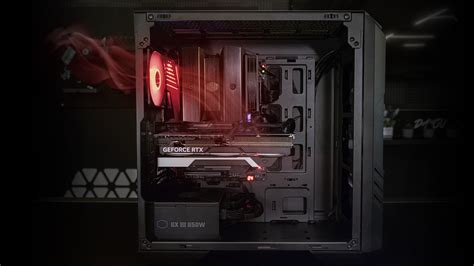
A tangled mess of cables isn’t just unsightly; it’s an airflow nightmare. Cables can obstruct the path of air, creating pockets of stagnant hot air.
Spend time routing cables behind the motherboard tray or bundling them neatly away from critical airflow paths. Zip ties, Velcro straps, and modular power supplies are your best friends here. Better cable management means less obstruction and smoother air circulation.
3. Regular Dusting is Non-Negotiable
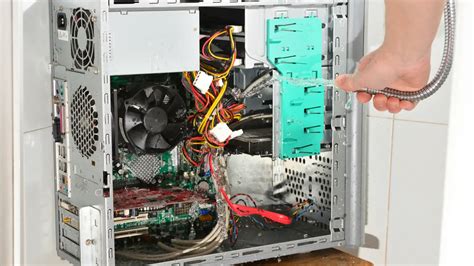
Dust is the silent killer of PC performance. It accumulates on heatsinks, fans, and circuit boards, acting as an insulating blanket that traps heat.
- Frequency: Aim for a thorough cleaning every 3-6 months, or more often if you live in a dusty environment or with pets.
- Tools: Use compressed air (short bursts!), an anti-static brush, and a microfiber cloth. Hold fan blades gently to prevent over-spinning them while dusting.
4. Consider Your PC Case
Not all PC cases are created equal when it comes to airflow. Cases with solid front panels and restricted vents often struggle with cooling. If you’re consistently battling high temperatures despite other efforts, a case upgrade to one designed for high airflow (e.g., mesh front panels) might be a worthwhile investment.
Directly Addressing GPU Temperatures
While general airflow improvements benefit the entire system, your GPU often requires specific attention due to its high heat output under load.
1. Update GPU Drivers
Always ensure your graphics drivers are up to date. Manufacturers often release driver updates that include performance optimizations and improved thermal management profiles.
2. Adjust GPU Fan Curves and Undervolting
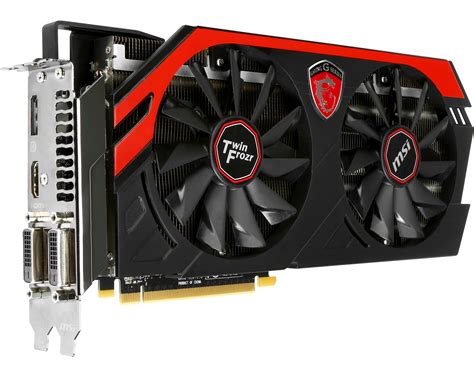
Modern GPUs often come with software (like MSI Afterburner or ASUS GPU Tweak) that allows you to customize their fan curves. By setting the fans to spin faster at lower temperatures, you can pre-empt heat buildup.
Undervolting is another advanced technique where you reduce the voltage supplied to the GPU while maintaining similar clock speeds. This lowers power consumption and, consequently, heat generation, often with minimal performance impact. Research your specific GPU model before attempting this.
3. Check/Replace Thermal Paste
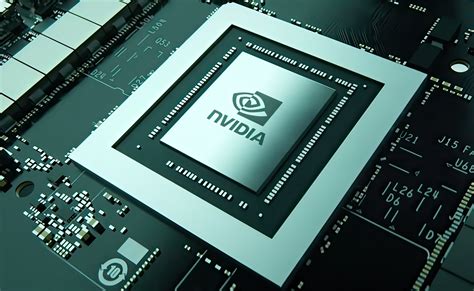
The thermal paste between your GPU die and its heatsink can degrade over time, losing its ability to efficiently transfer heat. If your GPU is several years old and suddenly running hotter, reapplying high-quality thermal paste could make a significant difference. This is a more advanced procedure and requires careful handling.
4. Ensure Adequate Ambient Room Temperature
Your PC can only cool itself relative to the air it’s drawing in. If your room itself is very hot, your PC will struggle. Consider using air conditioning or fans in your room to lower the ambient temperature, especially during intense gaming sessions.
Monitoring Your Temperatures
To confirm your efforts are paying off, regularly monitor your GPU and CPU temperatures. Tools like HWMonitor, MSI Afterburner, or GPU-Z provide real-time data on component temperatures, fan speeds, and clock speeds. Test your system under idle conditions and during intensive gaming sessions to get a clear picture of your thermal performance.
Conclusion
A cool gaming PC is a happy gaming PC. By implementing these strategies – from optimizing airflow and managing cables to diligent dusting and fine-tuning your GPU settings – you can significantly improve your system’s thermal performance. Not only will this extend the lifespan of your valuable components, but it will also ensure your gaming experience remains smooth, stable, and free from thermal throttling. Start with the simpler steps and gradually work your way up to more advanced techniques to achieve the perfect balance of performance and cool operation.


