





Troubleshooting lag and stuttering in new PC games: common causes?
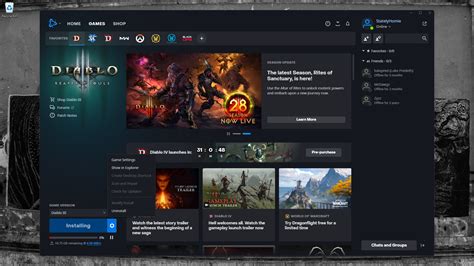
There’s nothing quite as frustrating as firing up a highly anticipated new PC game, only to be met with infuriating lag and stuttering. Instead of smooth, immersive gameplay, you get a choppy, stop-start experience that ruins the fun. While modern games push hardware to its limits, often the culprits behind poor performance are more common and fixable than you might think. Don’t despair; this guide will walk you through the most frequent causes of performance issues and how to tackle them.
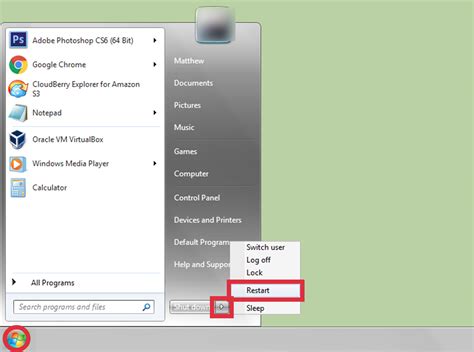
Common Causes of Lag and Stuttering
1. Outdated or Corrupt Graphics Drivers
This is arguably the most common culprit. Graphics card manufacturers (NVIDIA, AMD, Intel) regularly release new drivers, especially around major game releases, to optimize performance and fix bugs. Running on old drivers or having a corrupt installation can lead to significant performance degradation.
2. Insufficient Hardware Specifications
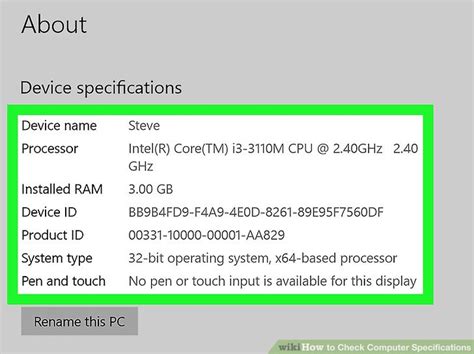
While a PC might run older games fine, new titles are increasingly demanding. Your CPU, GPU, and even RAM might not meet the recommended (or sometimes even minimum) specifications for the game. A bottleneck can occur if one component can’t keep up with the others, leading to stuttering.
3. Overheating Components
When your CPU or GPU gets too hot, they automatically “throttle” their performance to prevent damage. This thermal throttling is a major cause of sudden framerate drops and stuttering. Poor airflow, dusty coolers, or dried-out thermal paste can all contribute to overheating.
4. Background Applications and Processes
Even if your hardware is top-notch, other software running in the background can hog resources. Web browsers with many tabs, antivirus scans, cloud storage syncs, streaming software, or even Windows updates can compete with your game for CPU, RAM, and network bandwidth.

5. Incorrect In-Game Settings
It’s tempting to crank every graphics setting to “Ultra,” but your hardware might not be up to the task. Settings like texture quality, anti-aliasing, shadow detail, and view distance can have a massive impact on performance. Using a higher resolution than your GPU can handle smoothly is also a common mistake.
6. Slow Storage Drive
While less common for in-game stuttering during active gameplay (unless textures are constantly streaming), a slow hard disk drive (HDD) can cause lengthy loading times and sometimes even stutters during scene transitions or when large assets are loaded. Solid State Drives (SSDs) significantly improve load times and overall system responsiveness.

Key Troubleshooting Steps
Now that you know the common causes, here’s a quick checklist to help resolve your issues:
- Update Drivers: Always start by ensuring your graphics drivers are up to date. Visit NVIDIA, AMD, or Intel’s website directly.
- Monitor Temperatures: Use software like MSI Afterburner, HWMonitor, or Core Temp to check your CPU and GPU temperatures while gaming. If they spike above 85-90°C, you have an overheating issue.
- Close Background Apps: Use Task Manager to identify and close any unnecessary applications and processes before launching a game.
- Adjust In-Game Settings: Start with lower settings and gradually increase them, testing performance after each change. Pay special attention to resolution, texture quality, shadows, and anti-aliasing.
- Verify System Requirements: Double-check if your PC meets the game’s minimum and recommended specifications.
- Check Power Settings: Ensure your Windows power plan is set to “High Performance” (or equivalent for your OS), especially on laptops.
- Consider an SSD: If the game is on an HDD, moving it to an SSD can improve loading and potentially reduce some types of stutter.
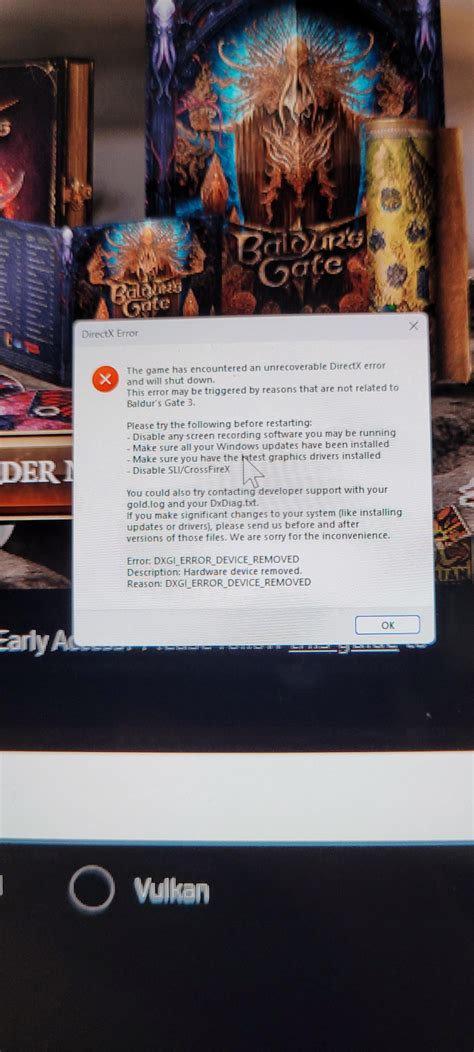
Troubleshooting lag and stuttering requires a systematic approach. By addressing these common causes one by one, you’ll likely identify and resolve the issues preventing you from enjoying your new PC games to their fullest potential. Happy gaming!


