





How do I minimize network lag and ping spikes during online gaming on Wi-Fi?

The Frustration of Lag: Understanding the Challenge
Online gaming on Wi-Fi can be incredibly convenient, but nothing sours the experience faster than network lag and unpredictable ping spikes. These interruptions, often manifesting as stuttering, delayed actions, or disconnections, can be the difference between victory and defeat. While a wired Ethernet connection is always the gold standard for competitive gaming, it’s not always practical. Fortunately, there are many ways to optimize your Wi-Fi setup to achieve a smoother, more responsive gaming experience.
Understanding the root causes of Wi-Fi gaming issues is the first step. Common culprits include signal interference, router congestion, distance from the router, outdated hardware, and improper network settings. Addressing these areas systematically can dramatically improve your in-game performance.
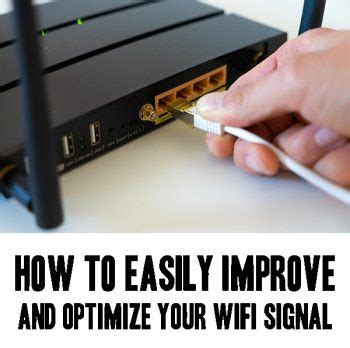
Optimize Router Placement and Signal Strength
Your router’s physical location plays a crucial role in Wi-Fi performance. Think of Wi-Fi signals like sound waves; they diminish and distort with distance and obstructions.
- Central Location: Place your router as centrally as possible within your home, ideally near your gaming setup, to ensure an even signal distribution.
- Elevate It: Routers broadcast signals downwards and outwards. Placing your router on a high shelf or desk minimizes signal absorption by furniture and allows for better signal spread.
- Avoid Obstructions: Keep your router away from thick walls, metal objects (like filing cabinets or refrigerators), and other electronics that can block or interfere with the signal.
Tweak Your Wi-Fi Settings
Delving into your router’s settings can unlock significant performance gains. Access your router’s administration page (usually by typing its IP address into a web browser, e.g., 192.168.1.1).
- 5GHz Band Preference: Most modern routers offer both 2.4GHz and 5GHz bands. While 2.4GHz offers wider coverage, the 5GHz band provides faster speeds and suffers from less interference, making it ideal for gaming. Ensure your gaming device is connected to the 5GHz network if available.
- Choose a Less Congested Channel: Wi-Fi networks operate on channels. In densely populated areas, neighboring Wi-Fi networks can compete for the same channels, causing congestion. Use a Wi-Fi analyzer app (available for smartphones) to identify the least used channels in your area and manually set your router to that channel (usually 1, 6, or 11 for 2.4GHz; many more for 5GHz).
- Enable Quality of Service (QoS): Many routers have a QoS setting that allows you to prioritize certain types of traffic or specific devices. Configure QoS to give priority to your gaming console or PC, ensuring it gets the bandwidth it needs, even when other devices are active.
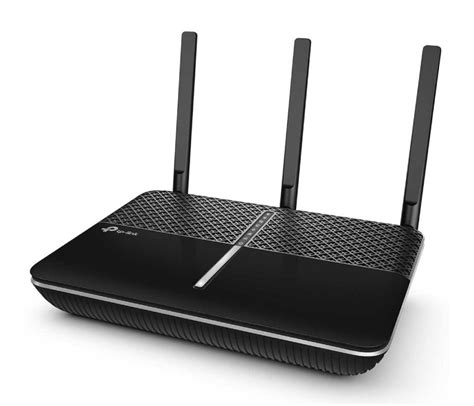
Minimize Network Congestion and Interference
Other devices and environmental factors can wreak havoc on your Wi-Fi signal.
- Limit Background Bandwidth Use: During gaming sessions, pause large downloads, limit video streaming on other devices, and close any unnecessary applications on your gaming device that might be consuming bandwidth.
- Disconnect Unused Devices: If multiple devices are connected to your Wi-Fi, they consume bandwidth even if idle. Disconnect devices not in active use.
- Reduce Physical Interference: Cordless phones, microwaves, Bluetooth devices, baby monitors, and even fluorescent lights can emit radio frequencies that interfere with your Wi-Fi signal. Keep these devices away from your router and gaming setup.
Upgrade Your Hardware
Sometimes, your current hardware simply isn’t up to the task of demanding online gaming.
- Modern Router: An older router might not support newer, more efficient Wi-Fi standards (like Wi-Fi 5 – 802.11ac or Wi-Fi 6 – 802.11ax). Upgrading to a modern, gaming-focused router can offer better processing power, superior antenna design, and advanced QoS features.
- Wi-Fi Adapter: Ensure your PC or console’s Wi-Fi adapter is up-to-date and supports the latest Wi-Fi standards. An external USB Wi-Fi adapter can often outperform built-in ones, especially if it has external antennas.
- Firmware and Drivers: Regularly update your router’s firmware and your device’s network drivers. Manufacturers often release updates that improve performance and stability.
Consider Alternative Solutions (if Wi-Fi struggles persist)
If despite all efforts, Wi-Fi continues to be unreliable for critical gaming, these alternatives offer a middle ground before running long Ethernet cables.
- Powerline Adapters: These devices use your home’s electrical wiring to create a wired network connection. While not as fast or consistent as a direct Ethernet cable, they can be a significant upgrade over a weak Wi-Fi signal, especially for long distances.
- Mesh Wi-Fi Systems: For larger homes, a mesh Wi-Fi system can provide more consistent coverage by using multiple access points, eliminating dead zones and reducing the distance between your gaming device and the nearest Wi-Fi node.
Conclusion
Minimizing network lag and ping spikes during online gaming on Wi-Fi requires a combination of strategic placement, optimized settings, updated hardware, and smart network management. While a perfectly lag-free Wi-Fi experience might be elusive in some environments, implementing these tips will significantly improve your connection stability and responsiveness, allowing you to focus on the game rather than fighting your network.


