Optimizing gaming PC: What are the top 3 driver & settings tweaks for max FPS?
Every serious gamer seeks higher Frames Per Second (FPS) for smoother gameplay and a competitive edge. While upgrading hardware is one route, you can often unlock significant performance gains from your existing setup through smart software and settings optimizations. This guide will walk you through the top three driver and system settings tweaks to help you squeeze every last frame out of your gaming PC.
1. Optimize Your Graphics Drivers (NVIDIA/AMD Control Panel)
Your graphics card drivers are the crucial bridge between your hardware and the games you play. Keeping them updated to the latest stable version is always the first step, but configuring them correctly is equally important for maximizing FPS.
NVIDIA Control Panel Settings:
- Open the NVIDIA Control Panel.
- Go to 3D Settings > Manage 3D settings.
- Under the ‘Global Settings’ tab, find Power management mode and set it to ‘Prefer maximum performance’.
- Set Texture filtering – Quality to ‘High performance’.
- Consider disabling Vertical sync (V-Sync) unless you experience severe screen tearing and prefer it, as it caps your FPS to your monitor’s refresh rate.
- Experiment with Low Latency Mode (Ultra can reduce input lag but might slightly impact FPS in some scenarios).
AMD Radeon Software Settings:
- Open the AMD Radeon Software.
- Navigate to Gaming > Global Graphics.
- Enable Radeon Anti-Lag to reduce input latency.
- Enable Radeon Boost (if supported by your GPU and game) to dynamically lower resolution during fast motion for higher FPS.
- Set Texture Filtering Quality to ‘Performance’.
- Disable Radeon Enhanced Sync or VSync if you don’t need them, as they can cap FPS.
2. Master In-Game Graphics Settings
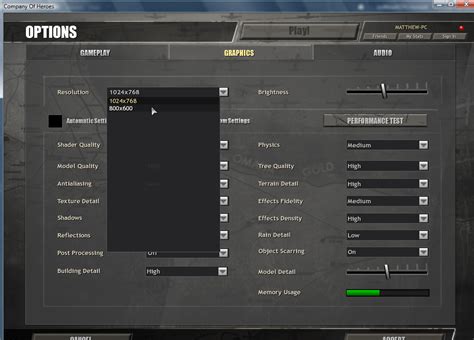
The most direct way to impact FPS is by adjusting a game’s own graphics settings. Understanding which settings are the most demanding can help you strike the perfect balance between visual quality and performance. Prioritizing these settings will yield the greatest FPS improvements.
Key Settings to Prioritize:
- Resolution: While lowering resolution significantly boosts FPS, it also sacrifices visual clarity. Aim to play at your monitor’s native resolution and adjust other settings first.
- Shadow Quality: Often one of the biggest performance killers. Reducing this from Ultra to High or Medium usually yields significant gains with minimal perceived visual difference.
- Anti-Aliasing (AA): Techniques like MSAA or TAA are very demanding. Experiment with lower settings or even disabling it if you can tolerate jagged edges. Performance-friendly alternatives like FXAA or upscaling technologies like NVIDIA DLSS/AMD FSR are excellent choices.
- Volumetric Lighting/God Rays: Visually impressive but very costly in terms of performance. Lowering or disabling these can free up a lot of frames.
- Post-Processing Effects: Settings like bloom, motion blur, and depth of field often have a noticeable performance hit. Turn them down or off if they aren’t crucial to your experience.
Start by lowering the most demanding settings (shadows, AA, volumetric effects) first, then gradually increase other settings until you achieve your desired FPS target without compromising too much visual fidelity.
3. Optimize Windows Settings for Gaming
Your operating system itself can significantly impact gaming performance. A few simple Windows tweaks can ensure your PC is fully focused on delivering the best possible gaming experience, preventing background processes from stealing valuable resources.
Enable Game Mode:
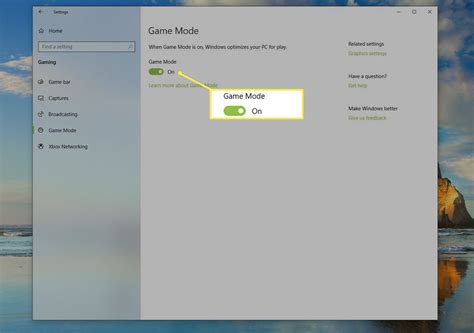
- Windows 10 and 11 include a dedicated ‘Game Mode’.
- Go to Settings > Gaming > Game Mode.
- Ensure Game Mode is set to ‘On’. This feature optimizes your PC for gaming by prioritizing your game and preventing Windows Update and other background tasks from running.
Set Your Power Plan:
- Go to Control Panel > Hardware and Sound > Power Options.
- Select the ‘High performance’ power plan. If you have Windows Pro or a specific manufacturer’s driver, you might even see an ‘Ultimate Performance’ option. This ensures your CPU doesn’t throttle down to save power during gaming sessions.
Disable Unnecessary Background Apps:
- Background apps can consume valuable RAM and CPU cycles.
- Go to Settings > Privacy > Background apps (Windows 10) or Settings > Apps > Apps & features, click the three dots next to an app, then Advanced options (Windows 11).
- Disable apps that you don’t need running in the background while gaming.
Implementing these three core areas of optimization – fine-tuning graphics drivers, mastering in-game settings, and tweaking Windows settings – will undoubtedly lead to a noticeable and satisfying improvement in your gaming PC’s FPS. Remember to keep your drivers updated and periodically re-evaluate your settings as games and drivers evolve. Happy gaming!