





Why is my gaming PC stuttering? Fix common FPS drops & performance issues!
Understanding Stuttering and FPS Drops
There’s nothing more frustrating for a PC gamer than experiencing stuttering, micro-stutters, or sudden FPS drops in the middle of an intense gaming session. These performance issues can range from minor annoyances to game-breaking lags, disrupting immersion and impacting gameplay. Pinpointing the exact cause can be challenging, as numerous factors, both hardware and software related, can contribute to a choppy gaming experience. This guide will walk you through common culprits and provide actionable solutions to get your gaming PC running smoothly again.
Diagnosing the Problem: Initial Checks
Before diving deep into complex solutions, it’s wise to perform some basic checks. Start by monitoring your system’s performance using tools like MSI Afterburner, HWiNFO, or the built-in Task Manager. Pay attention to CPU and GPU usage, temperatures, and RAM utilization while gaming. Spikes or unusually high numbers can point you in the right direction.
- Check Game Requirements: Ensure your PC meets or exceeds the minimum and recommended specifications for the game you’re playing.
- Close Background Applications: Non-essential programs running in the background can consume valuable CPU, GPU, and RAM resources.
- Restart Your PC: A simple reboot can often resolve temporary software glitches or memory leaks.
Software-Related Stuttering Solutions
Update Your Drivers
Outdated or corrupt drivers are a frequent cause of performance issues. Your graphics card driver is the most critical, but chipset, audio, and network drivers can also play a role.
- Graphics Card Drivers: Always download the latest stable drivers directly from NVIDIA (GeForce Experience) or AMD (Radeon Software). Perform a clean installation, if possible, to remove old driver files.
- Chipset Drivers: Update your motherboard’s chipset drivers from the manufacturer’s website.
Manage Background Processes and Overlays
Many applications and overlays can secretly hog system resources, leading to stuttering.
- Disable Overlays: In-game overlays from Discord, Steam, Xbox Game Bar, GeForce Experience, or Radeon Software can sometimes cause conflicts. Try disabling them one by one.
- Task Manager Cleanup: Open Task Manager (Ctrl+Shift+Esc), go to the ‘Processes’ tab, and close any non-essential applications consuming significant CPU, memory, or disk resources.
- Startup Applications: In Task Manager, navigate to the ‘Startup’ tab and disable unnecessary programs from launching with Windows.

Operating System Optimization
Your Windows setup can significantly impact game performance.
- Windows Updates: Ensure your Windows operating system is fully updated. Sometimes, a specific patch can resolve performance issues.
- Power Plan Settings: Set your Windows Power Plan to ‘High Performance’ or ‘Ultimate Performance’ to ensure your components are running at full throttle.
- Game Mode: Windows Game Mode can sometimes help, but for some users, it might cause issues. Experiment by toggling it on and off.
Hardware-Related Performance Drops
Overheating Components
When components like your CPU or GPU get too hot, they automatically reduce their clock speeds (thermal throttling) to prevent damage, which directly translates to stuttering and FPS drops.
- Monitor Temperatures: Use monitoring software to check CPU and GPU temperatures while gaming. If they exceed 85-90°C consistently, you likely have an overheating issue.
- Clean Your PC: Dust accumulation is a major cause of overheating. Regularly clean your case fans, CPU cooler, and GPU heatsink with compressed air.
- Improve Airflow: Ensure your PC case has adequate airflow with properly oriented intake and exhaust fans.
- Reapply Thermal Paste: If your CPU temperatures are still high after cleaning, consider reapplying thermal paste to your CPU and potentially your GPU.
Insufficient System Specifications
If your hardware is simply too old or underpowered for modern games, stuttering will be inevitable. While upgrading is the ultimate solution, you can try:
- Lowering In-Game Settings: Reduce resolution, texture quality, anti-aliasing, shadow quality, and other demanding graphical options.
- Overclocking (Cautiously): A mild, stable overclock of your CPU or GPU can sometimes provide a small performance boost, but proceed with caution and adequate cooling.

RAM Issues
Insufficient or improperly configured RAM can also cause stuttering.
- Amount of RAM: Most modern games benefit from 16GB of RAM. If you have 8GB or less, consider upgrading.
- XMP/DOCP Profile: Ensure your RAM is running at its advertised speed by enabling the XMP (Intel) or DOCP (AMD) profile in your BIOS. Default settings often run RAM at lower speeds.
Storage Drive Performance
Loading assets from a slow storage drive can cause micro-stutters, especially in open-world games.
- Upgrade to SSD/NVMe: If your games are installed on an older Hard Disk Drive (HDD), moving them to a Solid State Drive (SSD) or an NVMe drive can drastically improve loading times and reduce stuttering caused by asset streaming.
- Disk Defragmentation (for HDDs): While not necessary for SSDs, regularly defragmenting an HDD can help maintain its performance.
Power Supply Unit (PSU) Issues
An underpowered or failing PSU can lead to inconsistent power delivery, causing components to throttle or misbehave, resulting in stuttering.
- Adequate Wattage: Ensure your PSU has enough wattage to comfortably power all your components. Use a PSU calculator if unsure.
- PSU Health: If your PSU is old or you suspect it’s failing, consider testing it or replacing it with a new, reputable brand.
In-Game Settings Optimization
Even with powerful hardware, incorrect in-game settings can lead to performance issues. Experiment with different settings to find the sweet spot between visual quality and smooth framerates.
- Resolution: Lowering your display resolution is one of the most effective ways to improve FPS.
- Refresh Rate vs. FPS: Ensure your in-game refresh rate matches your monitor’s refresh rate. Use V-Sync, G-Sync, or FreeSync to synchronize frames and reduce screen tearing, which can sometimes be perceived as stuttering.
- Graphics Options: Reduce demanding settings like shadow quality, global illumination, ray tracing, and volumetric effects first. Texture quality and anti-aliasing can also be lowered.

Network Latency and Stability
For online multiplayer games, network issues can manifest as lag or stuttering, often confused with client-side performance problems.
- Check Ping: Monitor your ping (latency) to game servers. High or unstable ping indicates a network issue.
- Wired Connection: Always use an Ethernet cable instead of Wi-Fi for competitive online gaming for a more stable and faster connection.
- Router/Modem Restart: Reboot your router and modem.
- ISP Issues: If persistent network problems occur, contact your Internet Service Provider.
Conclusion
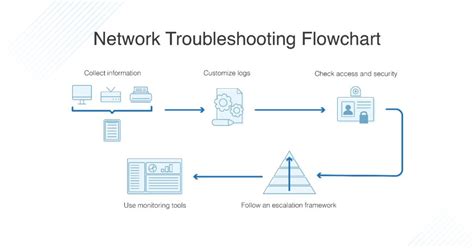
Stuttering and FPS drops in gaming PCs can be incredibly frustrating, but with a systematic approach, most issues can be resolved. Start with the simplest solutions like updating drivers and closing background apps, then move on to hardware checks like temperature monitoring and cleaning. Optimizing in-game settings and ensuring a stable network connection are also crucial. By methodically troubleshooting each potential cause, you can identify and fix the problem, restoring your gaming PC to its full, smooth-running potential.


