





How to diagnose and resolve common mod conflicts in popular PC games?
The Joy and Peril of PC Game Modding
Modding popular PC games opens up a world of endless possibilities, from graphical overhauls and new gameplay mechanics to expanded content and quality-of-life improvements. However, this freedom often comes with a significant challenge: mod conflicts. When multiple user-created modifications try to alter the same game files, scripts, or assets, conflicts can arise, leading to crashes, performance issues, visual glitches, or even preventing the game from launching at all. Understanding how to diagnose and resolve these conflicts is an essential skill for any dedicated PC gamer.
What are Mod Conflicts?
At its core, a mod conflict occurs when two or more mods attempt to modify the same piece of game data in incompatible ways. For instance, if one mod changes the stats of a weapon and another mod changes the same weapon’s model, they might coexist. But if both mods try to change the same stat or script in a conflicting manner, the game engine won’t know which instruction to follow, leading to instability. These conflicts can range from simple file overwrites to complex script incompatibilities.

Common Signs of Mod Conflicts
Recognizing the symptoms of a mod conflict is the first step towards resolution. Here are some tell-tale signs:
- Game Crashes: Frequent crashes to desktop (CTDs) without a clear error message are a primary indicator.
- Infinite Loading Screens: The game gets stuck during loading sequences and never progresses.
- Visual Glitches & Missing Textures: Purple textures, flickering objects, distorted models, or invisible items often point to asset conflicts.
- Unintended Gameplay Behavior: NPCs acting strangely, quests not triggering, abilities not working as described, or unexpected item properties.
- Save Game Corruption: Your save files become unplayable or exhibit strange behavior.
- Game Fails to Launch: The most severe symptom, where the game executable won’t even start.
Diagnosing Mod Conflicts: A Step-by-Step Approach
1. Back Up Everything
Before you begin troubleshooting, always back up your game’s data folder, save files, and mod profiles. This provides a safety net if things go wrong.
2. The 50/50 Method (Binary Search)
This is the most effective manual method for large mod lists. Start by disabling half of your mods. If the problem persists, the conflict is in the remaining active half. If it disappears, the conflict is in the disabled half. Repeat this process, halving the problematic set each time, until you isolate the single conflicting mod or pair of mods.
3. Check Mod Load Order
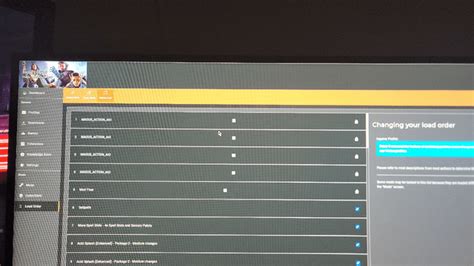
Many games (like Bethesda titles) are highly sensitive to load order. Mods loaded later in the sequence will often overwrite changes made by mods loaded earlier. Mod managers typically provide tools to manage and optimize load order (e.g., LOOT for Bethesda games).
4. Read Mod Descriptions & Compatibility Notes
Thoroughly reading the documentation for each mod is crucial. Mod authors often list known incompatibilities, required patches, or specific load order instructions. Ignoring these details is a common cause of conflicts.
5. Utilize Modding Tools
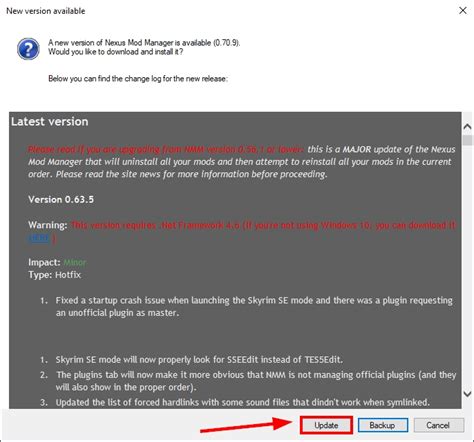
- Mod Managers: Tools like Mod Organizer 2 (MO2), Vortex, and Nexus Mod Manager (NMM) not only help install and uninstall mods cleanly but often have built-in conflict detection and resolution features.
- Conflict Detectors: Specific tools exist for certain games (e.g., FNVEdit/SSEEdit for Fallout/Skyrim) that allow you to see exactly which records multiple mods are trying to modify.
- Log Files: Many games generate crash logs or error logs. Learning to read these can provide clues about which file or script is causing the issue.
Resolving Mod Conflicts: Common Strategies
1. Adjust Load Order
For simple conflicts, ensuring the desired mod loads last (overwriting conflicting changes from an earlier mod) can often resolve the issue. Use your mod manager’s load order sorting features.
2. Install Compatibility Patches
Many popular mods have official or community-made compatibility patches designed to make them work together. Always search for these if you suspect an incompatibility between two specific mods.

3. Manual Merging (Advanced)
For more complex conflicts, advanced users can use tools like xEdit (for Bethesda games) to manually create a merged patch. This involves opening the conflicting mods and deciding which changes to keep, effectively creating a new mod that incorporates the desired elements from both.
4. Remove or Replace Problematic Mods
Sometimes, a mod simply isn’t compatible with your existing setup, or it’s poorly made. If you can’t resolve a conflict, consider removing the problematic mod entirely or finding an alternative that offers similar functionality but is known to be more stable.
5. Seek Community Help
If you’re stuck, don’t hesitate to reach out to the modding community. Forums on Nexus Mods, game-specific subreddits, or Discord servers are excellent resources. Provide as much detail as possible about your mod list, game version, and the symptoms you’re experiencing.
Preventative Measures
- Install Mods Gradually: Don’t install dozens of mods at once. Add a few, test them, then add more.
- Read Everything: Always read mod descriptions, installation instructions, and compatibility notes.
- Use a Mod Manager: This is non-negotiable for large mod lists, as it provides better control, easier uninstallation, and conflict detection.
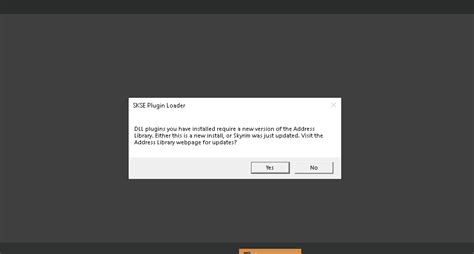
- Keep Mods Updated: Mod authors often release updates that fix bugs and improve compatibility.
- Clean Your Master Files: For some games, cleaning official game files with specific tools can reduce potential conflicts.
Conclusion
Mod conflicts are an inevitable part of heavily modded PC gaming, but they don’t have to be a nightmare. By understanding the signs, employing systematic diagnostic methods, and utilizing the right tools and strategies, you can effectively resolve most conflicts. With a little patience and persistence, you’ll be able to enjoy a stable, personalized, and immensely richer gaming experience that only PC modding can offer.

