





How to optimize my GPU drivers for max FPS in competitive shooters?
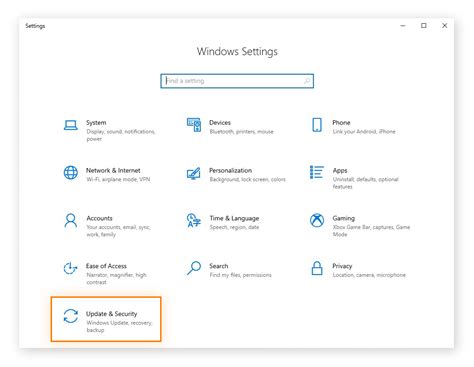
Achieving peak performance in competitive shooters is a relentless pursuit, and while hardware certainly plays a role, the software controlling that hardware—your GPU drivers—is equally critical. Optimized drivers can unlock significant frame rate improvements, reduce input lag, and provide a smoother, more responsive gaming experience. This guide will walk you through the essential steps to fine-tune your GPU drivers for maximum FPS and a competitive advantage.
Keep Your Drivers Up-to-Date
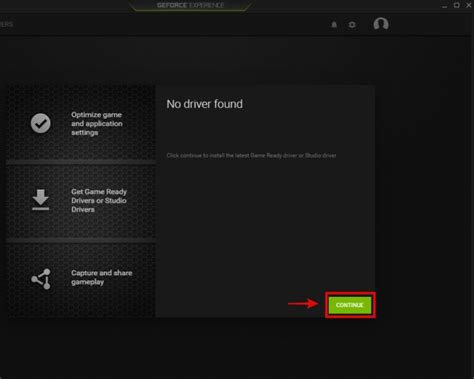
The single most important step for GPU optimization is ensuring your drivers are always current. NVIDIA and AMD frequently release “Game Ready” or “Adrenalin” drivers specifically tuned for new game releases and performance enhancements. Outdated drivers can lead to performance bottlenecks, stability issues, and missed opportunities for FPS gains.
- NVIDIA Users: Use GeForce Experience or download directly from the NVIDIA website.
- AMD Users: Use AMD Software: Adrenalin Edition or download from the AMD website.
GPU Control Panel Settings (NVIDIA & AMD)
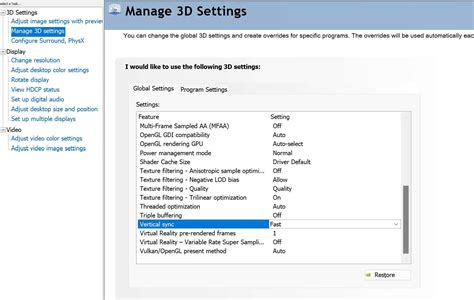
Diving into your GPU’s control panel allows for granular control over how your graphics card performs. While specific names may vary slightly between NVIDIA and AMD, the core principles of maximizing performance remain consistent. Make sure to apply these settings globally or specifically for your competitive game titles.
NVIDIA Control Panel Settings
- Power Management Mode: Set to “Prefer maximum performance.” This prevents your GPU from downclocking during less demanding scenes, ensuring it’s always ready for action.
- Texture Filtering – Quality: Change to “High performance.” This prioritizes frame rates over visual fidelity in texture rendering, often with minimal noticeable visual impact.
- Low Latency Mode: Experiment with “On” or “Ultra.” This aims to reduce input lag by limiting the number of frames queued by the CPU, beneficial for competitive play.
- Shader Cache Size: Set to “Unlimited” or a large value (e.g., 100 GB). A larger cache can reduce stuttering by pre-compiling shaders.
- Vertical Sync (V-Sync): Turn “Off.” V-Sync synchronizes your frame rate with your monitor’s refresh rate, but introduces input lag. If you experience screen tearing, consider using an adaptive sync technology (G-Sync/FreeSync) instead.
- Max Frame Rate: Consider setting a cap slightly below your monitor’s refresh rate if you’re consistently hitting it, to reduce input lag further.
AMD Software: Adrenalin Edition Settings
- Radeon Anti-Lag: Enable this feature. Similar to NVIDIA’s Low Latency Mode, it reduces input lag by dynamically adjusting CPU workload.
- Radeon Chill: Disable it. This feature limits FPS to save power, which is counterproductive for competitive play.
- Image Sharpening: Disable unless you specifically prefer it. It can add a slight performance overhead.
- Texture Filtering Quality: Set to “Performance.”
- Wait for Vertical Refresh (V-Sync): Set to “Off, unless application specifies.”
In-Game Graphics Settings
While driver settings are crucial, always complement them with optimized in-game settings. Many modern competitive titles offer specific “performance” presets. Prioritize turning down or off visually intensive settings that offer little competitive advantage, such as:
- Shadow Quality (Low or Off)
- Anti-Aliasing (Off or low-impact options like FXAA)
- Post-Processing Effects (Low or Off)
- Volumetric Lighting & Fog (Low or Off)
- Reflections (Low or Off)
- Draw Distance/LoD (Often a trade-off, set to medium for visibility and performance)

Operating System Optimizations
Your operating system can also impact your game’s performance. Ensure Windows is not hogging resources:
- Game Mode: Ensure Windows Game Mode is enabled.
- Background Apps: Disable unnecessary background applications and startup programs.
- Notifications: Turn off all notifications to prevent interruptions and resource usage.
- Power Plan: Set your Windows Power Plan to “High performance” or “Ultimate performance.”
Monitor and Test Your Changes
After making changes, it’s vital to test their impact. Use in-game FPS counters or third-party tools like MSI Afterburner or NVIDIA’s overlay to monitor your frame rates, 1% lows, and frame times. Play several matches to gauge the stability and actual competitive advantage gained from your optimizations. Remember that every system is unique, and what works best for one might not be optimal for another.
Conclusion
Optimizing your GPU drivers for competitive shooters is an ongoing process of tweaking and testing. By diligently updating drivers, fine-tuning control panel settings, adjusting in-game options, and streamlining your operating system, you can significantly boost your FPS and gain a crucial edge in your favorite competitive titles. Don’t just set it and forget it—regularly review and adapt your settings as games and drivers evolve.


