Is my CPU bottlenecking my GPU for gaming? How to check and optimize FPS performance.
Understanding CPU Bottlenecking in Gaming
When you’re chasing higher frame rates (FPS) in your favorite PC games, a smooth interplay between your Central Processing Unit (CPU) and Graphics Processing Unit (GPU) is crucial. A CPU bottleneck occurs when your processor isn’t powerful enough to feed data to your graphics card fast enough, preventing the GPU from running at its full potential. Essentially, your CPU becomes the limiting factor, holding back your GPU and leading to lower-than-expected FPS and potentially inconsistent frame times.
This situation is more common in CPU-intensive games, open-world titles with many NPCs, or simulations that require a lot of background calculations. It can also manifest when playing at lower resolutions or settings, as the GPU has less work to do, pushing more of the burden onto the CPU.
How to Identify a CPU Bottleneck
The key to diagnosing a CPU bottleneck lies in real-time system monitoring. Here’s how you can check:
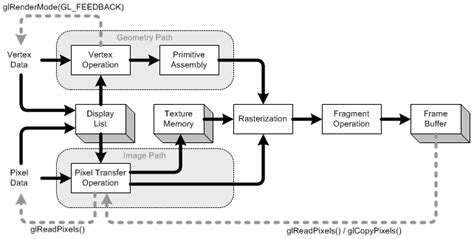
- Use Monitoring Software: Tools like MSI Afterburner (with RivaTuner Statistics Server), HWiNFO, or even Windows Task Manager can display your CPU and GPU utilization while gaming.
- Analyze Usage Percentages: Launch a demanding game and observe your CPU and GPU usage.
- Signs of a CPU Bottleneck: If your CPU usage is consistently near 90-100% while your GPU usage is significantly lower (e.g., 50-70%), your CPU is likely the bottleneck.
- Signs of a GPU Bottleneck (Normal): If your GPU usage is consistently near 99-100% and your CPU usage is lower, your GPU is the bottleneck. This is generally the desired scenario, as it means you’re getting the most out of your graphics card.
Optimizing Your System for Better FPS
Once you’ve identified a CPU bottleneck, there are several steps you can take to alleviate it and improve your gaming performance:
Software and Settings Adjustments:
- Close Background Applications: Ensure no unnecessary programs are running in the background, consuming valuable CPU cycles.
- Adjust In-Game Settings: Some game settings are more CPU-intensive than others. Try reducing options like:
- Draw Distance/Object Detail
- NPC/Crowd Density
- Physics simulations
- Shadow quality (to a lesser extent)
- Update Drivers: Keep your CPU chipset drivers, GPU drivers, and Windows operating system up to date. Optimizations are frequently released that can improve performance.
- Overclock Your CPU (If Applicable): If your CPU and motherboard support it, a stable overclock can provide a significant performance boost. Be cautious and research proper overclocking procedures.
Hardware Considerations:
- Faster RAM: CPU-intensive games benefit greatly from faster RAM (higher MHz) and lower CAS latency. Ensure your RAM is running at its advertised speed in your motherboard’s BIOS/UEFI.
- Upgrade Your CPU: If software optimizations aren’t enough, a CPU upgrade might be necessary. Consider a processor with more cores or higher clock speeds, depending on the games you play. Remember to check motherboard compatibility.
- Upgrade Your Motherboard/RAM (if needed for CPU upgrade): A new CPU might necessitate a new motherboard and faster RAM to fully utilize its potential.
When Your GPU Is the Bottleneck (And Why It’s Usually Good)
It’s important to understand that in an ideal gaming PC, the GPU should almost always be the bottleneck at high settings and resolutions. This means your graphics card is working at its maximum capacity, rendering frames as fast as it can, and your CPU is keeping up. This is a sign of a balanced system, and any further performance gains would primarily come from upgrading your GPU.
Conclusion
Identifying and addressing a CPU bottleneck can significantly improve your gaming experience, leading to smoother gameplay and higher, more consistent frame rates. By utilizing monitoring tools, adjusting in-game settings, and considering hardware upgrades where necessary, you can ensure your CPU and GPU work harmoniously, unleashing your system’s full gaming potential. A balanced system is key to maximizing your FPS and enjoying your games to the fullest.