





How to boost gaming FPS on older hardware?

Gaming on older hardware can be a challenging but rewarding experience. While a brand-new system offers uncompromised performance, many gamers aren’t in a position to constantly upgrade. The good news is that with a bit of knowledge and effort, you can significantly boost your Frame Per Second (FPS) count on an older machine, making your favorite titles more playable and enjoyable. It’s all about optimizing what you have and squeezing every last drop of performance out of your existing components.
Optimize In-Game Settings for Maximum FPS
This is often the most impactful and easiest step. Every game offers a plethora of graphical settings, and understanding which ones to tweak can make a huge difference. Start by lowering your resolution; even a small drop from 1080p to 900p or 720p can yield substantial FPS gains. Next, focus on the most demanding settings::
- Texture Quality: Lowering this can free up VRAM on your graphics card.
- Shadows: Shadows are notoriously performance-intensive. Reduce their quality or turn them off if possible.
- Anti-Aliasing: Technologies like MSAA or FXAA smooth jagged edges but come at a high performance cost. Turn them down or off.
- Post-Processing Effects: Bloom, depth of field, motion blur, and ambient occlusion can look great but are often heavy on the GPU. Disable them for a noticeable boost.
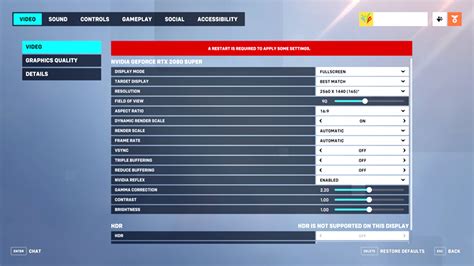
Experiment with each setting individually to see its impact. Some games have ‘performance presets’ that offer a good starting point.
Update Your Drivers and Operating System
Outdated drivers are a common culprit for poor performance. Your graphics card (GPU) drivers are paramount. Always ensure you have the latest stable drivers directly from NVIDIA, AMD, or Intel’s websites. These updates often include optimizations for new games and general performance improvements. Similarly, ensure your operating system (Windows, Linux) is up to date, as OS updates can include performance enhancements and bug fixes.
Beyond drivers, manage background processes. Close any unnecessary applications running in the background while gaming, such as web browsers, chat clients, or streaming software. Use your OS’s built-in task manager to identify and close resource-hogging apps. Windows users can also enable ‘Game Mode’ which prioritizes gaming performance.

Maintain Your Hardware Physically
Overheating is a silent killer of performance. When components like your CPU or GPU get too hot, they ‘throttle’ (reduce their clock speed) to prevent damage, leading to significant FPS drops. Regular physical maintenance can combat this:
- Clean Dust: Dust acts as an insulator, trapping heat. Regularly open your PC case and use compressed air to clean dust from fans (CPU, GPU, case fans) and heatsinks.
- Check Thermal Paste: Over several years, the thermal paste between your CPU/GPU and their heatsinks can dry out and become less effective. Reapplying fresh thermal paste can dramatically improve cooling performance. This is a more advanced step, but highly effective.

Storage and RAM Management
While not directly boosting FPS in the middle of a game, efficient storage and sufficient RAM can prevent stuttering and improve loading times, making the overall experience smoother.
- SSD vs. HDD: If you’re still on a traditional Hard Disk Drive (HDD), upgrading to a Solid State Drive (SSD) for your operating system and frequently played games is one of the most impactful upgrades you can make, even on older systems. It won’t boost FPS directly, but it will dramatically reduce loading times and improve system responsiveness.
- Defragmentation: If you’re sticking with an HDD, regularly defragmenting it can help optimize file access, though modern Windows versions handle this automatically. (Do NOT defragment an SSD).
- RAM: Ensure you have enough RAM (8GB is a reasonable minimum for most modern games). Close memory-intensive applications before gaming. Increasing virtual memory (page file size) can also help if you’re low on physical RAM, but it relies on slower disk storage.
Consider Cautious Overclocking or Minor Upgrades
For those comfortable with a bit more risk, overclocking your CPU or GPU can yield extra performance. This involves increasing the clock speed of your components beyond their factory settings. Always proceed with caution, monitor temperatures closely, and research proper techniques for your specific hardware. Excessive overclocking without proper cooling can lead to instability or hardware damage.
Finally, if all else fails and you have a small budget, consider a minor upgrade. A cheap, used GPU from a generation or two newer than yours, or simply adding more RAM, can be surprisingly effective for extending the life of your older gaming rig without breaking the bank.

Conclusion
While older hardware inherently has limitations, a combination of smart software optimization, diligent hardware maintenance, and careful configuration can significantly enhance your gaming experience. By following these steps, you can breathe new life into your aging machine and enjoy smoother, more responsive gameplay without needing to invest in a completely new setup. The key is patience, experimentation, and a willingness to get the most out of every component you have.


