





How to effectively diagnose and fix mod conflicts for stable gaming experiences?

Understanding Mod Conflicts
Modding can dramatically enhance your gaming experience, adding new content, improving graphics, or tweaking gameplay mechanics. However, with the power of modification comes the potential for instability. Mod conflicts occur when two or more mods try to alter the same game file, resource, or script in incompatible ways, leading to crashes, freezes, glitches, or even unplayable save files. Recognizing the signs early is crucial for maintaining a stable game environment.
Common Symptoms of Mod Conflicts
- Frequent Game Crashes: The most obvious sign, often happening at specific points or when loading certain areas.
- Graphical Glitches: Textures not loading, strange visual artifacts, or missing models.
- Gameplay Bugs: NPCs behaving erratically, quests not progressing, or broken mechanics.
- Loading Screen Freezes: The game getting stuck indefinitely during a loading screen.
- Performance Drops: Unexplained drops in frame rate, even in areas that previously ran smoothly.
Initial Steps and Best Practices
Before diving into complex diagnostics, establish good modding habits. These practices can prevent many conflicts from occurring in the first place or make them easier to pinpoint.
Use a Mod Manager
For most games with active modding communities (e.g., Skyrim, Fallout, Minecraft, Stardew Valley), a dedicated mod manager (like Vortex, Mod Organizer 2, or Nexus Mod Manager) is indispensable. These tools help with installation, load order management, and uninstallation, significantly reducing manual error.
Read Mod Descriptions Carefully
Always read the full description, requirements, and compatibility notes for every mod you install. Mod authors often list known conflicts, required patches, or specific installation instructions.
Install Mods Incrementally
Never install dozens of mods at once. Add a few at a time, test your game, and ensure stability before adding more. This makes it much easier to identify the culprit if a conflict arises.
Diagnosing Mod Conflicts
Once you suspect a conflict, it’s time to systematically narrow down the problematic mods. Patience is key here.
The 50/50 Method (Binary Search)
This is a highly effective, albeit time-consuming, method:
- Disable half of your currently active mods.
- Test the game.
- If the problem persists, the conflict is in the enabled half. Disable half of that group.
- If the problem is gone, the conflict is in the disabled half. Re-enable half of that group.
- Repeat this process, halving the problematic group each time, until you isolate the specific mod(s).
Check Your Load Order
Many conflicts arise from an incorrect load order. Mods loaded later in the order generally overwrite those loaded earlier. Mod managers often have built-in tools for managing load order, or you can use dedicated tools like LOOT (Load Order Optimization Tool) for games like Bethesda titles. LOOT automatically sorts your plugins and identifies potential issues.
Analyze Game Log Files
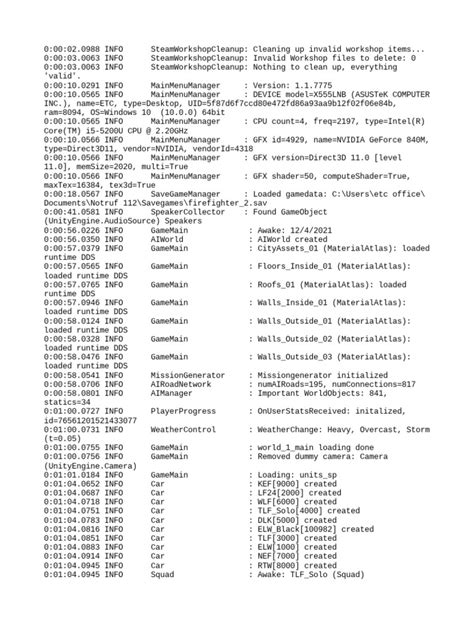
Many games generate log files (often found in the game’s installation directory or user profile folders) that record errors and events. Look for entries related to specific mods, file access errors, or script failures. These can often point directly to the conflicting mod or script.
Use Conflict Detection Tools
Some mod managers or standalone utilities offer conflict detection features that scan your mod list and identify which files are being overwritten or if multiple mods are trying to modify the same record. For example, xEdit/SSEEdit for Bethesda games is invaluable for detailed conflict analysis.
Resolving Mod Conflicts
Once you’ve identified the conflicting mods, several strategies can be employed to fix the issue.
Adjust Load Order
For simple overwrites, ensuring the desired mod loads last can resolve the conflict. If Mod A adds a new sword and Mod B changes the stats of all swords, you might want Mod B to load after Mod A to ensure Mod A’s sword gets the new stats.
Install Compatibility Patches
Many mod authors create or recommend compatibility patches for their mods to work together with other popular mods. Check the mod pages on Nexus Mods or other platforms for such patches.
Merge or Create a Bashed/Merged Patch
Tools like Wrye Bash or Mator Smash (for Bethesda games) can automatically create a “bashed patch” or “merged patch” that integrates changes from multiple mods into a single plugin, effectively resolving many conflicts without manually editing files.
Manually Edit Files (Advanced)
For experienced modders, direct editing of conflicting files using tools like xEdit or the Creation Kit might be an option. This requires a deep understanding of the game’s file structure and modding principles and should be approached with extreme caution, always backing up original files.
Remove or Replace Conflicting Mods
Sometimes, the simplest solution is to remove one of the conflicting mods. If two mods provide similar functionality, choose the one you prefer more or find an alternative that is known to be compatible.
Preventative Measures for Future Stability
- Regular Backups: Always back up your game save files and, if possible, your entire game directory before installing a large batch of new mods.
- Stay Updated: Keep your mod manager, game, and essential utilities (like script extenders) updated. Mod authors often update their mods for better compatibility.
- Community Resources: Utilize forums, Discord servers, and wikis for your game’s modding community. Other players often share solutions to common conflicts.
- Start Small: When modding a new game, begin with essential bug fixes and quality-of-life mods before moving on to larger content additions.
Conclusion
Mod conflicts are an inevitable part of heavily modded gaming, but they don’t have to ruin your experience. By adopting systematic diagnosis techniques, leveraging available tools, and adhering to best practices, you can effectively resolve these issues and enjoy a stable, personalized gaming world. Remember that patience and meticulousness are your greatest allies in the quest for a perfectly modded game.

