





Why is my gaming PC overheating? Tips for better airflow & cooling?
The Heat is On: Understanding PC Overheating
Is your gaming PC feeling a little too toasty? Overheating is a common issue for many PC gamers, leading to reduced performance, system crashes, and even long-term damage to components. When your CPU or GPU gets too hot, it will ‘throttle’ its performance to prevent damage, resulting in lower frame rates and stuttering gameplay. Understanding why your PC is overheating is the first step toward fixing it.
Common Culprits Behind Excessive Heat
Several factors can contribute to your gaming rig running hotter than it should:
- Dust Buildup: Over time, dust accumulates on heatsinks, fans, and vents, acting as an insulating layer that traps heat.
- Poor Airflow: Inadequate case fan setup, obstructed vents, or poor cable management can impede the natural flow of cool air in and hot air out.
- Inadequate Cooling Solutions: Stock CPU coolers might not be sufficient for demanding games, and older or undersized aftermarket coolers can lose efficiency.
- Degraded Thermal Paste: The thermal paste between your CPU/GPU and their respective coolers can dry out and become less effective over time, hindering heat transfer.
- High Ambient Temperatures: A hot room means your PC has to work harder to dissipate heat, increasing internal temperatures.
Practical Tips for Better Airflow & Cooling
Fortunately, most overheating issues can be resolved with some straightforward maintenance and strategic upgrades. Here’s how you can give your gaming PC a breath of fresh air:
1. Clean Your PC Regularly
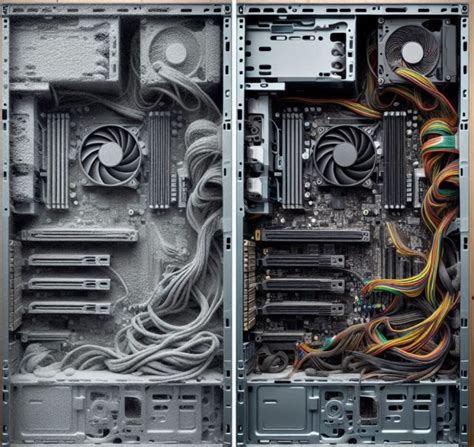
This is often the simplest and most effective solution. Dust is the enemy of cool. Use compressed air to blow out dust from your CPU cooler, GPU heatsink, case fans, and all air vents. Hold the fans in place while blowing to prevent damage to their bearings.
2. Optimize Case Fan Configuration
Proper airflow relies on a balanced pressure system within your case. Generally, you want more intake fans (pulling cool air in) than exhaust fans (pushing hot air out) to create positive pressure, which helps keep dust out. A common setup involves front intake, rear exhaust, and top exhaust.
- Intake Fans: Typically mounted at the front and sometimes bottom, drawing cool air into the case.
- Exhaust Fans: Usually at the rear and top, expelling hot air out of the case.
- Fan Direction: Ensure all fans are oriented correctly to contribute to the desired airflow direction.
3. Improve Cable Management
Messy cables can act like miniature dams, obstructing airflow and creating pockets of stagnant hot air. Take the time to route cables neatly behind the motherboard tray, using zip ties or Velcro straps. This creates clear pathways for air to move freely across your components.
4. Upgrade Your CPU Cooler
If you’re still using a stock cooler with a high-performance CPU, an upgrade is highly recommended. Aftermarket air coolers (like those from Noctua or be quiet!) or All-in-One (AIO) liquid coolers offer significantly better heat dissipation.
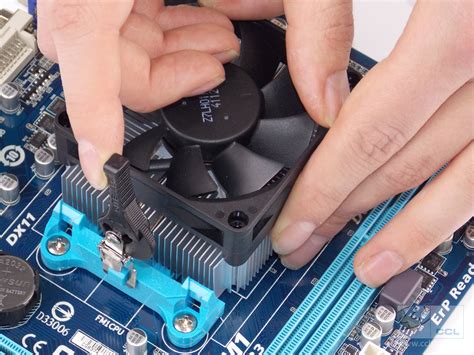
Consider the size of your case and CPU socket compatibility when choosing a new cooler.
5. Reapply Thermal Paste
Old, dried-out thermal paste loses its conductivity. Carefully remove your CPU cooler, clean off the old paste from both the CPU IHS (Integrated Heat Spreader) and the cooler’s contact plate with isopropyl alcohol, then apply a new, pea-sized dot of high-quality thermal paste to the center of the CPU before remounting the cooler. If you’re comfortable, the same can be done for a GPU, but this is a more delicate process.
6. Monitor Ambient Room Temperature
Your PC can only cool itself relative to the air around it. If your room is hot, your PC will naturally run hotter. Consider using air conditioning, a fan directed at your PC, or ensuring good ventilation in your gaming space, especially during summer months or intense gaming sessions.
7. Consider a Better Airflow PC Case
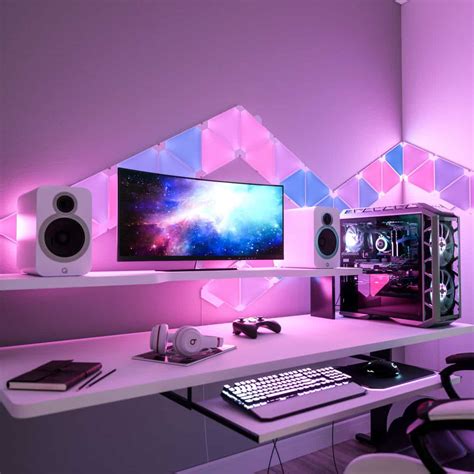
Some PC cases are designed with aesthetics over airflow. If your current case has a solid front panel or restrictive vents, upgrading to a case known for excellent airflow (e.g., mesh front panels) can make a significant difference.
![[Top 5] Best Airflow PC Cases in 2024 - YouTube](/images/aHR0cHM6Ly90czMubW0uYmluZy5uZXQvdGg/aWQ9T0lQLi1CRnVXVHRIOEhCTFVraEJyczZFT2dIYUVLJnBpZD0xNS4x.webp)
Monitor Your Temperatures
After making these adjustments, it’s crucial to monitor your PC’s temperatures to ensure your efforts are paying off. Use software like HWMonitor, MSI Afterburner, or NZXT CAM to keep an eye on your CPU and GPU temperatures both at idle and under load while gaming. Aim for CPU temps below 70-75°C and GPU temps below 75-80°C during heavy gaming.
Conclusion
An overheating gaming PC is a problem that needs addressing, but it’s often a fixable one. By regularly cleaning your system, optimizing airflow, and upgrading cooling components where necessary, you can significantly improve your PC’s thermal performance. This not only prevents damage and extends the lifespan of your hardware but also ensures you get the smooth, high-performance gaming experience you paid for. Keep it cool, and game on!


