How to set up dual monitors for competitive gaming without performance loss?
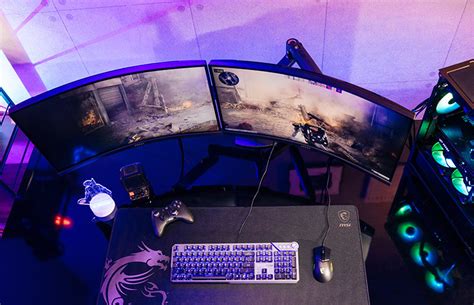
In the competitive gaming arena, every millisecond and every bit of information can make the difference between victory and defeat. While a single, high-refresh-rate monitor is crucial for the game itself, many gamers leverage a secondary display for essential tools like Discord, game maps, streaming chats, or monitoring system performance. The challenge, however, is integrating this second screen without sacrificing the precious frames per second (FPS) or introducing input lag in your primary game. This guide will walk you through the essential steps and considerations to achieve a high-performance dual monitor setup.
The Dual Monitor Advantage for Gamers
A dual monitor setup offers undeniable benefits for competitive gamers. The ability to keep team communication open on Discord, monitor stream health, consult interactive maps, or even browse strategies on a secondary screen vastly improves convenience and multitasking without alt-tabbing out of your game. This enhances situational awareness and reduces friction, allowing you to stay focused on the action.
Hardware Fundamentals: Powering Your Setup
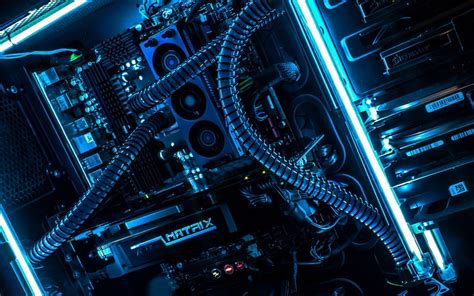
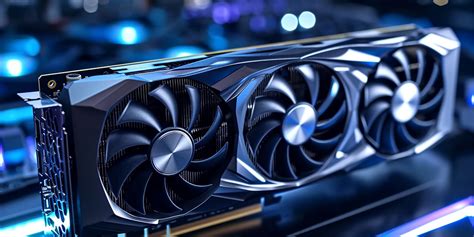
The cornerstone of a performance-friendly dual monitor setup is your Graphics Processing Unit (GPU). Your GPU is responsible for rendering all visual output, and running two monitors, especially if they have different resolutions or refresh rates, adds to its workload. For competitive gaming, a powerful modern GPU (e.g., NVIDIA RTX series, AMD Radeon RX series) is highly recommended. Ensure your GPU has sufficient video output ports (DisplayPort, HDMI) to connect both monitors.
When selecting or configuring monitors, ideally, your primary gaming monitor should be high-refresh-rate (120Hz, 144Hz, 240Hz+) with low response time. Your secondary monitor can be more modest. Mismatched resolutions and refresh rates are generally fine, but ensure your GPU can comfortably handle the combined pixel count, especially if both screens are active during intensive tasks. Use DisplayPort whenever possible for your primary gaming monitor to take advantage of higher refresh rates and technologies like G-Sync or FreeSync.

Physical Connection and Display Configuration
First, physically connect both monitors to your GPU using appropriate cables. Once connected, power on your PC. Windows (or your operating system) should automatically detect both displays. If not, go to Settings > System > Display.
Here, you’ll see representations of your monitors. Arrange them to match their physical layout on your desk. Select your primary gaming monitor and ensure “Make this my main display” is checked. Set the correct resolution and, crucially, the highest available refresh rate for your primary monitor. For the secondary monitor, set its native resolution and an appropriate refresh rate. Choose “Extend these displays” under the “Multiple displays” dropdown to use both screens independently.
Optimizing for Zero Performance Loss
GPU Control Panel Settings
Both NVIDIA and AMD provide control panels (NVIDIA Control Panel, AMD Adrenalin Software) that offer extensive customization. Navigate to “Manage 3D settings” (NVIDIA) or “Graphics” (AMD) and ensure your power management mode is set to “Prefer maximum performance” or similar. This prevents the GPU from downclocking when running less demanding tasks on the secondary monitor. Also, check for “Multi-Display/Mixed-GPU Acceleration” settings and ensure it’s configured for optimal performance.
Operating System and Application Management
- Power Plan: Set your Windows power plan to “High performance” to ensure your CPU and GPU aren’t throttled.
- Background Apps: Minimize background applications running on your primary monitor during gaming. For apps on your secondary monitor, ensure they are not resource-intensive. Close unnecessary browser tabs or heavy applications.
- Hardware Acceleration: For applications like Discord or web browsers running on your secondary monitor, consider disabling hardware acceleration if you notice micro-stutters. While usually beneficial, sometimes it can create conflicts with a primary full-screen game.
Tips for a Seamless Dual Monitor Experience
- Keep Drivers Updated: Always ensure your GPU drivers are up-to-date. Manufacturers frequently release optimizations that improve multi-monitor performance and stability.
- Monitor Refresh Rates: If you experience flickering or stuttering with highly mismatched refresh rates, sometimes setting the secondary monitor to a refresh rate that is a multiple or divisor of the primary (e.g., 144Hz and 72Hz, or 120Hz and 60Hz) can help, though modern GPUs are much better at handling mismatches.
- G-Sync/FreeSync: If your primary monitor supports adaptive sync technology (G-Sync or FreeSync), ensure it’s enabled in your GPU control panel for the best gaming experience. This technology dynamically matches your monitor’s refresh rate to your GPU’s frame rate, eliminating screen tearing and reducing stuttering.
By carefully configuring your hardware and software, you can enjoy the significant benefits of a dual monitor setup for competitive gaming without compromising on the performance crucial for your primary game. Focus on a powerful GPU, proper display settings, and judicious resource management, and you’ll be well on your way to a smoother, more informed gaming experience.