





My gaming PC overheats during Warzone. How do I fix CPU/GPU temps?

Why Your Gaming PC Overheats During Warzone
Is your gaming PC struggling to keep its cool while you’re dropping into Verdansk or Urzikstan? Overheating during demanding games like Call of Duty: Warzone is a common issue that can lead to performance throttling, stuttering, system crashes, and even long-term damage to your components. When your CPU (Central Processing Unit) and GPU (Graphics Processing Unit) work overtime to render Warzone’s intensive graphics and physics, they generate significant heat. If this heat isn’t effectively dissipated, temperatures will climb to dangerous levels.
Several factors can contribute to your PC becoming a hotbox during intense gaming sessions. Understanding these causes is the first step towards a cooler, more stable gaming experience.

Common Causes of Overheating:
- Dust Accumulation: Over time, dust, pet hair, and other debris can clog heatsinks and fans, acting as an insulating layer that traps heat.
- Poor Case Airflow: An improperly configured fan setup or cluttered internal cabling can impede the flow of cool air into your case and hot air out.
- Aged Thermal Paste: The thermal paste between your CPU/GPU and their respective heatsinks can dry out and lose effectiveness, reducing heat transfer.
- Inadequate Cooling Solutions: Stock CPU coolers or insufficient case fans might not be enough to handle the heat generated by high-performance components under heavy load.
- High Game Settings: Pushing Warzone’s graphical settings to their absolute maximum can place an extreme demand on your hardware, generating more heat than your cooling system can manage.
Immediate Steps to Diagnose and Fix Overheating
Before diving into more advanced solutions, start with these essential steps to identify and address common overheating culprits.
1. Monitor Your Temperatures
Knowledge is power. Use monitoring software to see exactly how hot your CPU and GPU are getting. Popular tools include HWMonitor, MSI Afterburner (for GPU, also has OSD), or NZXT CAM. Aim for CPU temperatures under 80°C and GPU temperatures under 85°C during gaming. Spikes slightly above these might be acceptable, but sustained high temperatures are a red flag.
2. Clean Your PC Thoroughly
This is often the simplest and most effective fix. Dust is the enemy of cooling. Power down and unplug your PC, then use a can of compressed air to blast dust out of your CPU cooler’s heatsink, GPU fans and heatsink, case fans, and any intake/exhaust vents. Make sure to hold the fan blades gently while cleaning to prevent damage from over-spinning.

3. Improve Case Airflow and Cable Management
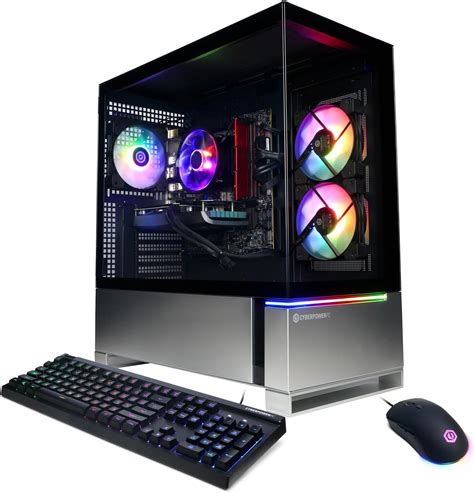
Good airflow is crucial. Ensure your case fans are correctly oriented: typically, front and bottom fans should be intake (bringing cool air in), while top and rear fans should be exhaust (pushing hot air out). Tidy up internal cables using zip ties or Velcro straps to prevent them from obstructing airflow paths between components.
Advanced Solutions for Persistent Overheating
If the basic steps don’t resolve your temperature issues, it might be time for more in-depth solutions.
1. Replace Thermal Paste
Old, dried-out thermal paste is a common culprit for high CPU temperatures. Replacing it can significantly improve heat transfer. This requires carefully removing your CPU cooler, cleaning off the old paste with isopropyl alcohol, and applying a fresh pea-sized drop of high-quality thermal paste before reseating the cooler. If you’re comfortable, you can also consider repasting your GPU, though this is a more delicate procedure and may void some warranties.

2. Upgrade Your Cooling Hardware
Sometimes, the cooling solution itself isn’t sufficient for your hardware. Consider upgrading:
- CPU Cooler: Replace your stock cooler with a more powerful air cooler (like those from Noctua or be quiet!) or an All-in-One (AIO) liquid cooler.
- Case Fans: Add more case fans or upgrade existing ones to higher-performance models for better airflow.
- GPU Cooling: For very hot GPUs, some enthusiasts opt for aftermarket GPU coolers, though this is an advanced modification.

3. Adjust Game Settings
If your hardware is truly struggling, lowering some of Warzone’s demanding graphics settings can reduce the load on your CPU and GPU, thus lowering temperatures. Pay attention to settings like ‘Texture Resolution,’ ‘Shadow Map Resolution,’ ‘Render Resolution,’ and ‘Ray Tracing’ (if applicable), as these often have a significant impact.
4. Consider Undervolting/Underclocking (Advanced)
Undervolting involves reducing the voltage supplied to your CPU or GPU without significantly impacting performance. Less voltage often means less heat. Similarly, a slight underclock can reduce heat at a minimal performance cost. This is an advanced technique that requires careful testing and understanding of your hardware and BIOS/software tools (e.g., MSI Afterburner for GPU, BIOS/Ryzen Master/Intel XTU for CPU).
Conclusion
Overheating during Warzone can be frustrating, but with a systematic approach, you can diagnose and resolve the issue. Start with basic maintenance like cleaning and improving airflow, then move on to thermal paste replacement or hardware upgrades if necessary. By keeping your CPU and GPU temperatures in check, you’ll ensure a smoother, more reliable gaming experience and extend the lifespan of your valuable PC components. Regular maintenance is key to preventing future overheating woes.


