





Best settings to boost FPS in competitive PC games without upgrading your GPU?

In competitive PC gaming, every frame per second (FPS) counts. Higher FPS provides a smoother, more responsive experience, giving you a crucial edge over opponents. While upgrading your graphics card is often the go-to solution for more frames, it’s not always financially viable. The good news is that there are numerous software-based optimizations, in-game tweaks, and system maintenance strategies you can employ to significantly boost your FPS without spending a dime on new hardware.
Optimize In-Game Graphics Settings
The first and most impactful area to target is within the game itself. Modern titles offer a plethora of graphical settings, many of which can drastically impact performance. For competitive play, the goal isn’t visual fidelity but maximum frame rate and minimal input lag.
Resolution and Scaling
Your display resolution is perhaps the biggest determinant of performance. Playing at 1080p will yield significantly more frames than 1440p or 4K. If you’re struggling even at 1080p, consider using a lower resolution (e.g., 900p or 720p) or utilizing in-game resolution scaling features like NVIDIA DLSS, AMD FSR, or Intel XeSS (if supported by your GPU and game), which render the game at a lower resolution internally and then upscale it. Even if these aren’t available, many games offer a ‘render scale’ slider which you can set below 100%.
Texture Quality and Filtering
Texture quality affects the detail of surfaces in the game. While it primarily impacts VRAM usage, lower settings can free up resources. Set this to Medium or Low. Texture filtering (Anisotropic Filtering) improves the clarity of textures viewed at an angle; set this to 2x or 4x, or even Bilinear if performance is critical.

Shadows and Lighting
Shadows and complex lighting effects are often the biggest FPS killers. They require significant GPU power to render dynamically. For competitive play, set shadow quality and effects like global illumination, ambient occlusion, and volumetric lighting to their lowest possible settings or disable them entirely. You might lose some atmospheric immersion, but you’ll gain valuable frames.
Anti-Aliasing and Post-Processing
Anti-aliasing (AA) smooths jagged edges but can be very demanding. Options like MSAA are particularly costly; opt for less demanding methods like FXAA or TAA, or disable it if you find the performance gain outweighs the visual compromise. Post-processing effects such as motion blur, depth of field, lens flare, and bloom should always be disabled in competitive titles as they add visual clutter and often reduce FPS without offering any tactical advantage.
View Distance and Clutter
View distance determines how far into the game world objects are rendered. While crucial for spotting enemies at range, excessively high settings can strain your GPU. Find a balance: enough to see opponents, but not so high that you’re rendering unnecessary distant details. Similarly, reduce environmental clutter (grass, debris) for a cleaner screen and better performance.
Update Drivers and Operating System
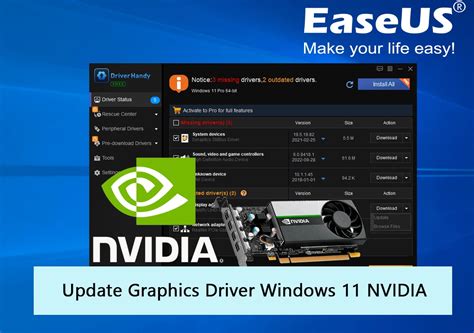
Keeping your graphics drivers and operating system up-to-date is fundamental for optimal performance. GPU manufacturers (NVIDIA, AMD, Intel) regularly release driver updates that include performance optimizations for new and existing games, bug fixes, and stability improvements.
Always download the latest stable drivers directly from your GPU manufacturer’s website. For Windows users, ensure your operating system is updated and consider enabling ‘Game Mode’ (Windows 10/11) which prioritizes system resources for your game.
Tweak NVIDIA/AMD Control Panel Settings
Beyond in-game settings, your GPU’s control panel offers global and program-specific settings that can fine-tune performance. Access the NVIDIA Control Panel or AMD Radeon Software (formerly Catalyst Control Center) by right-clicking on your desktop.
Power Management Mode (NVIDIA) / Power Efficiency (AMD)
For NVIDIA users, navigate to ‘Manage 3D settings’ > ‘Power management mode’ and set it to ‘Prefer maximum performance.’ AMD users should ensure ‘Power Efficiency’ is disabled for maximum performance.
Texture Filtering Quality
In the same 3D settings, set ‘Texture filtering – Quality’ to ‘High performance’ (NVIDIA) or ‘Performance’ (AMD). This prioritizes speed over visual fidelity for texture filtering.
Low Latency Mode (NVIDIA) / Anti-Lag (AMD)
These features aim to reduce input lag. For NVIDIA, set ‘Low Latency Mode’ to ‘On’ or ‘Ultra’. For AMD, enable ‘Radeon Anti-Lag’. Experiment with these, as sometimes ‘Ultra’ can introduce micro-stutters on older hardware.

System Optimization and Maintenance
A well-maintained and optimized operating system contributes significantly to gaming performance.
Close Background Applications
Before launching a game, close unnecessary applications running in the background. Web browsers, streaming apps, Discord, torrent clients, and other software can consume CPU, RAM, and network bandwidth, taking resources away from your game. Use Task Manager (Ctrl+Shift+Esc) to identify and close resource-intensive processes.
Disable Unnecessary Startup Programs
Many applications are configured to launch automatically with Windows, slowing down your boot time and consuming resources from the start. Go to Task Manager > Startup tab and disable any programs you don’t need running immediately.

Keep Your System Cool and Clean
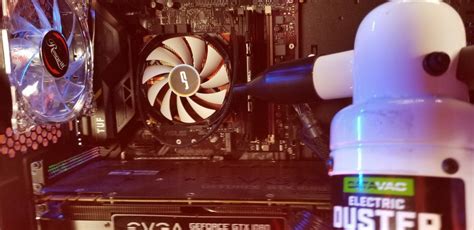
Overheating components (CPU and GPU) will automatically throttle their performance to prevent damage. Ensure your PC’s internal components, especially heatsinks and fans, are free of dust. Clean your case fans and CPU/GPU coolers regularly to maintain optimal temperatures. Good airflow within your case is crucial.
Power Options
In Windows, ensure your power plan is set to ‘High performance’ (Control Panel > Hardware and Sound > Power Options). This prevents your CPU from downclocking to save power, ensuring it runs at maximum speed when gaming.
Advanced Tweaks (Use with Caution)
These methods offer further performance gains but carry a higher risk if not performed correctly. Proceed with caution and research thoroughly.
Overclocking (CPU/RAM)
If your CPU and motherboard support it, a modest CPU overclock can provide a few extra frames, especially in CPU-bound games. Similarly, enabling the XMP profile (Intel) or DOCP (AMD) in your BIOS for your RAM will ensure it runs at its advertised speed, significantly boosting performance if it’s currently running slower.
Windows System Tweaks
Consider disabling visual effects in Windows (Performance Options > Adjust for best performance), and regularly defragmenting your HDD (SSDs do not need defragmenting; ensure TRIM is enabled). Advanced users might consider debloating Windows for maximum efficiency.
Conclusion
Boosting FPS without a GPU upgrade is entirely achievable by systematically optimizing your software and hardware settings. Start with the most impactful changes – in-game graphics settings – and work your way through driver updates, control panel tweaks, and system maintenance. Remember to test changes iteratively, focusing on one or two adjustments at a time, to understand their impact. With a bit of effort, you can transform your gaming experience and gain that competitive edge you’ve been looking for.


