





How to optimize Windows for maximum gaming FPS?
Unleash Your Gaming PC’s True Potential
Even the most powerful gaming rigs can benefit from a little fine-tuning. Windows, by default, is configured for general use, not maximum gaming performance. By optimizing certain settings, disabling unnecessary features, and ensuring your system is running efficiently, you can significantly boost your Frames Per Second (FPS) and enjoy a smoother, more responsive gaming experience. This guide will walk you through the essential steps to get the most out of your Windows machine for gaming.
![Windows 7 with Windows 11 logo [1920x1080] : r/wallpaper](/images/aHR0cHM6Ly90czEubW0uYmluZy5uZXQvdGg/aWQ9T0lQLm14cVppVEJUeDlHRzE2ZlBEZGoyTmdIYUVLJnBpZD0xNS4x.webp)
Keep Drivers and Windows Up to Date
This is perhaps the most crucial step. Graphics card manufacturers (NVIDIA, AMD, Intel) regularly release new drivers that include performance optimizations for the latest games, bug fixes, and stability improvements. Always ensure you’re running the latest stable version of your GPU drivers. Similarly, keeping Windows updated ensures you have the latest security patches and performance enhancements from Microsoft.
- Graphics Drivers: Download directly from NVIDIA, AMD, or Intel websites. Use clean installation options if available.
- Windows Updates: Go to Settings > Update & Security > Windows Update and check for updates.
Enable Game Mode
Windows Game Mode is designed to prioritize your game’s performance by reallocating system resources and stopping background activities. While its impact can sometimes be subtle, it’s a quick and easy setting to enable.
To enable Game Mode:
- Go to Settings > Gaming > Game Mode.
- Toggle the “Game Mode” switch to “On”.
Adjust Power Settings for High Performance
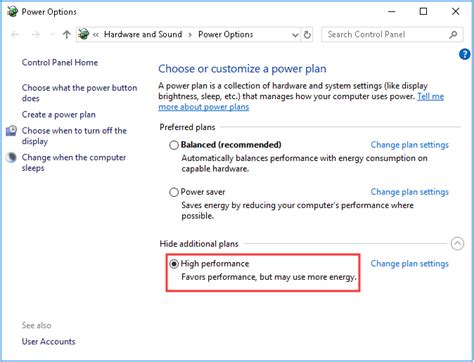
Windows’ default power plans often prioritize energy saving, which can limit your CPU and GPU’s maximum potential. Switching to a “High Performance” or “Ultimate Performance” plan ensures your hardware is always delivering its best.
- Search for “Power & Sleep Settings” in the Windows search bar.
- Click “Additional power settings” on the right.
- Select “High performance” or “Ultimate Performance” (if available, sometimes needs to be enabled via command prompt).
- Click “Change plan settings” next to your chosen plan, then “Change advanced power settings” to fine-tune specific components like processor power management.
Disable Visual Effects and Transparency
While Windows’ visual flair looks nice, features like transparent windows, animations, and shadows consume system resources that could be better used by your games. Disabling them can free up a small amount of RAM and CPU cycles.
- Search for “Adjust the appearance and performance of Windows”.
- In the Performance Options window, select “Adjust for best performance”.
- Alternatively, select “Custom” and uncheck effects you don’t need (e.g., “Animate windows when minimizing and maximizing”, “Fade or slide menus into view”, “Show shadows under windows”).
- Also, disable transparency effects in Settings > Personalization > Colors > Transparency effects.
Manage Startup Programs and Background Apps
Many applications are configured to launch automatically when Windows starts and continue running in the background, consuming CPU, RAM, and network resources. Minimizing these can significantly improve system responsiveness and free up resources for gaming.
- Startup Programs: Open Task Manager (Ctrl+Shift+Esc), go to the “Startup” tab, and disable any non-essential programs.
- Background Apps: Go to Settings > Privacy > Background apps. Turn off apps that you don’t need running in the background.
Optimize Graphics Settings for Individual Games
Beyond global Windows settings, most games offer their own extensive graphics settings. While a higher FPS is generally desired, finding the right balance between visual quality and performance is key. Experiment with settings like texture quality, anti-aliasing, shadow quality, and view distance. Often, subtle reductions in certain settings can yield significant FPS gains without a noticeable drop in visual fidelity.

Clean Up and Defragment Your Storage
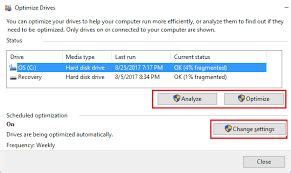
A cluttered hard drive can slow down your system. Regularly clean temporary files and uninstall programs you no longer use. For traditional Hard Disk Drives (HDDs), defragmentation can improve file access speeds. Solid State Drives (SSDs) do not need defragmentation and it can even reduce their lifespan; Windows automatically optimizes them.
- Disk Cleanup: Search for “Disk Cleanup” in Windows and run it to remove temporary files.
- Defragment and Optimize Drives: Search for this tool and run it for your HDDs.
Conclusion
Optimizing Windows for gaming is an ongoing process, but by following these steps, you’ll create a lean, mean gaming machine capable of delivering higher FPS and a more enjoyable experience. Remember that individual results may vary depending on your hardware, but these tweaks provide a solid foundation for maximizing your gaming performance. Enjoy your games!


