





My games stutter. Best steps to diagnose and fix FPS drops on a gaming PC?

Understanding What Causes FPS Drops and Stuttering
Nothing sours a gaming session faster than unexpected frame rate drops and stuttering. Whether you’re in the middle of an intense firefight or exploring a vast open world, consistent performance is key to an immersive experience. Diagnosing the root cause of these issues often requires a methodical approach, as many factors—from software conflicts to hardware limitations—can contribute to poor in-game performance.
Step 1: Initial Checks – The Quick Wins
Update Your Drivers
Outdated or corrupted graphics drivers (NVIDIA, AMD, Intel) are among the most common culprits for performance issues. Always ensure your GPU drivers are up to date. Also, consider checking for chipset drivers and other critical system drivers from your motherboard manufacturer.
- Graphics Drivers: Download directly from NVIDIA, AMD, or Intel’s official websites. Use a ‘clean installation’ option if available.
- Chipset Drivers: Visit your motherboard manufacturer’s support page.
Check In-Game Settings
Sometimes, the solution is as simple as adjusting your game’s graphics settings. If you’ve recently installed a new game or updated your system, the game might be defaulting to settings too high for your hardware to handle consistently.
- Lower settings like anti-aliasing, shadow quality, texture resolution, and view distance.
- Experiment with different display modes (fullscreen, borderless windowed).
- Disable features like V-Sync if you have a high refresh rate monitor without adaptive sync, or enable it if screen tearing is an issue.
System Reboot
A simple restart can often resolve temporary software glitches, memory leaks, or background processes hogging resources.
Step 2: Monitor Your System’s Performance
To pinpoint the issue, you need data. Monitoring your CPU, GPU, RAM, and storage usage, along with temperatures, during gameplay can reveal bottlenecks or overheating problems.
Recommended Monitoring Tools:
- MSI Afterburner (with RivaTuner Statistics Server): Excellent for GPU usage, temperature, clock speed, and FPS overlay in-game.
- HWMonitor / HWiNFO64: Comprehensive hardware sensor monitoring, including CPU/GPU temperatures, voltages, and fan speeds.
- Windows Task Manager: Quick overview of CPU, RAM, Disk, and Network usage.
Look for spikes in CPU or GPU usage hitting 100%, sudden drops in clock speeds (throttling), or excessively high temperatures (above 85-90°C for GPUs, or 90-95°C for CPUs).
Step 3: Diagnose Software and Background Processes
Close Unnecessary Background Applications
Many applications run silently in the background, consuming CPU, RAM, or disk I/O that could otherwise be dedicated to your game.
- Open Task Manager (Ctrl+Shift+Esc) and check the ‘Processes’ tab. Close any non-essential applications before gaming.
- Disable unnecessary startup programs via the ‘Startup’ tab in Task Manager.
Power Settings and Game Mode
- Power Plan: Ensure your Windows power plan is set to ‘High Performance’ or ‘Ultimate Performance’ (if available).
- Game Mode: Windows Game Mode can sometimes help optimize resources for gaming, but occasionally it can cause issues. Try toggling it on/off to see if it makes a difference.
Antivirus and Other Security Software
Real-time scanning from antivirus software can sometimes interfere with game performance. Consider temporarily disabling it or adding your game directories to its exclusion list.
Step 4: Hardware Deep Dive and Physical Checks
Check for Overheating
High temperatures are a leading cause of performance throttling. Ensure your PC’s cooling system is adequate and free from dust.
- Clean dust from CPU cooler, GPU heatsink, and case fans with compressed air.
- Ensure proper airflow within your PC case.
- Consider reapplying thermal paste to your CPU or GPU if temperatures remain high despite cleaning.
Storage Drive Health and Type
If your games are installed on a traditional Hard Disk Drive (HDD), slow loading times and in-game stuttering can occur, especially in open-world games that constantly stream assets. Upgrading to an SSD (Solid State Drive) can significantly improve performance.
- Check your drive’s health using tools like CrystalDiskInfo.
- Ensure your SSD has enough free space (ideally 15-20% free).
RAM Issues
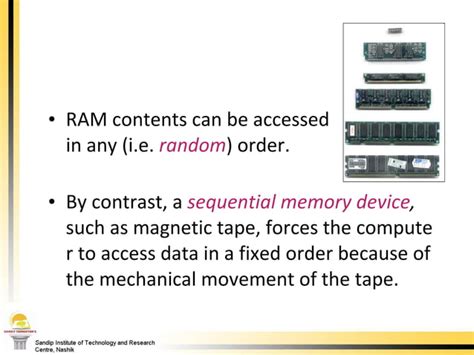
Insufficient RAM or faulty RAM can cause stuttering as your system resorts to using slower page files on your storage drive.
- Ensure you have at least 16GB of RAM for modern gaming.
- Run Windows Memory Diagnostic or MemTest86 to check for RAM errors.
Power Supply Unit (PSU)
An aging or insufficient PSU might struggle to deliver stable power to your components under load, leading to instability or performance drops.
- Ensure your PSU meets the wattage requirements for your components.
- Check PSU cables are securely connected.
GPU and CPU Bottleneck
If one component is consistently at 100% usage while the other is idle or significantly underutilized, you might have a bottleneck. This often means one component is holding back the potential of the other. Monitoring tools can help identify this.
Step 5: Advanced Troubleshooting and Last Resorts
BIOS/UEFI Settings
- XMP Profile: Ensure your RAM’s XMP (Extreme Memory Profile) is enabled in BIOS to run at its advertised speed.
- PCIe Slot: Verify your GPU is in the primary PCIe x16 slot.
Reinstall the Game or Operating System
If the issue is isolated to a single game, try a fresh reinstallation of that game. As a last resort, if all other steps fail and you suspect deep-seated software corruption, a clean installation of Windows can often resolve persistent performance problems, though it’s a significant undertaking.
Conclusion
Diagnosing and fixing FPS drops on a gaming PC is an iterative process. Start with the simplest solutions and gradually move to more complex ones. By systematically monitoring your system, updating drivers, optimizing settings, and performing physical checks, you can identify and resolve the culprits behind your game’s stuttering, restoring a smooth and enjoyable gaming experience.


