





How to boost FPS in competitive games without major hardware upgrades?
Unlock Higher Frame Rates Without Breaking the Bank
For competitive gamers, every frame per second (FPS) counts. A higher, more stable FPS provides a smoother experience, better responsiveness, and a distinct advantage over opponents. While upgrading your graphics card or processor is the most straightforward path to better performance, it’s not always feasible or necessary. This guide will walk you through a series of optimization techniques that can dramatically boost your FPS in competitive titles, all without spending a dime on new hardware.
1. Master In-Game Settings for Maximum Performance
The first and most impactful area to tweak is within the game itself. Developers often include a myriad of graphics options, many of which can be toned down for a significant FPS gain with minimal visual sacrifice.
- Lower Resolution: Running your game at a native 1080p or 1440p looks great, but dropping to 900p or even 720p can provide a substantial FPS boost, especially for older or less powerful GPUs.
- Reduce Graphics Presets: Most games offer ‘Low,’ ‘Medium,’ ‘High,’ and ‘Ultra’ presets. Start with ‘Low’ and gradually increase individual settings until you find a balance between visuals and performance.
- Shadows and Reflections: These are often the biggest FPS killers. Set shadow quality and reflection detail to their lowest possible settings.
- Anti-Aliasing: Techniques like MSAA or TAA smooth jagged edges but consume considerable GPU power. Experiment with lower settings or turn it off entirely if you prioritize FPS.
- Post-Processing Effects: Bloom, motion blur, depth of field, and lens flare can be visually appealing but are often expendable for competitive play. Disable them.
- Texture Quality: This impacts VRAM usage. If your GPU has limited VRAM (e.g., 4GB or less), lower texture quality.
- V-Sync/G-Sync/FreeSync: While these technologies prevent screen tearing, V-Sync can introduce input lag. If you experience performance issues, try disabling V-Sync first. G-Sync/FreeSync are generally beneficial if you have a compatible monitor and GPU.
2. System and Driver Optimization for Peak Efficiency
Beyond in-game settings, your operating system and drivers play a crucial role in overall system performance.
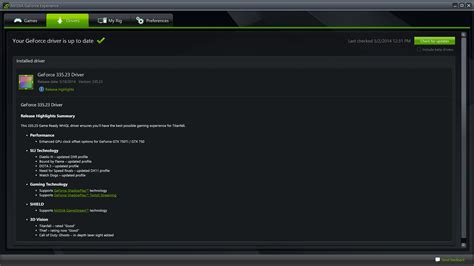
- Update Graphics Drivers: Always keep your GPU drivers (NVIDIA GeForce, AMD Radeon, Intel Arc) up to date. Manufacturers frequently release updates that include performance optimizations for new and popular titles.
- Windows Game Mode: Ensure Windows Game Mode is enabled. Go to Settings > Gaming > Game Mode. This helps Windows prioritize gaming performance.
- Disable Background Apps: Close all unnecessary applications running in the background before launching your game. Web browsers, streaming apps, and chat clients can consume valuable CPU and RAM resources.
- Power Plan Settings: Set your Windows power plan to ‘High Performance’ or ‘Ultimate Performance.’ Go to Control Panel > Hardware and Sound > Power Options.
- Startup Programs: Reduce the number of programs that launch with Windows. Open Task Manager (Ctrl+Shift+Esc), go to the ‘Startup’ tab, and disable non-essential items.
3. Maintain a Clean and Efficient System
A well-maintained system runs smoother and faster. Regular upkeep can prevent performance degradation over time.
- Disk Cleanup: Regularly delete temporary files and system clutter using Windows Disk Cleanup or third-party tools like CCleaner.
- Defragment Your Hard Drive (HDD Only): If your game is installed on a traditional HDD, defragmenting it can improve load times and sometimes FPS. Do NOT defragment Solid State Drives (SSDs), as this can shorten their lifespan.
- Malware Scan: Ensure your system is free of viruses and malware, which can secretly consume system resources.
- Disable Windows Visual Effects: For older systems, disabling some Windows visual effects can free up resources. Search for ‘Adjust the appearance and performance of Windows’ in the Start Menu.

4. Explore Mild Overclocking (With Caution)
If you’re comfortable with advanced tweaking, mild overclocking of your CPU or GPU can yield additional performance. However, this carries risks and should only be attempted if you understand the process and have adequate cooling.
- GPU Overclocking: Use tools like MSI Afterburner or ASUS GPU Tweak II to incrementally increase core clock and memory clock speeds. Monitor temperatures closely and revert settings if instability or artifacts occur.
- CPU Overclocking: Modern CPUs often boost themselves efficiently. Manual CPU overclocking usually requires BIOS adjustments and significant research into your specific CPU and motherboard. Start with small increments and ensure stable temperatures.
- RAM XMP Profile: If your RAM is rated for speeds higher than its default (e.g., 3200MHz but running at 2133MHz), enable the XMP (Extreme Memory Profile) or DOCP profile in your BIOS to run it at its advertised speed. This can significantly impact CPU-bound games.
5. Optimize Your Network Connection (Indirect FPS Boost)
While network performance doesn’t directly impact your FPS, a stable, low-latency connection prevents lag spikes and improves the overall responsiveness that can be mistakenly attributed to low FPS.
- Use a Wired Connection: Ethernet is always superior to Wi-Fi for gaming, offering lower latency and greater stability.
- Close Bandwidth-Heavy Applications: Ensure no one else on your network is streaming 4K video or downloading large files while you’re gaming.
- Quality of Service (QoS): If your router supports it, configure QoS settings to prioritize gaming traffic.

Consistency is Key to Sustained Performance
Boosting your FPS without new hardware is an ongoing process of optimization and maintenance. Regularly apply these tips, stay updated with driver releases, and pay attention to how changes affect your gameplay. With a bit of effort, you can transform your gaming experience, achieving smoother performance and gaining that crucial edge in competitive titles without ever opening your wallet for a new component.


