





How to stop PC fans from being so loud during intense gaming sessions?

Intense gaming sessions push your PC to its limits, generating significant heat. To combat this, your fans spin faster, often leading to a symphony of whirring that can break immersion and even cause headaches. While some fan noise is inevitable, there are numerous strategies you can employ to significantly quiet down your rig without compromising performance.
Understanding Why Your Fans Get Loud
The primary reason PC fans become loud is heat. As your CPU and GPU work harder to render complex game graphics and process calculations, they generate more heat. To prevent overheating and potential damage, your system’s fans automatically increase their RPM (revolutions per minute) to dissipate this heat more efficiently. This increased speed directly translates to more noise. Factors like dust buildup, poor airflow, and stock cooling solutions can exacerbate the problem.
Optimizing Your Cooling Hardware

Upgrade Your CPU Cooler
The stock cooler that comes with many CPUs is often barely adequate for basic tasks, let alone intense gaming. Investing in a high-quality aftermarket CPU cooler, either an air cooler with a large heatsink and quiet fans or an All-in-One (AIO) liquid cooler, can dramatically improve thermal performance and allow fans to run at lower, quieter speeds.
Improve Case Airflow and Fans
A well-ventilated case is crucial. Ensure your case has a good intake/exhaust fan configuration to create positive or neutral air pressure, preventing hot air pockets. Replacing noisy stock case fans with higher-quality, low-noise fans from reputable brands (e.g., Noctua, be quiet!, Arctic) can make a huge difference. Look for fans with good static pressure for radiators and good airflow for general case ventilation, often indicated by lower dBA ratings.
Consider GPU Cooling Solutions
Your graphics card is often the loudest component during gaming. While aftermarket GPU coolers exist, a more common solution is to ensure your current GPU’s cooling system is efficient. Keep GPU fans clean and consider undervolting your GPU slightly, which can reduce power consumption and heat output without a noticeable performance hit.
Software and BIOS Adjustments
Custom Fan Curves
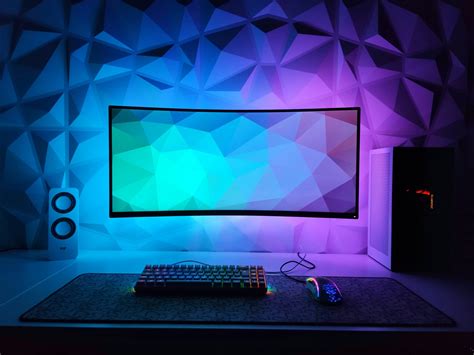
Most motherboards and some GPU utilities allow you to set custom fan curves in the BIOS or through software (e.g., MSI Afterburner, Gigabyte’s Aorus Engine). This gives you granular control over when and how fast your fans spin. You can often find a balance where fans remain relatively quiet during idle or light loads and only ramp up significantly when temperatures truly demand it, creating a smoother and less jarring noise profile.
Undervolting Your CPU and GPU
Undervolting involves reducing the voltage supplied to your CPU or GPU while maintaining stable clock speeds. Lower voltage means less power consumption, less heat generation, and consequently, quieter fans. This requires careful testing and is often done in BIOS for the CPU or specialized software for the GPU. It can be a highly effective way to reduce noise without sacrificing performance.
Limit Frame Rates (FPS)
If your PC is pushing hundreds of frames per second on a 60Hz or 144Hz monitor, it’s generating unnecessary heat for frames you can’t even see. Limiting your FPS to your monitor’s refresh rate (or slightly above for G-Sync/FreeSync) using in-game settings or drivers (e.g., NVIDIA Control Panel, AMD Adrenalin) can significantly reduce the workload on your GPU and CPU, leading to lower temperatures and quieter fans.
Essential Maintenance Practices
Regular Dust Cleaning
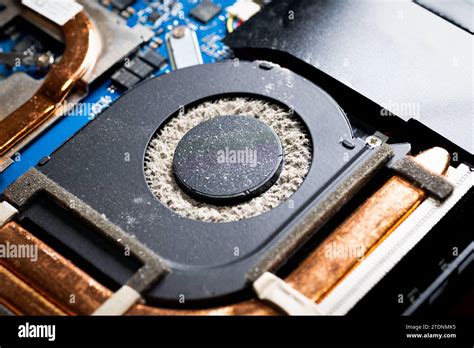
Dust is the arch-nemesis of PC cooling. It accumulates on heatsinks, fan blades, and vents, acting as an insulating layer that traps heat and impedes airflow. Regularly cleaning your PC with compressed air, especially the CPU cooler, GPU heatsink, and case fans, is paramount. Aim for a clean-out every 3-6 months, or more frequently if your environment is dusty.
Reapply Thermal Paste
Over time, the thermal paste between your CPU (or GPU die) and its heatsink can dry out and become less effective at transferring heat. Reapplying fresh, high-quality thermal paste every few years can significantly improve thermal conductivity, allowing your cooler to perform more efficiently and your fans to run slower.
Other Considerations

Quiet Power Supply Unit (PSU)
Some PSUs have fans that can get quite loud under load. If your PSU is old or a budget model, upgrading to a high-quality, efficient PSU (e.g., 80 Plus Gold or Platinum rated) with a silent fan profile or a semi-passive mode can contribute to overall system quietness. These often only spin up their fan when under significant load.
Anti-Vibration Mounts
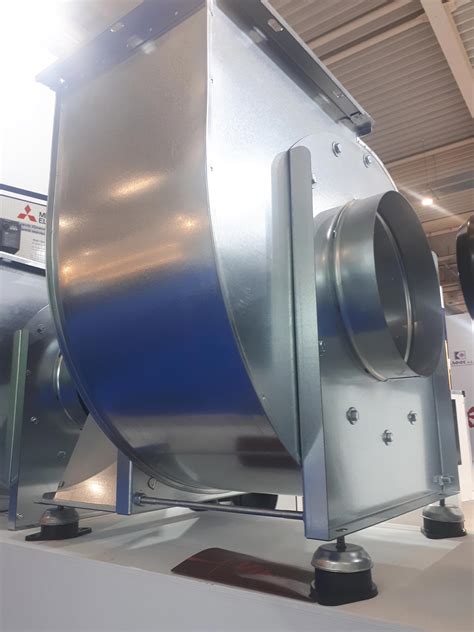
Even quiet fans can transmit vibrations to the PC case, creating an audible hum. Using rubber fan mounts or grommets instead of screws can help isolate these vibrations, reducing overall system noise. Many high-quality fans come with these included.
Conclusion
Achieving a quiet gaming PC involves a multi-faceted approach, combining strategic hardware upgrades, intelligent software adjustments, and diligent maintenance. By implementing these tips, you can transform your loud gaming rig into a silent assassin, allowing you to fully immerse yourself in your games without the distraction of whirring fans. Start by identifying the loudest components and address them systematically for the most impactful results.


