





What specific GPU settings boost FPS in competitive shooters on NVIDIA/AMD?
In the highly competitive world of esports and online shooters, every frame per second (FPS) and millisecond of latency can be the difference between victory and defeat. While high-end hardware certainly helps, fine-tuning your GPU settings is a free and effective way to squeeze out maximum performance from your existing NVIDIA or AMD graphics card. This guide will walk you through the specific driver settings crucial for boosting FPS and reducing input lag, ensuring you have the smoothest, most responsive experience possible.
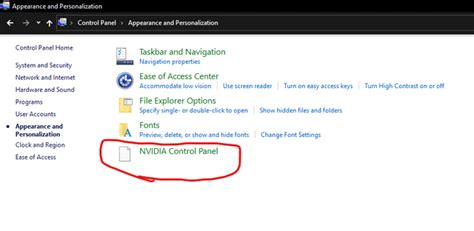
NVIDIA Control Panel: Unleashing Peak Performance
NVIDIA’s Control Panel offers a comprehensive suite of options to customize your GPU’s behavior. For competitive shooters, the goal is to prioritize raw performance and responsiveness over visual bells and whistles. Here are the key settings to adjust:
Global Settings vs. Program Settings
For maximum impact, you can apply these settings globally, but it’s often better to configure them per-game under “Manage 3D settings” > “Program Settings.” This ensures other applications aren’t negatively affected.
Key NVIDIA Settings for FPS:
- Low Latency Mode: Set to Ultra. This queues frames just in time for the GPU, significantly reducing input lag.
- Max Frame Rate: Consider capping your FPS to just below your monitor’s refresh rate (e.g., 141 FPS for a 144Hz monitor). This helps maintain frame consistency and can further reduce latency when combined with G-Sync/FreeSync, preventing render queues from building up too much.
- Power Management Mode: Select Prefer maximum performance. This ensures your GPU always operates at its highest clock speeds, even under lighter loads.
- Texture Filtering – Quality: Change to High Performance. This slightly reduces visual quality of textures but provides a noticeable FPS boost.
- Threaded Optimization: Set to On. Allows multi-threaded optimization for modern CPUs, improving performance in many games.
- Vertical Sync: Set to Off. V-Sync introduces input lag and should generally be disabled in competitive titles. If you experience severe screen tearing, consider using G-Sync/FreeSync with a frame cap.
- Shader Cache Size: Set to Driver Default or Unlimited. A larger cache can help reduce stuttering in some games.
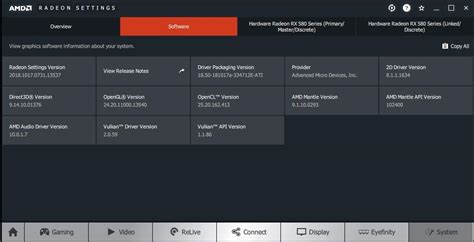
AMD Radeon Software: Optimizing for the Red Team
AMD’s Radeon Software provides a similar set of tools for performance tuning. Like NVIDIA, the focus for competitive shooters is to strip back unnecessary graphical enhancements in favor of raw speed and minimal latency.
Global Graphics vs. Game Profiles
Similar to NVIDIA, you can apply these settings globally or create specific profiles for your competitive games under the “Gaming” tab.
Key AMD Settings for FPS:
- Radeon Anti-Lag: Set to Enabled. This feature works similarly to NVIDIA’s Low Latency Mode, reducing input lag by dynamically adjusting CPU work to align with the GPU.
- Radeon Boost: Set to Enabled (if supported by the game). Radeon Boost dynamically lowers resolution in fast-motion scenes to increase FPS, returning to full resolution when static. This can provide a significant FPS uplift during intense action.
- Radeon Chill: Generally set to Disabled. While useful for power saving, it caps your FPS and is counterproductive for competitive play unless you specifically want to limit heat/power consumption at a set FPS target.
- Image Sharpening: Keep Disabled or at a very low percentage if enabled. While it makes images crisper, it can introduce a minor performance overhead.
- Wait for Vertical Refresh (V-Sync): Set to Always Off or Enhanced Sync. Always Off is best for lowest latency. Enhanced Sync can be an alternative to standard V-Sync, attempting to reduce tearing without the same input lag, but still adds some.
- Texture Filtering Quality: Set to Performance. Prioritizes speed over texture detail.
- Tessellation Mode: Set to Override application settings and then Off or AMD Optimized. Tessellation can be very demanding; disabling it globally can offer significant gains in older or less optimized titles.

Don’t Forget In-Game Settings
While this article focuses on GPU driver settings, remember that in-game graphics options play an equally critical role. Always prioritize the following for competitive play:
- Resolution: Native resolution of your monitor is usually best for clarity.
- Texture Quality: Medium or Low.
- Shadows: Low or Off.
- Anti-aliasing: Off or lowest setting (e.g., FXAA, SMAA, TAA if necessary).
- Post-processing Effects: Off or Low (e.g., motion blur, depth of field, lens flare).
- View Distance: Depending on the game, can be set to medium/high without significant FPS loss, as it’s often crucial for spotting enemies.
Additional Tips for Maintaining Peak Performance
- Keep Drivers Updated: Always install the latest stable GPU drivers. NVIDIA and AMD frequently release game-ready drivers that include performance optimizations.
- Monitor Your Performance: Use tools like MSI Afterburner, NVIDIA’s Performance Overlay (Alt+R), or AMD’s Performance Overlay (Ctrl+Shift+O) to monitor FPS and GPU usage.
- Disable Background Apps: Close unnecessary applications running in the background to free up CPU and RAM resources.
- Overclocking (Advanced): For experienced users, a stable GPU overclock can provide additional frames, but proceed with caution and thorough testing.
Conclusion
Optimizing your NVIDIA or AMD GPU settings for competitive shooters is a vital step toward gaining an advantage over your opponents. By prioritizing performance and low latency through the specific driver adjustments outlined above, coupled with sensible in-game settings, you can unlock higher frame rates, reduce input lag, and achieve a smoother, more responsive gaming experience. Take the time to apply these tweaks, and feel the difference in your next match!


