





How to troubleshoot FPS drops & optimize PC gaming performance for smooth gameplay?
Conquering Lag: A Guide to Troubleshooting FPS Drops
There’s nothing more frustrating for a PC gamer than experiencing sudden Frame Per Second (FPS) drops, turning an immersive experience into a stuttering slideshow. Smooth gameplay is crucial for enjoyment and competitive edge. This comprehensive guide will walk you through systematic troubleshooting steps and optimization techniques to ensure your gaming rig delivers consistent, high FPS.
Understanding What Causes FPS Drops
Before diving into solutions, it’s essential to understand the potential culprits behind performance dips. FPS drops can stem from a variety of sources, including:
- Outdated or Corrupt Drivers: Especially graphics card drivers.
- Overheating: Components like the CPU and GPU will throttle performance to prevent damage.
- Resource Bottlenecks: One component (CPU, GPU, RAM, storage) can’t keep up with the others.
- Background Processes: Other applications consuming vital system resources.
- Suboptimal Game Settings: Graphics settings too high for your hardware.
- Power Management Issues: PC not running at full performance.
- Malware or Corrupt Files: Interfering with system operations.
Initial Checks and Quick Fixes
Sometimes, the solution is simpler than you think. Start with these basic steps:
- Restart Your PC: A classic for a reason, it clears temporary files and resets processes.
- Update Your Drivers: Always keep your graphics card drivers (NVIDIA GeForce Experience, AMD Radeon Software), chipset drivers, and sound drivers up to date.
- Check Game Updates: Ensure the game itself is updated to the latest version, which often includes performance fixes.
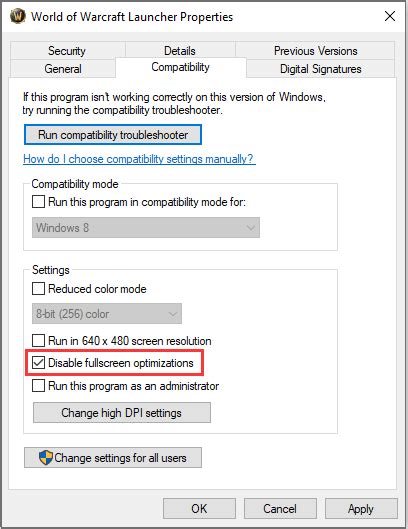
- Verify Game Files: Use your game launcher (Steam, Epic Games, Battle.net) to verify the integrity of game files.
System Monitoring & Diagnostics
To effectively troubleshoot, you need to know what’s happening inside your PC:
- Task Manager (Windows): Press
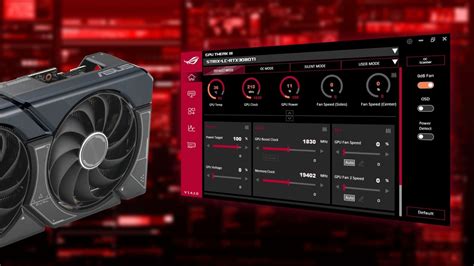
Ctrl+Shift+Escto monitor CPU, RAM, Disk, and GPU usage while gaming. Look for spikes or consistently high usage. - Monitoring Software: Tools like MSI Afterburner (for GPU monitoring and overclocking), HWMonitor (for temperatures), and Open Hardware Monitor can provide detailed insights into component temperatures, clock speeds, and usage. High temperatures are a common cause of thermal throttling.
Graphics Settings Optimization
This is often the most direct way to gain FPS.
- In-Game Settings:
- Resolution: Lowering resolution significantly boosts FPS.
- Texture Quality: Impacts VRAM usage. Reduce if your GPU has limited VRAM.
- Shadows: Very demanding. Lowering shadow quality or resolution can have a huge impact.
- Anti-Aliasing: Smooths jagged edges but is resource-intensive. Experiment with lower settings or different types (e.g., FXAA instead of MSAA).
- Draw Distance/View Distance: Reducing how far objects render saves CPU and GPU cycles.
- Post-Processing Effects: Bloom, depth of field, motion blur can be resource hogs.
- NVIDIA/AMD Control Panel Settings:
- Power Management Mode: Set to ‘Prefer maximum performance’.
- Shader Cache: Ensure it’s enabled.
- Texture Filtering Quality: Set to ‘High Performance’.
- V-Sync: Turn off if you have a high refresh rate monitor and experience input lag. Use G-Sync/FreeSync if available.
Hardware Considerations & Upgrades
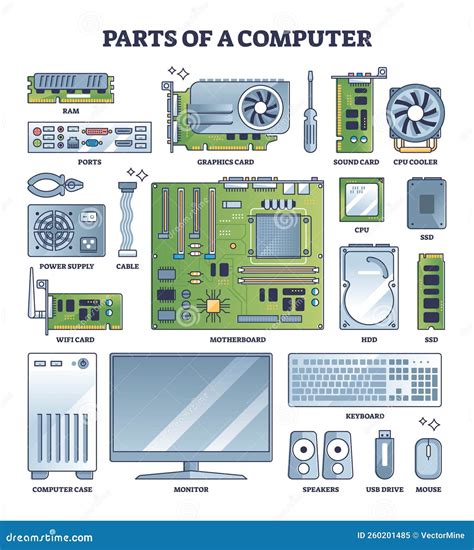
Sometimes, software tweaks aren’t enough, and hardware might be the bottleneck.
- Overheating:
- Clean Your PC: Dust accumulation severely hinders cooling. Use compressed air to clean fans and heatsinks.
- Reapply Thermal Paste: On CPU and GPU if temperatures are still high after cleaning, especially for older systems.
- Improve Airflow: Ensure proper case fan setup (intake/exhaust) and cable management.
- RAM: 8GB is the minimum for gaming; 16GB is recommended. Ensure you’re running RAM in dual-channel mode and at its advertised speed (XMP/DOCP profile in BIOS).
- Storage: Games loaded on an SSD will perform better, with faster load times and fewer stuttering issues compared to an HDD.
- CPU/GPU Bottlenecks: If one component consistently hits 100% usage while the other is low, you have a bottleneck. This might indicate it’s time for an upgrade.
Software and Background Processes
Your PC isn’t just running the game.
- Disable Background Apps: Close web browsers, streaming services, chat apps, and any other non-essential software while gaming.
- Antivirus Scans: Schedule them outside of gaming hours.
- Windows Power Plan: Set to ‘High performance’ or ‘Ultimate performance’ (if available).
- Windows Game Mode: Enable this feature in Windows settings; it prioritizes your game’s resources.
- Startup Programs: Disable unnecessary programs from launching with Windows via Task Manager’s ‘Startup’ tab.

Advanced Tweaks & Maintenance
- Disk Cleanup & Defragmentation: Regularly clean up temporary files. For HDDs, defragmentation can help. SSDs should not be defragmented; ensure TRIM is enabled.
- BIOS/UEFI Settings:
- Enable XMP/DOCP: To run RAM at its rated speed.
- Update BIOS: Sometimes, new BIOS versions offer stability or performance improvements.
- Overclocking (Caution!): Carefully overclocking your CPU or GPU can provide a performance boost, but it increases heat and power consumption. Only do this if you understand the risks and have adequate cooling.
Conclusion
Troubleshooting FPS drops requires a systematic approach. By starting with basic checks and progressively moving to more advanced optimizations, you can identify the root cause of your performance issues and restore smooth, enjoyable gameplay. Regular maintenance, driver updates, and mindful game settings are key to keeping your PC running at its peak performance for years to come.


