





How to stop thermal throttling & boost gaming PC performance during long sessions?
Long gaming sessions are the ultimate test for any PC. While your rig might start strong, sustained high loads can push components past their thermal limits, leading to a phenomenon known as thermal throttling. This protective mechanism, where your CPU or GPU automatically reduces its clock speed to prevent overheating, is a necessary evil that can severely impact your gaming experience, causing frustrating frame rate drops and stuttering.
Understanding Thermal Throttling
At its core, thermal throttling is your computer’s way of self-preservation. Modern CPUs and GPUs generate significant heat under load. If this heat isn’t effectively dissipated, internal temperatures can reach critical levels, potentially causing damage. To prevent this, the hardware firmware detects excessive temperatures and instructs the component to slow down, reducing power consumption and, consequently, heat production. While this saves your components, it directly translates to a noticeable dip in gaming performance.
During long gaming sessions, components are under constant stress for extended periods. Even if your cooling is adequate for short bursts, the cumulative heat can overwhelm your system’s ability to dissipate it, leading to a gradual increase in core temperatures and eventual throttling.
![GPU Thermal Throttling [Impact on Games & How to Prevent]](/images/aHR0cHM6Ly90czQubW0uYmluZy5uZXQvdGg/aWQ9T0lQLlI2QzdtdkM1cTR1amhGUkc3aUFsRXdBQUFBJnBpZD0xNS4x.webp)
Identifying Thermal Throttling in Your System
Before you can fix thermal throttling, you need to confirm it’s happening. The most obvious symptom is a sudden and sustained drop in frame rates during intense gaming, often accompanied by stuttering or lag, even in areas where performance was previously stable. Other signs include unusually loud fan noise as your system tries to compensate, or the PC feeling unusually hot to the touch.
Software monitoring tools are indispensable for diagnosis. Programs like HWMonitor, MSI Afterburner, Core Temp, or HWiNFO64 can display real-time temperatures for your CPU cores and GPU, along with clock speeds. Look for temperatures consistently above 85°C (185°F) for CPU and 80°C (176°F) for GPU, especially if accompanied by drops in clock speed.
Immediate & Short-Term Solutions
If you’re in the middle of a session and notice throttling, here are a few quick fixes:
- Lower Graphics Settings: Reducing resolution, texture quality, or anti-aliasing can significantly decrease the load on your GPU and, to a lesser extent, your CPU, lowering heat output.
- Ensure Airflow: Quickly check if your case fans are spinning and if there’s any obvious obstruction to air intake or exhaust. Clear away any objects blocking vents.
- Elevate Your Laptop: If you’re on a gaming laptop, elevating it with a stand can dramatically improve airflow to the bottom intake vents.
Long-Term Hardware Solutions for Optimal Cooling
For a permanent solution, you’ll need to focus on improving your PC’s cooling capacity and efficiency.
Upgrade Your CPU Cooler
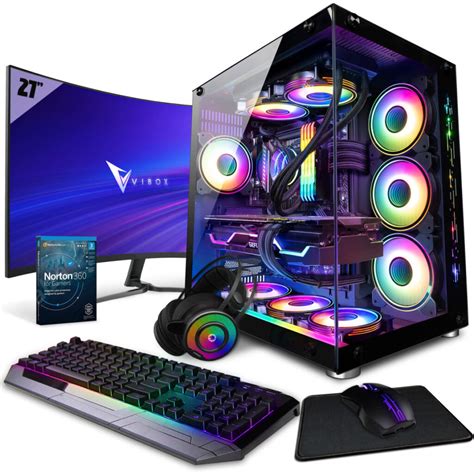
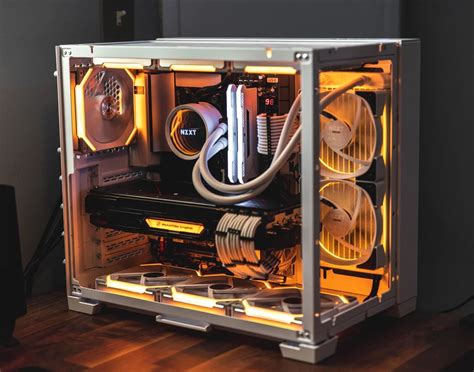
The stock coolers that come with many CPUs are often adequate for general use but can struggle under sustained gaming loads. Investing in a quality aftermarket CPU cooler, whether it’s a large air cooler or an All-in-One (AIO) liquid cooler, is one of the most effective upgrades. These provide significantly better heat dissipation.
Enhance GPU Cooling
While less common, some GPUs can also benefit from improved cooling. Ensure your GPU’s fans are clean and spinning freely. In some cases, aftermarket GPU coolers or even custom water loops can be considered for enthusiasts, but for most, proper case airflow is sufficient.
Optimize Case Airflow and Fan Configuration
Good airflow within your PC case is paramount. Aim for a positive or neutral pressure setup: more intake fans than exhaust, or an equal number, to ensure fresh, cool air is constantly pulled into the case and hot air is expelled. Ensure your case has ample intake and exhaust vents. Consider adding more case fans or replacing stock fans with higher-performance ones.
Reapply Thermal Paste
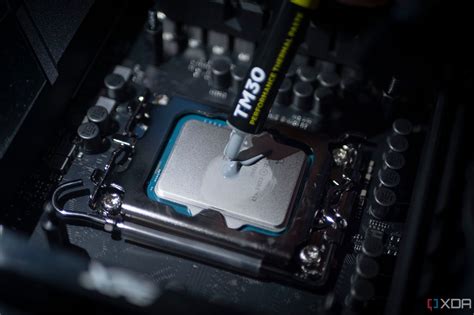
The thermal paste between your CPU (or GPU) and its cooler can degrade over time, losing its effectiveness. Reapplying a fresh layer of high-quality thermal paste every few years can significantly improve heat transfer. This is a crucial maintenance step that often yields noticeable temperature improvements.
Software Optimizations and Settings Adjustments
Hardware isn’t the only factor; software settings can also play a role in managing temperatures.
- Driver Updates: Keep your graphics card drivers and chipset drivers up to date. Manufacturers often release updates that improve performance and thermal management.
- Game-Specific Settings: Experiment with in-game graphics settings. While you might want to run everything on ‘Ultra,’ finding the sweet spot between visual fidelity and performance can prevent throttling. Features like V-Sync or a frame rate limiter can help reduce GPU load by preventing it from rendering frames beyond your monitor’s refresh rate.
- Power Plans: Ensure your Windows power plan is set to ‘High Performance’ or ‘Ultimate Performance’ to allow your CPU to run at its full potential, though this is less about throttling and more about ensuring it can reach its potential without being artificially limited by power management.
- Monitor Overclocking: While overclocking boosts performance, it also increases heat. If you’re experiencing throttling, consider dialing back or disabling any overclocks until your cooling solution is robust.
Environmental Factors & PC Placement
Your PC’s surroundings also affect its thermal performance:
- Room Temperature: A cooler room will naturally lead to cooler internal PC temperatures.
- PC Placement: Ensure your PC is not crammed into a tight space, such as a closed cabinet, where hot air can recirculate. Give it ample space for air intake and exhaust, preferably on an open desk or with plenty of room around its vents.
Regular Maintenance Schedule
Prevention is always better than cure. Establish a routine for PC maintenance:
- Dust Cleaning: Regularly clean the dust from your case fans, CPU cooler fins, and GPU heatsinks. Compressed air is your best friend here. Dust acts as an insulator, trapping heat and impeding airflow.
- Fan Checks: Periodically check that all your fans are spinning correctly and aren’t making unusual noises.
- Temperature Monitoring: Make it a habit to occasionally monitor your system temperatures, especially when playing demanding games. This allows you to catch rising temperatures before they lead to throttling.

Conclusion
Thermal throttling is a common challenge for gamers, especially during extended sessions. By understanding its causes, proactively upgrading your cooling hardware, optimizing your system’s airflow, and committing to regular maintenance, you can ensure your gaming PC runs at its peak performance. Don’t let heat be the enemy of your high scores; invest in good cooling and enjoy uninterrupted, smooth gaming experiences for hours on end.


