





Quick tips to optimize Windows settings for maximum gaming FPS?

Are you looking to squeeze every last frame out of your gaming rig? Even with powerful hardware, default Windows settings can sometimes bottleneck performance, preventing you from experiencing games at their smoothest. Optimizing these settings is a free and effective way to boost your Frames Per Second (FPS) and enhance your overall gaming experience. Let’s dive into some quick tips to fine-tune Windows for maximum gaming performance.
1. Enable Game Mode
Windows Game Mode is designed to prioritize your gaming experience by dedicating system resources to your game. When activated, it helps prevent Windows Update from installing drivers and restricts background processes. To enable it, go to Settings > Gaming > Game Mode and toggle it On. This simple step can make a noticeable difference in game stability and performance.
![How to Enable Game Mode in Windows 10 [TIPS]- Manage Game Bar!](/images/aHR0cHM6Ly90czIubW0uYmluZy5uZXQvdGg/aWQ9T0lQLnBfSlNtdVRxWWNKV29kSVJIV2ZtbFFIYUVLJnBpZD0xNS4x.webp)
2. Optimize Graphics Settings for Specific Games
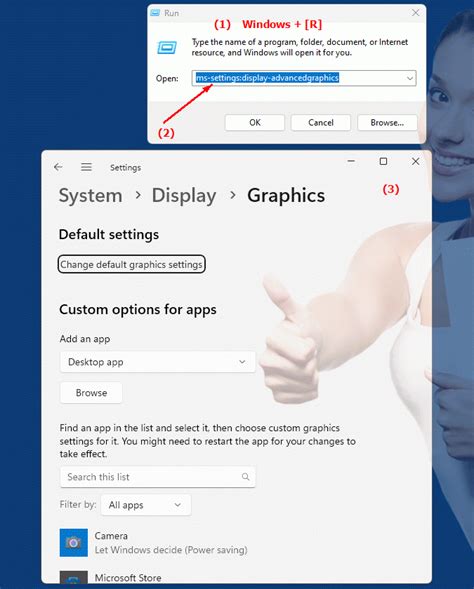
Windows allows you to set specific graphics performance preferences for individual applications. This is especially useful if you have a powerful discrete GPU. Navigate to Settings > System > Display > Graphics settings. Here, you can browse for your game’s executable file, add it to the list, and then select “Options” to choose “High performance” for your dedicated GPU. This ensures your game uses the most powerful graphics card available.
3. Adjust Your Power Plan to High Performance
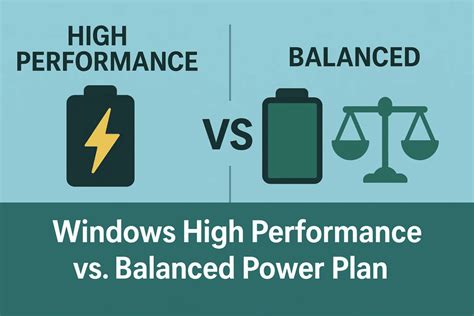
Your power plan significantly impacts your PC’s performance. By default, Windows might be on a “Balanced” power plan, which conserves energy at the cost of peak performance. For gaming, you’ll want to switch to “High performance.” Search for “Power & sleep settings” in the Windows search bar, then click “Additional power settings.” From there, select High performance. If it’s not visible, you might need to click “Show additional plans.”
4. Disable Background Apps and Notifications
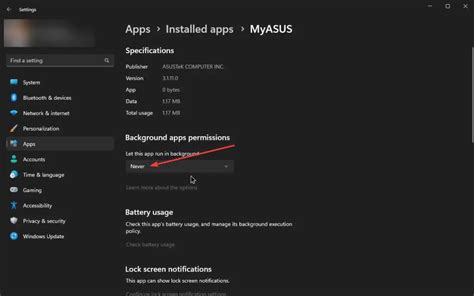
Background applications and constant notifications can consume valuable CPU, RAM, and network resources, impacting your game’s FPS. To manage background apps, go to Settings > Privacy > Background apps and toggle off apps you don’t need running in the background. Similarly, to reduce distractions and resource drain from notifications, visit Settings > System > Notifications & actions and turn off notifications for unnecessary apps or disable them entirely while gaming.
5. Tweak Visual Effects for Performance
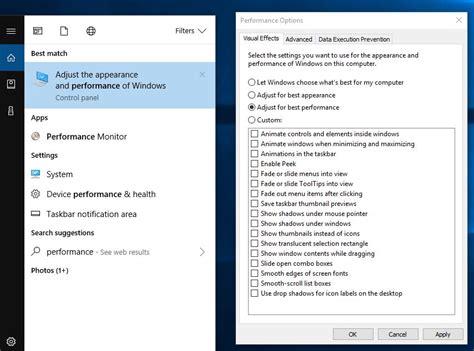
Windows offers various visual bells and whistles that make the interface look appealing but can tax your system resources. For maximum FPS, especially on less powerful machines, sacrificing some visual flair can be beneficial. Search for “Adjust the appearance and performance of Windows” in the Windows search bar. In the “Performance Options” window, select “Adjust for best performance”. This will disable most visual effects, freeing up resources for your games. Alternatively, you can customize and uncheck specific effects that you don’t need.
Bonus Tips for Even Better FPS:
- Update Your Graphics Drivers: This is paramount. Always ensure your NVIDIA, AMD, or Intel graphics drivers are up to date from their respective official websites.
- Disable Startup Programs: Many applications launch automatically with Windows. Open Task Manager (Ctrl+Shift+Esc), go to the “Startup” tab, and disable any non-essential programs that might be consuming resources.
- Keep Windows Updated: While updates can sometimes be inconvenient, they often include performance improvements and bug fixes that can benefit gaming.
- Clean Up Your Disk: Regularly run Disk Cleanup or declutter your hard drive to ensure sufficient free space and optimal performance.
By implementing these Windows settings optimizations, you’re taking proactive steps to ensure your PC is fully geared for gaming, allowing you to enjoy smoother gameplay and higher FPS. Remember that regular maintenance and driver updates are also key to sustained performance.


