





How to improve gaming PC airflow & lower GPU temps for optimal performance?
Maintaining optimal temperatures within your gaming PC is crucial for sustained performance and the longevity of your components, especially your graphics card (GPU). High GPU temperatures can lead to thermal throttling, reduced frame rates, and even potential damage over time. Fortunately, improving your PC’s airflow is an achievable goal that can significantly lower GPU temps and enhance your overall gaming experience.
Understanding Airflow Dynamics
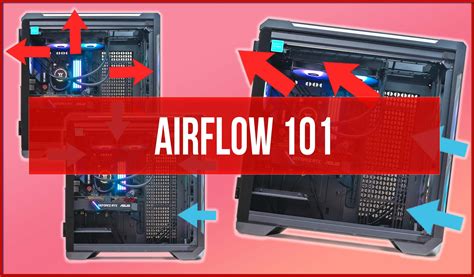
Effective airflow relies on a clear path for cool air to enter your case and hot air to exit. This involves a balance between intake and exhaust fans, creating either positive or negative pressure. A slight positive pressure (more intake than exhaust) is generally recommended as it helps prevent dust from entering through unfiltered gaps, pushing it through filtered intake points instead. Conversely, negative pressure can draw air and dust from all unsealed openings.
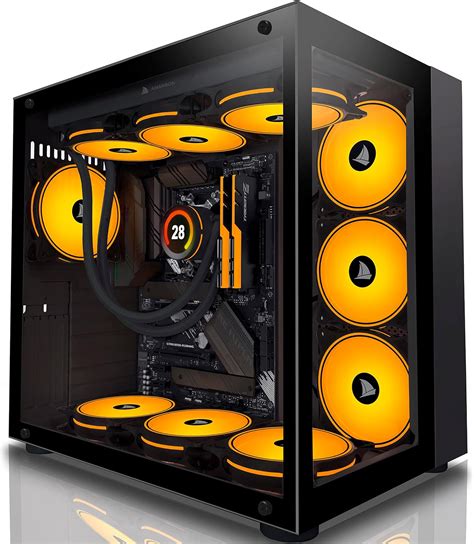
Most modern cases come with designated fan mounts, usually at the front for intake and the rear/top for exhaust. A common configuration involves two or three front intake fans, one rear exhaust fan, and one or two top exhaust fans. Experimentation with fan direction can yield the best results for your specific case and component layout.
Optimizing Your Case Fans
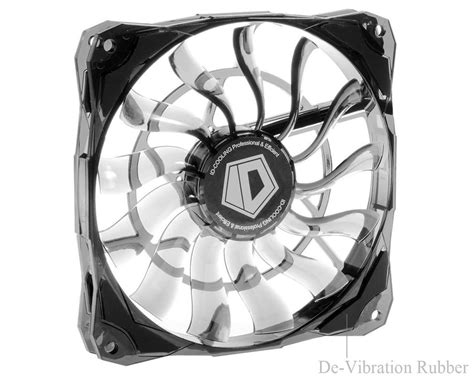
The type and quality of your case fans play a vital role. Airflow-optimized fans are best for unrestricted areas (like front intakes without tight filters), while static pressure fans excel when pushing air through restrictive elements like radiators or dense dust filters. Ensure your fans are correctly oriented to maintain a clear intake-to-exhaust path.
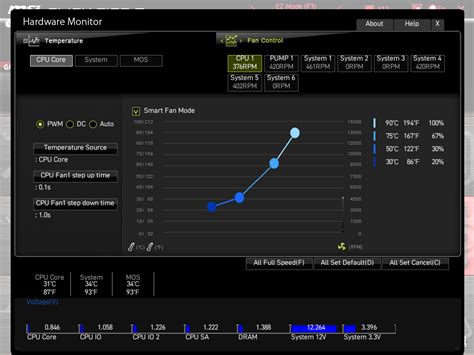
Adjusting fan speeds (RPM) based on temperature readings is also key. Many motherboards offer BIOS settings or software utilities (like Fan Control, MSI Afterburner, or proprietary motherboard software) to create custom fan curves. This allows fans to spin faster when temperatures rise and slower when idling, balancing cooling performance with noise levels.
Mastering Cable Management
One of the simplest yet most overlooked aspects of good airflow is cable management. A tangled mess of power and data cables can act as an obstruction, blocking air pathways and creating dead zones where hot air can accumulate. Spend time routing cables neatly behind the motherboard tray or along the case’s perimeter, using zip ties or velcro straps to secure them.
Modular power supplies greatly assist in this, allowing you to only connect the cables you need. Even with non-modular PSUs, careful planning and routing can make a significant difference in how freely air moves within your case.
Regular Maintenance: Keeping it Clean
Dust is the enemy of efficient cooling. Over time, dust accumulates on fan blades, heatsinks, and inside filters, acting as an insulating layer and impeding airflow. Regular cleaning is essential:
- Dust Filters: Clean or wash your case’s dust filters every few months.
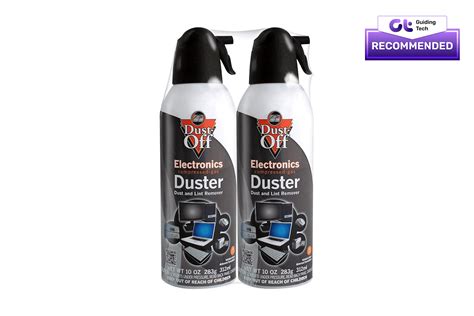
- Fans & Heatsinks: Use compressed air to blow dust out of fan blades and GPU/CPU heatsink fins. Hold fans stationary while blowing to prevent damage.
- Internal Components: Gently wipe down accessible surfaces with a microfiber cloth.
Establishing a routine cleaning schedule will ensure your cooling system operates at its peak efficiency.
GPU-Specific Cooling Enhancements
For even greater GPU temperature control, consider these more advanced options:
- Vertical GPU Mounts: If your case supports it and has enough clearance, a vertical GPU mount can sometimes give your GPU fans more breathing room, especially if your card is suffocated close to the PSU shroud.
- Aftermarket GPU Coolers: For enthusiasts, replacing the stock GPU cooler with an aftermarket air or AIO liquid cooler can drastically improve temperatures, though this requires technical expertise and may void warranties.
- Repasting Thermal Paste: Over several years, the thermal paste between your GPU die and its heatsink can dry out and become less effective. Carefully replacing it with high-quality thermal paste can reduce temperatures, but this is a delicate operation best left to experienced users.
Environmental Considerations
Don’t overlook the impact of your PC’s environment. Placing your PC in a confined space, against a wall, or in direct sunlight can hinder airflow and contribute to higher internal temperatures. Ensure your PC has adequate clearance on all sides for air circulation, and if possible, keep your room temperature cool. A lower ambient temperature means cooler air is entering your PC, making it easier for your cooling system to do its job.
Conclusion
Improving your gaming PC’s airflow and lowering GPU temperatures is a multi-faceted approach involving proper fan configuration, meticulous cable management, regular cleaning, and thoughtful environmental placement. By implementing these strategies, you’ll not only enjoy a cooler, quieter PC but also unlock its full performance potential, ensuring smooth, uninterrupted gaming sessions for years to come. Start with the basics and gradually explore more advanced solutions to find the perfect cooling balance for your system.


