Is my gaming PC bottlenecked? How to identify & fix it for better FPS.
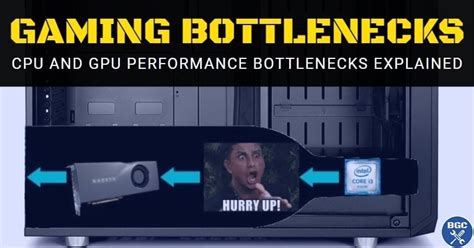
Ever wonder why your powerful gaming PC sometimes struggles to deliver the smooth frame rates you expect? The culprit might be a “bottleneck” – a single component limiting the performance of your entire system. Understanding and addressing these bottlenecks is crucial for maximizing your gaming experience and getting the most out out of your hardware investment.
What Exactly is a PC Bottleneck?
In simple terms, a bottleneck occurs when one hardware component in your PC is significantly slower or less capable than the others, preventing the faster components from operating at their full potential. Imagine a highway where multiple lanes merge into a single, narrow lane. Even if there are many cars (data) approaching, only a limited number can pass through that narrow section at a time, slowing down the entire flow. In a gaming PC, this “narrow lane” could be your CPU, GPU, RAM, or even your storage drive.
Key Components and Their Roles in Gaming
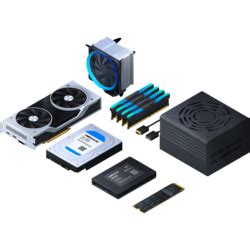
- CPU (Central Processing Unit): Handles game logic, AI, physics, draw calls, and background processes.
- GPU (Graphics Processing Unit): Renders frames, processes textures, and handles complex visual calculations.
- RAM (Random Access Memory): Stores active game data, textures, and OS processes for quick access by CPU and GPU.
- Storage (SSD/HDD): Stores game files and loads them into RAM when needed.
For a balanced system, these components should work in harmony. If one falls behind, the others will wait, leading to lower FPS, stuttering, or inconsistent performance.
How to Identify a Bottleneck in Your Gaming PC
Pinpointing the exact bottleneck requires monitoring your system’s performance in real-time while gaming. Here are the tools and metrics to look for:
1. Monitor Component Utilization
Use monitoring software to observe your CPU and GPU usage percentages during gameplay. Popular tools include:
- Task Manager (Windows): Basic CPU, GPU, RAM, and Disk usage overview (press Ctrl+Shift+Esc).
- MSI Afterburner with RivaTuner Statistics Server (RTSS): Provides a highly customizable in-game overlay displaying detailed usage, temperatures, and FPS for CPU, GPU, and RAM.
- HWiNFO64: Comprehensive system monitoring, though without a direct in-game overlay.
- NVIDIA GeForce Experience / AMD Radeon Software: Often include their own performance overlays.
2. Analyze the Data
- CPU Bottleneck (Low GPU Usage, High CPU Usage): If your GPU usage consistently sits below 90-99% while your CPU usage is consistently high (e.g., above 80-90% on multiple cores), especially in CPU-intensive games (strategy, open-world, many NPCs), your CPU is likely the bottleneck. The CPU can’t feed the GPU frames fast enough.
- GPU Bottleneck (High GPU Usage, Lower CPU Usage): If your GPU usage is consistently at or near 99-100%, and your CPU usage is moderate to low, your GPU is the limiting factor. It’s working as hard as it can, but it’s not powerful enough to achieve your desired frame rate at the current settings.
- RAM Bottleneck (High RAM Usage, Disk Activity): If your RAM usage is near 100% and you notice frequent stuttering, texture pop-in, or high disk activity (page file usage), you might not have enough RAM, or it’s too slow.
- Storage Bottleneck (Slow Loading, Stuttering): Long game loading times, texture pop-in, or micro-stutters when moving through game worlds can indicate a slow HDD or a nearly full SSD.
Common Bottleneck Scenarios & How to Fix Them
1. CPU Bottleneck
Your GPU is waiting for your CPU to process game logic and draw calls. This often happens in games with many objects, complex AI, or high player counts (MMOs, strategy games, competitive shooters).
Fixes:
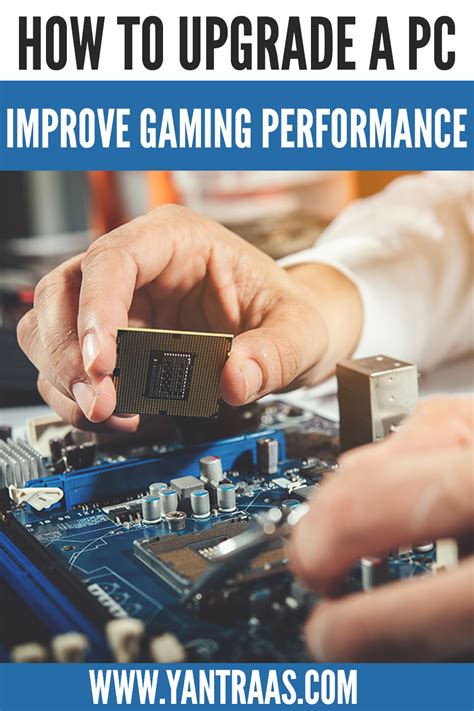
- Upgrade Your CPU: The most effective solution is to upgrade to a more powerful CPU, ideally one with more cores and higher clock speeds, compatible with your motherboard.
- Overclock Your CPU: If your CPU and motherboard support it, a stable overclock can provide a significant boost.
- Reduce CPU-Intensive Settings: Lower settings like draw distance, crowd density, physics quality, and AI complexity in game options.
- Close Background Applications: Ensure no unnecessary programs are consuming CPU cycles in the background.
2. GPU Bottleneck
Your CPU is ready to send frames, but your GPU can’t render them fast enough at your current settings and resolution. This is the most common bottleneck, especially at higher resolutions (1440p, 4K) or with demanding graphical settings.
Fixes:
- Upgrade Your GPU: A more powerful graphics card is the direct solution.
- Lower Graphics Settings: Reduce resolution, texture quality, anti-aliasing, shadow quality, and other visual effects in game settings until you reach your desired FPS.
- Overclock Your GPU: A modest overclock can yield a small but noticeable FPS improvement.
- Update Graphics Drivers: Always ensure you have the latest drivers for optimal performance and stability.
3. RAM Bottleneck
Insufficient or slow RAM can cause the system to constantly access the slower storage drive (using the page file), leading to stutters and overall system sluggishness.
Fixes:
- Add More RAM: Most modern games benefit from 16GB, with some demanding titles appreciating 32GB, especially if you run many background apps.
- Increase RAM Speed (XMP/DOCP): Ensure your RAM is running at its advertised speed by enabling XMP (Intel) or DOCP (AMD) in your motherboard’s BIOS/UEFI. Faster RAM can significantly improve CPU performance.
- Close Unnecessary Programs: Free up RAM by closing web browsers, media players, and other non-gaming applications.
4. Storage Bottleneck
Slow loading times directly impact your gaming experience, especially in open-world games or titles with large asset streaming.
Fixes:
- Upgrade to an SSD (NVMe Preferred): If you’re still using an HDD for your games, upgrading to an SSD (SATA or, even better, NVMe) will drastically improve loading times and reduce texture pop-in.
- Ensure Enough Free Space: Keep at least 15-20% of your drive free for optimal performance, especially on SSDs.
Achieving a Balanced System
The goal isn’t necessarily to eliminate all bottlenecks (as there will always be a “weakest link” at any given moment), but to achieve a balanced system where no single component is drastically underperforming compared to the others. This ensures your investment is well-spent and your gaming experience is as smooth and enjoyable as possible. Regularly monitor your system and adjust settings or consider upgrades based on your findings and gaming priorities.