





Got low FPS in new games? Optimize your PC for smooth 144Hz gaming.
Modern gaming demands a lot from your PC, and nothing sours the experience more than choppy frame rates when you’re aiming for that silky-smooth 144Hz refresh rate. If you’ve recently upgraded your monitor but are still struggling with low FPS in the latest titles, don’t despair. This comprehensive guide will walk you through essential optimization steps, from software tweaks to hardware considerations, to help you unlock your PC’s full potential for a truly immersive and responsive gaming experience.
Diagnosing the FPS Problem
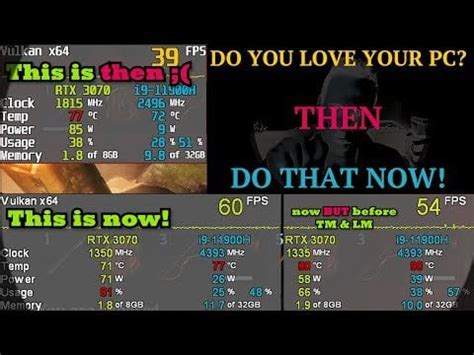
Before diving into solutions, it’s crucial to understand why your FPS is low. Is it a CPU bottleneck, a GPU struggle, insufficient RAM, or perhaps a software conflict? Monitoring tools like MSI Afterburner, HWMonitor, or the built-in performance monitors in Steam or NVIDIA/AMD software can provide real-time data on your CPU and GPU usage, temperatures, and frame rates. Pay attention to which component is consistently hitting 99-100% usage – that’s likely your bottleneck.

Software Optimization: The First Line of Defense
Update Your Drivers
Outdated graphics drivers are a common culprit for poor performance. Always ensure your NVIDIA GeForce or AMD Radeon drivers are up-to-date. Don’t forget chipset drivers, audio drivers, and even monitor drivers, as these can also impact system stability and performance.
Optimize In-Game Settings
This is where many gamers can make significant gains. Start by lowering graphics-intensive settings like Anti-Aliasing, Shadow Quality, Volumetric Lighting, and Post-Processing effects. Experiment with texture quality – sometimes a slight reduction makes a big difference with minimal visual impact. Adjust resolution scaling if available, but aim to keep native resolution for best clarity.
Remember that not all settings have equal impact. Prioritize those that improve gameplay visibility while sacrificing less critical visual flair. Keep V-Sync off if you have a G-Sync or FreeSync monitor and want to achieve higher frame rates than your refresh rate, or if you’re experiencing input lag.
System-Wide Tweaks for Gaming Performance
Windows Settings Optimization
- Game Mode: Ensure Windows Game Mode is enabled. It prioritizes system resources for your game.
- Power Plan: Set your power plan to “High Performance” or “Ultimate Performance” (if available) in Windows Power Options.
- Background Apps: Close unnecessary background applications and processes via Task Manager before gaming. Discord, web browsers with many tabs, and other resource-hungry apps can steal valuable CPU cycles and RAM.
![[Identify] Wallpaper - Tips, Tweaks & Customization - Neowin](/images/aHR0cHM6Ly90czEubW0uYmluZy5uZXQvdGg/aWQ9T0lQLjh0MEFNelgySjlXZjJzUGstVEZQYXdIYUY3JnBpZD0xNS4x.webp)
Storage and Startup Programs
Ensure your games are installed on an SSD (Solid State Drive) if possible. SSDs offer significantly faster loading times and can prevent stuttering caused by texture streaming. Regularly clean up your hard drives and uninstall unused programs. Also, check your startup programs in Task Manager and disable any non-essential applications to free up RAM and CPU at boot.
Hardware Considerations: When Software Isn’t Enough
If software optimizations don’t yield the desired results, your hardware might be the limiting factor for 144Hz gaming in demanding titles.
Graphics Card (GPU)
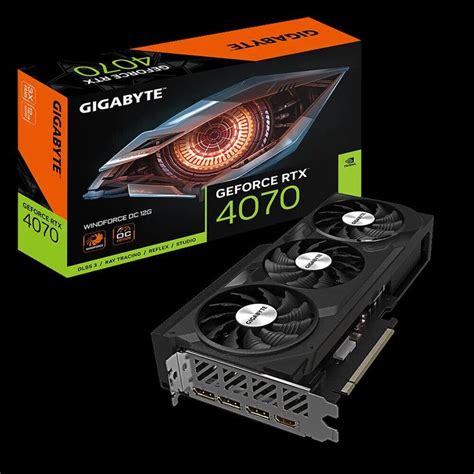
The GPU is the heart of your gaming performance. If your graphics card is several generations old, or if you’re trying to push high resolutions (like 1440p or 4K) at 144Hz, a GPU upgrade is often the most impactful solution. Research benchmarks for the games you play at your desired resolution and refresh rate.
Processor (CPU)
While often less critical than the GPU for raw FPS, a weak CPU can bottleneck even a powerful graphics card, especially in CPU-intensive games or at lower resolutions where the GPU isn’t fully utilized. Ensure your CPU isn’t consistently hitting 100% usage while your GPU is sitting idle. An upgrade to a newer, multi-core processor might be necessary.
RAM: Speed and Capacity
For modern gaming, 16GB of DDR4 RAM is generally the sweet spot. However, the speed of your RAM (measured in MHz) and its latency (CAS Latency or CL) also play a significant role. Ensure your RAM is running at its advertised speed by enabling XMP (Extreme Memory Profile) or DOCP (Direct Overclock Profile) in your BIOS/UEFI settings. Faster RAM can provide a noticeable FPS boost, particularly for Ryzen CPUs.

Cooling and Thermal Throttling
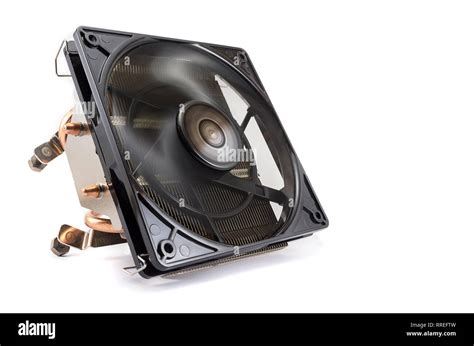
Overheating components, particularly your CPU and GPU, will automatically slow down (thermal throttle) to prevent damage, leading to massive FPS drops. Ensure your PC has adequate airflow, clean dust filters regularly, and consider upgrading your CPU cooler if temperatures are consistently high. Well-managed thermals are crucial for sustained high performance.
Conclusion: A Balanced Approach to 144Hz Gaming
Achieving smooth 144Hz gaming requires a holistic approach. Start with software optimizations – update drivers, tweak in-game settings, and optimize Windows. If these steps aren’t enough, consider targeted hardware upgrades based on your system’s bottlenecks. By systematically addressing each potential area, you can transform your gaming experience from a stuttering mess into the fluid, responsive, high-refresh-rate gameplay you deserve.


