





Optimize GPU settings for max FPS in competitive shooters: guide?
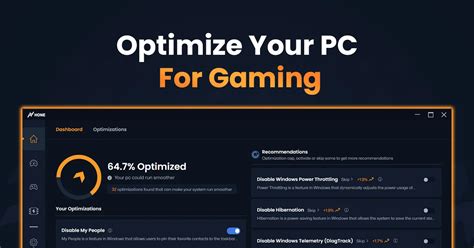
In the high-stakes world of competitive shooters, every frame counts. A higher Frame Per Second (FPS) not only makes the game feel smoother but can also give you a crucial advantage, allowing you to react faster and aim more precisely. While a powerful GPU is a great start, simply having one doesn’t guarantee optimal performance. This comprehensive guide will walk you through the essential steps and specific settings to tweak your GPU for the maximum possible FPS, ensuring you’re always playing at your best.
Why FPS Matters in Competitive Gaming
Beyond visual fidelity, a high and stable FPS minimizes input lag and screen tearing, making your movements and aiming feel more fluid and responsive. Competitive titles like CS:GO, Valorant, Apex Legends, and Call of Duty thrive on split-second decisions. Lower FPS can lead to ‘micro-stutters’ or delayed visual feedback, putting you at a significant disadvantage against opponents running at higher frame rates. Our goal is to eliminate these bottlenecks and provide you with the smoothest possible experience.
Essential Pre-Optimization Checks
Before diving into specific GPU settings, ensure your system is in prime condition. This foundation is crucial for any optimization efforts:
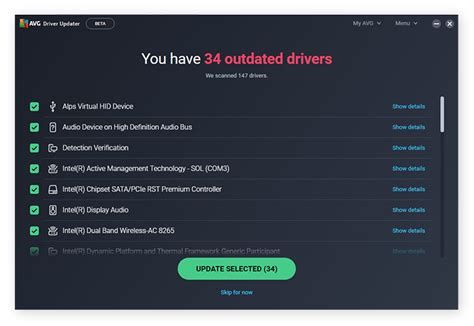
- Update Graphics Drivers: Always install the latest drivers from NVIDIA or AMD. These often include game-ready optimizations for new titles and performance enhancements.
- Close Background Applications: Free up CPU and RAM resources by shutting down unnecessary programs like web browsers, streaming apps, or chat clients while gaming.
- Monitor Temperatures: Overheating components can lead to thermal throttling, reducing performance. Use monitoring software (e.g., MSI Afterburner, HWiNFO) to check GPU and CPU temperatures. Ensure adequate airflow in your case.
- Check Power Plan: In Windows, set your power plan to ‘High Performance’ or ‘Ultimate Performance’ to prevent CPU throttling.
NVIDIA Control Panel Settings
For NVIDIA users, the NVIDIA Control Panel is your primary hub for performance tuning:
- Open NVIDIA Control Panel: Right-click on your desktop and select ‘NVIDIA Control Panel’.
- Manage 3D Settings: Navigate to ‘Manage 3D settings’ > ‘Program Settings’. Select your game or ‘Global Settings’ if you want to apply changes broadly.
- Key Settings to Adjust:
- Max Frame Rate: Set this to a value slightly below your monitor’s refresh rate (e.g., 140 FPS for a 144Hz monitor) to reduce input lag and ensure frame pacing.
- Low Latency Mode: Set to ‘Ultra’ for competitive games. This aims to reduce input lag by submitting frames just in time for the GPU to process them.
- Power Management Mode: Select ‘Prefer Maximum Performance’. This ensures your GPU consistently runs at its highest clock speeds.
- Texture Filtering – Quality: Set to ‘High Performance’. This sacrifices some minor visual quality for a boost in frame rates.
- Vertical Sync: ‘Off’ for competitive games. V-Sync introduces input lag, which is detrimental in fast-paced titles.
- Shader Cache Size: ‘Driver Default’ or ‘Unlimited’. This helps load times and reduces stutters.

AMD Radeon Software Settings
AMD users can optimize their GPUs using the Radeon Software suite:
- Open Radeon Software: Right-click on your desktop and select ‘AMD Radeon Software’.
- Gaming > Graphics: Go to the ‘Gaming’ tab, then ‘Graphics’.
- Key Settings to Adjust:
- Radeon Anti-Lag: Enable this for competitive games. Similar to NVIDIA’s Low Latency Mode, it reduces input lag.
- Radeon Chill: Disable for maximum FPS. While useful for power saving, it caps your FPS to a set range.
- Graphics Profile: Set to ‘Esports’ or ‘Standard’. Avoid ‘Gaming’ if it enables features that reduce FPS.
- Radeon Boost: Keep disabled unless you experience significant frame drops during fast movement, as it dynamically lowers resolution.
- Image Sharpening: Disable if you prioritize raw FPS, as it adds a slight processing overhead.
- Texture Filtering Quality: Set to ‘Performance’.
- Wait for Vertical Refresh (V-Sync): ‘Always Off’.
In-Game Graphics Settings
After optimizing your GPU drivers, the next crucial step is tweaking the in-game settings. Developers often include presets, but fine-tuning individual options yields the best results:
- Resolution: Always play at your monitor’s native resolution for clarity. Lowering it drastically reduces visual quality and isn’t recommended unless absolutely necessary for playable FPS.
- Texture Quality: This impacts VRAM usage. If your GPU has ample VRAM (8GB+), you can often keep this at High. Lower if you experience stutters.
- Shadow Quality: One of the most demanding settings. Set to ‘Low’ or ‘Medium’. High-quality shadows are beautiful but extremely taxing on performance.
- Anti-Aliasing (AA): Techniques like MSAA or TAA can be very demanding. Consider disabling it or using a less demanding option like FXAA. Sharpening filters (like NVIDIA Image Sharpening or AMD FidelityFX CAS) can sometimes compensate for jagged edges at minimal performance cost.
- Post-processing Effects: Bloom, depth of field, motion blur, lens flare – disable all of these. They add visual flair but contribute nothing to competitive advantage and consume significant resources.
- View Distance/Foliage: While ‘Low’ might give a slight edge, it can sometimes hide enemies. Find a balance; ‘Medium’ is often a good compromise.
- Reflections/Ambient Occlusion: Set to ‘Low’ or ‘Off’. These are visually intensive and don’t provide a competitive edge.
The goal is to find the lowest settings that don’t compromise your ability to spot enemies or impact critical visual cues. Prioritize drawing distances and critical visual elements over eye candy.
Monitoring & Fine-Tuning
After applying these changes, jump into your favorite competitive shooter. Use an FPS counter (built into most games or via software like MSI Afterburner/RivaTuner Statistics Server) to monitor your frame rate. Pay attention to minimum FPS values, as these are often more critical than averages during intense combat. If you’re consistently hitting your target FPS, you might try incrementally increasing a few less demanding visual settings until you find the perfect balance between performance and visual fidelity. Remember, every system is unique, so experimentation is key.
By diligently optimizing your GPU settings, both through driver software and in-game options, you can significantly boost your FPS and gain a competitive edge. A smooth, responsive game allows you to focus on your skill, reactions, and strategy, rather than fighting against performance bottlenecks. Get ready to dominate the leaderboard!


