





Resolve mod conflicts: essential steps for stable modded game installs?

The Modding Paradox: Power and Pitfalls
Modding a game can transform your experience, adding new content, improving graphics, or even completely altering gameplay mechanics. It’s a testament to the creativity of the community and a source of endless fun. However, with great power comes great potential for chaos. As you add more and more modifications, the likelihood of them clashing – known as mod conflicts – skyrockets.
These conflicts can manifest in various frustrating ways: crashes to desktop, game freezes, broken quests, visual glitches, or even corrupted save files. Dealing with them can feel like a daunting task, often discouraging new modders. But with a systematic approach and the right tools, resolving mod conflicts is an entirely manageable skill that will vastly improve your modding journey.
Foundation First: Prevention and Preparation
The Indispensable Mod Manager
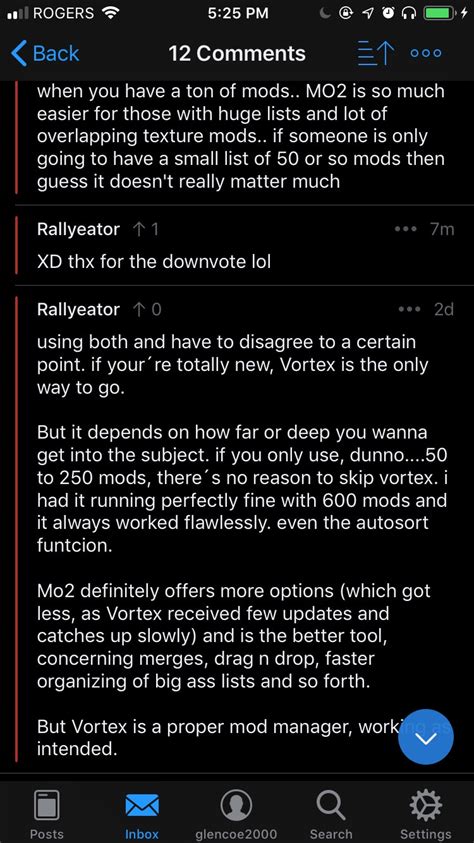
The single most crucial tool in any serious modder’s arsenal is a robust mod manager. Tools like Mod Organizer 2 (MO2), Vortex, or even older ones like Nexus Mod Manager (NMM) are designed to handle the intricate dance of mod files, dependencies, and load orders. They isolate mod files from your game’s main directory, making it safer to experiment and easier to uninstall mods without leaving behind remnants.
Key benefits of a mod manager:
- Virtualization: Mods are kept separate from the game’s core files.
- Load Order Management: Tools to easily sort and adjust mod priority.
- Conflict Detection: Many managers offer basic conflict warnings.
- Easy Installation/Uninstallation: Adding and removing mods becomes a breeze.
Read Descriptions and Requirements
Before you even click ‘download,’ make it a habit to thoroughly read a mod’s description page. Mod authors often explicitly list known incompatibilities, required patches, or other mods that must be installed first. Ignoring these details is a sure path to conflicts. Pay close attention to:
- Requirements: Other mods or DLCs needed.
- Incompatibilities: Mods that will explicitly conflict.
- Installation Instructions: Specific steps beyond just dropping files.
- Bug Reports/Posts Sections: Community discussion often highlights issues.

Identifying the Culprit: Pinpointing Conflicts
The Load Order Conundrum
Many games, especially Bethesda titles like Skyrim or Fallout, rely heavily on a ‘load order’ for their modifications. This dictates the sequence in which the game loads mod files. If two mods modify the same game record (e.g., an NPC’s stats or a world object’s placement), the one loaded later in the sequence will ‘win’ and overwrite the changes from earlier mods. While this is how some conflicts are resolved by design, it can also be the source of unintended issues.
Tools like LOOT (Load Order Optimisation Tool) are invaluable for games that use plugin files (ESPs, ESMs, ESLs). LOOT analyzes your mod list and automatically sorts them into an optimized load order, often resolving many common conflicts simply by ensuring files overwrite each other correctly. However, LOOT is a suggestion, not a divine command, and manual tweaking may still be necessary.
Conflict Detection Tools
Beyond basic load order, dedicated conflict detection tools can show you exactly which records two or more mods are trying to modify simultaneously. For Bethesda games, xEdit (e.g., SSEEdit, FO4Edit) is the gold standard. It allows you to browse your entire load order, highlight conflicting records, and even manually resolve them.
While specific tools vary by game (e.g., Factorio has in-game conflict alerts, Minecraft uses logs), the principle remains the same: these tools provide a detailed view of what’s clashing under the hood, empowering you to make informed decisions.

Resolution Strategies: Fixing What’s Broken
Compatibility Patches
Often, if a popular mod conflicts with another popular mod, a third party (or one of the original authors) will create a ‘compatibility patch.’ These are small files specifically designed to merge the conflicting changes of two mods, allowing them to work together harmoniously. Always check the mod pages and nexusmods.com for such patches before attempting manual resolution.
Manual Patching (Merge Patches)
For more advanced users, tools like xEdit allow you to create your own ‘merge patch’ or ‘compatibility patch.’ This involves manually reviewing conflicting records and deciding which mod’s changes you want to keep, or even merging aspects from both. This process can be intricate and requires a solid understanding of how game records function, but it offers the ultimate control over your modded game.
The Nuclear Option: Advanced Troubleshooting & Reinstallation
The 50/50 (Binary Search) Method
If you’re facing persistent crashes and can’t pinpoint the issue with detection tools, the 50/50 method (also known as binary search) is an effective, albeit tedious, way to find the culprit. It works like this:
- Disable half of your mods.
- Test your game.
- If the crash is gone, the conflicting mod is in the disabled half. If the crash persists, it’s in the enabled half.
- Repeat the process, halving the problematic set of mods each time, until you isolate the single conflicting mod (or pair).
Clean Reinstallation
Sometimes, the modding environment becomes so corrupted or tangled that a fresh start is the only solution. A clean reinstallation involves:
- Uninstalling the game.
- Manually deleting any leftover game folders and mod manager folders (especially crucial).
- Reinstalling the game.
- Setting up your mod manager again and reinstalling mods in smaller batches, testing frequently.
Patience, Persistence, and Community
Resolving mod conflicts is rarely a quick fix. It requires patience, persistence, and a willingness to learn. Don’t be afraid to experiment, make backups of your save files, and approach troubleshooting methodically.
Crucially, leverage the vast knowledge of modding communities. Forums like Nexus Mods, Reddit’s specific game modding subreddits, and various Discord servers are filled with experienced modders willing to help. When seeking assistance, provide as much detail as possible: your game, mod list, conflict detection tool output, and a clear description of the problem. With these essential steps, you can tame the wild world of modding and enjoy a stable, personalized game experience.

