





How to reduce input lag for competitive online FPS gaming?
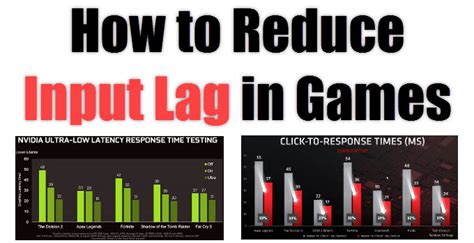
In competitive online First-Person Shooter (FPS) games, every millisecond counts. Input lag, the delay between your action (like a mouse click or keyboard press) and its corresponding on-screen reaction, can be the difference between a headshot and a missed opportunity. While zero input lag is impossible, significant reductions are achievable through careful hardware selection, software optimization, and network tuning. This guide delves into key areas to help you gain that crucial competitive edge.
Optimize Your Monitor and Display Settings
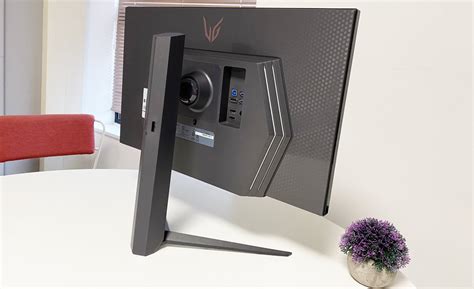
Your monitor is a critical component in the input lag chain. Investing in the right display and configuring it correctly can dramatically improve responsiveness.
- High Refresh Rate Monitors: Aim for a monitor with a refresh rate of 144Hz, 240Hz, or even 360Hz. A higher refresh rate means more frames per second are displayed, reducing the time between frames and thus the perceived input lag.
- Low Response Time: Look for monitors with a 1ms Grey-to-Grey (GTG) response time. This specifies how quickly pixels can change color, minimizing ghosting and motion blur.
- Disable V-Sync: While V-Sync prevents screen tearing, it often introduces significant input lag by forcing your GPU to synchronize frame rendering with your monitor’s refresh rate. For competitive play, it’s generally recommended to disable V-Sync. If screen tearing is intolerable, consider adaptive sync technologies like G-Sync or FreeSync (with an appropriate compatible GPU and monitor) but be aware they can still add a tiny amount of latency compared to no sync at all.
- Game Mode & Monitor Settings: Most modern gaming monitors have a ‘Game Mode’ or similar setting that bypasses post-processing to reduce input lag. Ensure this is enabled. Also, check for specific ‘input lag reduction’ settings in your monitor’s OSD (On-Screen Display) menu.
Upgrade and Tune Your Peripherals
Your mouse and keyboard are your direct interface with the game. Their quality and configuration play a direct role in input lag.
- Wired Peripherals: Whenever possible, opt for wired gaming mice and keyboards. Wireless technology has improved, but a direct USB connection generally offers lower and more consistent latency.
- High Polling Rate Mouse: A gaming mouse with a high polling rate (e.g., 1000Hz or 1ms) reports its position to the PC more frequently, leading to more immediate cursor movements.
- Mechanical Keyboards: Mechanical keyboards offer consistent and often faster actuation points compared to membrane keyboards, and some competitive keyboards feature extremely short actuation distances.
- Avoid Input Filtering: Some mice and keyboards have software features like debounce time settings or angle snapping. While useful for some, for competitive FPS, disabling these can ensure the rawest and fastest input.
Optimize Your System Hardware
Your PC’s internal components directly influence its ability to process your inputs and render frames quickly.
- Powerful CPU & GPU: Ensure your CPU and GPU are powerful enough to consistently render frames at a high FPS (Frames Per Second) that matches or exceeds your monitor’s refresh rate. Frame generation that outpaces the monitor’s refresh rate means frames are ready sooner, potentially reducing latency.
- Fast RAM: Sufficiently fast RAM (e.g., 3200MHz+ DDR4 or 6000MHz+ DDR5) operating in dual-channel mode, along with proper XMP/EXPO profiles enabled in your BIOS, can improve overall system responsiveness.
- NVMe SSD: While SSDs primarily reduce loading times rather than direct input lag, a fast NVMe drive ensures the OS and game assets load quickly, freeing up system resources.
- BIOS/UEFI Settings: Disable unnecessary features in your BIOS/UEFI such as unused USB ports, integrated audio if using a dedicated sound card, or other power-saving features that might introduce micro-stutters or delays.

Software and Operating System Optimization
Beyond hardware, how your operating system and game are configured plays a significant role in reducing latency.
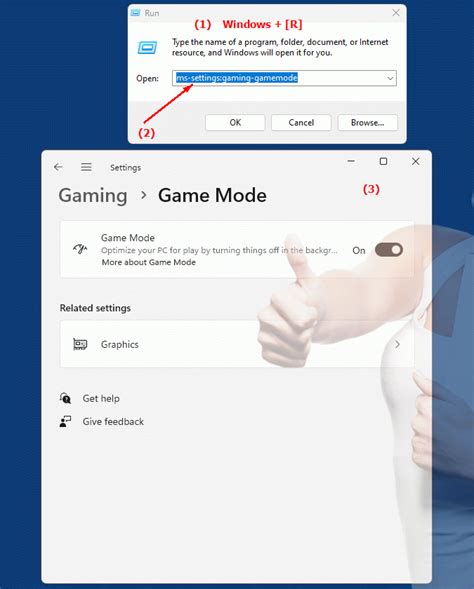
- Windows Game Mode: Ensure Windows Game Mode is enabled. It prioritizes game processes and dedicates system resources to gaming.
- GPU Driver Settings: Both NVIDIA and AMD offer latency-reduction features in their control panels. Look for settings like NVIDIA Reflex Low Latency Mode, NVIDIA Ultra Low Latency Mode, or AMD Radeon Anti-Lag. These technologies aim to reduce the render queue between the CPU and GPU.
- Disable Background Applications: Close any unnecessary applications running in the background while gaming, as they consume CPU cycles and RAM that could otherwise be used by your game.
- Full-Screen Exclusive Mode: Always play your FPS games in full-screen exclusive mode, not borderless windowed. Full-screen exclusive mode gives the game direct control over the display, often resulting in lower latency.
- Update Drivers: Keep your GPU, chipset, and peripheral drivers up to date. Manufacturers frequently release updates that include performance optimizations and bug fixes.
Network and Internet Connectivity
While often conflated with input lag, network latency (ping) is crucial for the overall responsiveness of an online FPS game. High ping makes your actions appear delayed to the server and other players, creating a similar feeling to input lag.
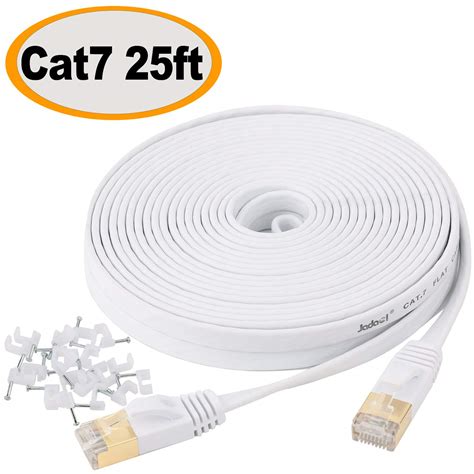
- Wired Ethernet Connection: Always use a wired Ethernet connection instead of Wi-Fi for competitive gaming. Ethernet provides a more stable, faster, and lower-latency connection, reducing packet loss and jitter.
- Quality Router and QoS: A high-quality router can make a difference. Consider enabling Quality of Service (QoS) settings to prioritize gaming traffic over other network activities.
- Stable Internet Provider: Choose an internet service provider that offers consistent speeds and low latency in your region.
- Close Bandwidth-Hogging Apps: Ensure no other devices or applications on your network are consuming large amounts of bandwidth (e.g., streaming 4K video, large downloads).
Conclusion
Reducing input lag for competitive online FPS gaming is a multi-faceted endeavor that involves optimizing your hardware, software, and network. By systematically addressing each area – from upgrading to a high refresh rate monitor and wired peripherals, to fine-tuning GPU settings and ensuring a stable internet connection – you can significantly minimize the delay between your actions and the on-screen response. The cumulative effect of these optimizations will provide a noticeably smoother, more responsive, and ultimately more competitive gaming experience.


