





Windows gaming optimization: What settings boost FPS most?
Achieving smooth, high Frames Per Second (FPS) is crucial for an immersive and competitive gaming experience. While powerful hardware is a solid foundation, even top-tier systems can benefit from proper optimization. Fine-tuning your Windows operating system and in-game settings can unlock significant performance gains, ensuring your hardware is utilized to its full potential. Let’s dive into the settings that deliver the biggest FPS boost.
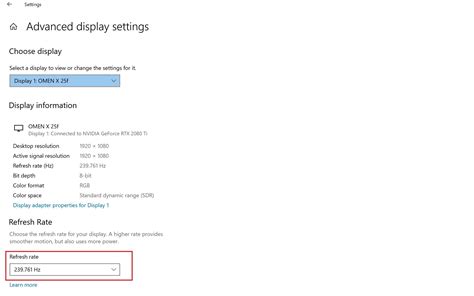
Core Windows OS Optimizations
Your operating system plays a vital role in gaming performance. Adjusting a few key Windows settings can free up resources and prioritize your game.
1. Enable Game Mode
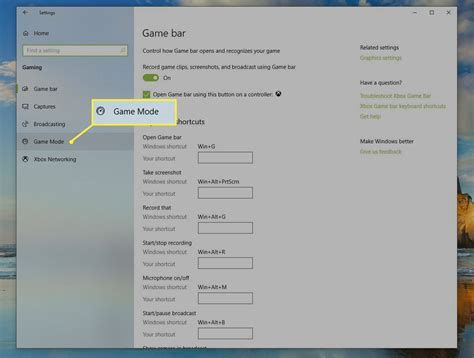
Windows Game Mode is designed to optimize your PC for gaming. When enabled, it prioritizes your game by stopping background processes and allocating more CPU and GPU resources to the running game. To enable it, go to Settings > Gaming > Game Mode and toggle it on.
2. Adjust Graphics Settings (Hardware-accelerated GPU Scheduling)
This setting, introduced in Windows 10 (version 2004) and present in Windows 11, can reduce latency and improve performance by allowing your GPU to directly manage its VRAM, offloading some work from the CPU. Go to Settings > System > Display > Graphics > Change default graphics settings and toggle on ‘Hardware-accelerated GPU scheduling’.
3. Set Power Plan to High Performance
By default, Windows often uses a balanced power plan, which can throttle your CPU. For gaming, switch to a ‘High performance’ or ‘Ultimate performance’ (if available) power plan. Search for ‘Power & sleep settings’ in Windows search, then click ‘Additional power settings’ and select ‘High performance’.
4. Disable Background Apps
Many apps run in the background, consuming CPU, RAM, and network bandwidth. Go to Settings > Privacy > Background apps and toggle off apps you don’t need running constantly. For Windows 11, manage startup apps in Settings > Apps > Startup and review apps in Settings > Apps > Installed apps to ensure unnecessary services aren’t running.
Driver & Software Hygiene
Keeping your system clean and drivers up-to-date is fundamental for optimal gaming.
1. Update Graphics Drivers
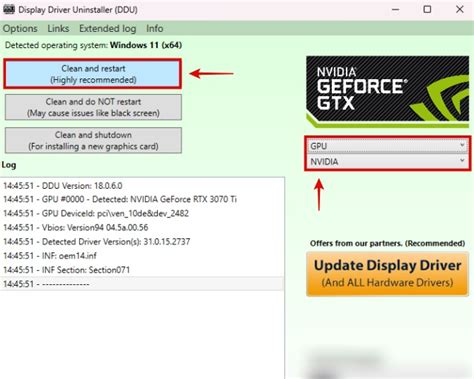
This is arguably the most critical step. NVIDIA, AMD, and Intel frequently release driver updates that include performance optimizations for new games and general improvements. Always download the latest drivers directly from your GPU manufacturer’s website.
2. Disable Startup Programs
Too many programs launching with Windows can significantly slow down your boot time and consume valuable RAM. Open Task Manager (Ctrl+Shift+Esc), go to the ‘Startup’ tab, and disable unnecessary programs.
3. Keep Windows Updated
While some updates can occasionally cause issues, Microsoft often includes performance improvements and bug fixes in Windows updates. Ensure your OS is reasonably up-to-date.
Mastering In-Game Settings
Once your OS is optimized, the real magic happens within the game itself. These settings directly impact visual fidelity and, consequently, FPS.
1. Resolution
Lowering your game’s resolution is one of the most effective ways to boost FPS. Rendering fewer pixels significantly reduces the load on your GPU. While 1080p is standard, dropping to 900p or 720p can yield substantial gains, especially on less powerful hardware.
2. Graphics Presets & Individual Settings
Most games offer graphics presets (Low, Medium, High, Ultra). Start by experimenting with these. For fine-tuning, focus on these individual settings:
- Shadow Quality: Shadows are incredibly demanding. Lowering this setting often provides a huge FPS boost with a noticeable but acceptable visual compromise.
- Anti-aliasing: Techniques like MSAA or TXAA smooth jagged edges but are very GPU intensive. Try less demanding options like FXAA or TAA, or disable it entirely if FPS is critical.
- Texture Quality: This impacts how detailed surfaces appear. It primarily uses VRAM. If your GPU has plenty of VRAM (6GB+), you can often keep this high. If not, lower it.
- View Distance / Draw Distance: Determines how far objects are rendered. Lowering this can improve FPS but may cause objects to pop in more noticeably.
- Post-processing Effects: Bloom, depth of field, motion blur, and screen-space reflections (SSR) are visually appealing but can be significant performance hogs. Disable them if you need more frames.
- Volumetric Lighting / God Rays: These effects, while beautiful, are very demanding. Turn them down or off.
Advanced & Additional Tips
1. Monitor Temperatures
Overheating CPU or GPU can lead to thermal throttling, reducing performance. Use monitoring software (like MSI Afterburner, HWMonitor) to keep an eye on your component temperatures.
2. Disable V-Sync (If You Have a High Refresh Rate Monitor)
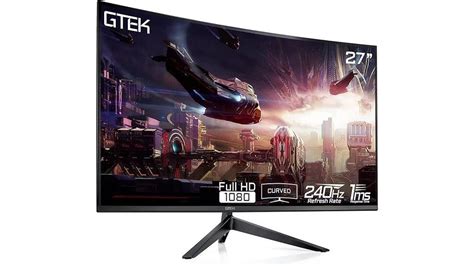
V-Sync synchronizes your game’s frame rate with your monitor’s refresh rate to prevent screen tearing. However, it can introduce input lag and cap your FPS. If you have a FreeSync or G-Sync monitor, enable that instead. If not, disabling V-Sync might give you higher FPS but could result in screen tearing.
3. Clean Your PC Regularly
Dust buildup inside your PC can obstruct airflow, leading to higher temperatures and throttling. Clean your fans and heatsinks periodically.
Conclusion
Optimizing your Windows gaming experience is a continuous process that involves both system-level tweaks and careful adjustment of in-game settings. By prioritizing core Windows optimizations like Game Mode and updated drivers, and then systematically adjusting demanding in-game graphics options like shadows and anti-aliasing, you can achieve a significantly smoother and more enjoyable gaming experience. Experiment with these settings to find the sweet spot between visual quality and buttery-smooth FPS for your specific hardware configuration.


