





My PC has FPS drops in new games. What are the essential driver updates for optimal gaming performance?
Tackling FPS Drops: The Driver Update Arsenal
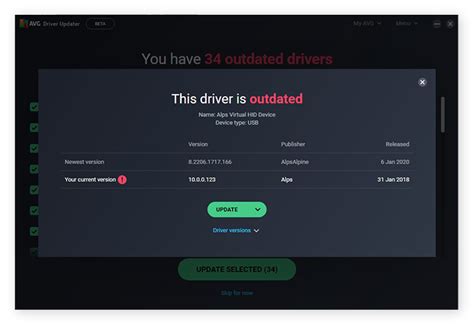
It’s a common and frustrating scenario for PC gamers: your system used to run games smoothly, but now new titles are plagued by stuttering and significantly lower frame rates (FPS). While hardware limitations can play a role, often the culprit isn’t your expensive GPU or CPU, but rather outdated or faulty drivers. Keeping your drivers up-to-date is arguably the most crucial maintenance task for optimal gaming performance.
1. The Most Crucial Update: Graphics Card Drivers
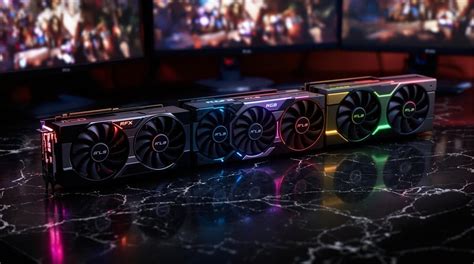
Your graphics card (GPU) is the heart of your gaming experience. Its drivers are continuously optimized by manufacturers to boost performance, fix bugs, and add support for the latest game titles. Outdated GPU drivers are the number one cause of FPS drops and performance issues in new games.
Vendor-Specific Drivers (NVIDIA, AMD, Intel)
- NVIDIA GeForce: NVIDIA frequently releases ‘Game Ready Drivers’ specifically optimized for new game launches. You can download these via the GeForce Experience application or directly from the NVIDIA website.
- AMD Radeon: AMD’s ‘Adrenalin Software’ provides similar optimizations and features. Keep an eye on their releases via the Radeon Software utility or the AMD website.
- Intel Arc/Integrated Graphics: While less common for high-end gaming, Intel also provides driver updates for their integrated and dedicated Arc graphics cards, available through the Intel Driver & Support Assistant or their website.
How to Update Graphics Drivers
For the best results, a ‘clean installation’ is recommended to prevent residual files from old drivers causing conflicts.
- Download the latest driver package for your specific GPU model from the manufacturer’s official website.
- Run the installer. Most modern installers offer a ‘Custom’ or ‘Clean Installation’ option. Select this.
- The installer will typically remove previous versions and install the new one, often requiring a system reboot.
2. Don’t Forget Your Motherboard: Chipset Drivers
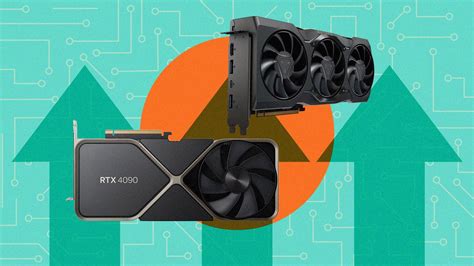
While often overlooked, chipset drivers are vital for enabling proper communication between your CPU, GPU, storage devices, and other peripherals on your motherboard. Outdated chipset drivers can lead to inefficient data transfer, which can indirectly contribute to stuttering and lower FPS, especially in games that are resource-intensive or rely heavily on fast storage access.
Why Chipset Drivers Matter
These drivers manage the flow of data across the motherboard’s various components. Keeping them current ensures your CPU can efficiently access your RAM, GPU, and NVMe drives, preventing bottlenecks that might otherwise impact performance.
How to Update Chipset Drivers
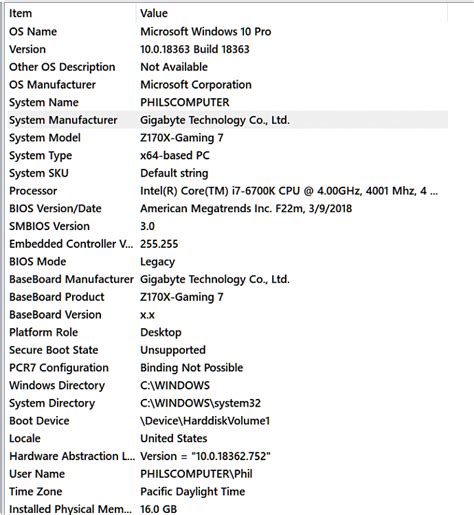
You’ll need to identify your motherboard’s manufacturer (e.g., ASUS, MSI, Gigabyte, ASRock) and model number. Then, visit their official support page.
- Go to your motherboard manufacturer’s website.
- Navigate to the ‘Support’ or ‘Download’ section.
- Enter your specific motherboard model.
- Look for ‘Chipset Drivers’ under the driver downloads. Download and install the latest version.
3. Overlooked but Important: Audio Drivers
While less direct than graphics or chipset drivers, audio drivers can sometimes cause subtle performance hitches or even occasional micro-stutters. High-quality audio processing, especially for spatial audio or complex soundscapes in games, requires efficient drivers. Issues here might consume CPU cycles unnecessarily, slightly impacting overall gaming performance.
How Audio Drivers Impact Gaming
Poorly optimized or outdated audio drivers can lead to sound dropouts, crackling, or even excessive CPU usage for audio processing, taking away resources from the game itself.
Updating Audio Drivers
For most users, Windows Update will handle generic audio drivers. However, for specialized audio hardware (e.g., dedicated sound cards like Sound Blaster or high-end motherboard integrated audio like Realtek HD Audio), it’s best to go to the manufacturer’s website.
- For Realtek (common integrated audio): Visit your motherboard manufacturer’s support page.
- For dedicated sound cards: Go to the sound card manufacturer’s website.
- Download and install the latest audio drivers.
4. Other Essential Software Updates
Beyond the core hardware drivers, several other software components need to be kept up-to-date for optimal gaming performance:
- Windows Updates: Microsoft continuously releases performance improvements, security patches, and DirectX updates (which games rely on). Ensure your Windows operating system is fully updated.
- DirectX/Vulkan Runtimes: These essential API layers are often updated via Windows Update or come bundled with game installations. Ensure they are current.
- Game-Specific Patches: Always apply patches and updates for the games themselves. Developers frequently release performance fixes and optimizations post-launch.
Best Practices for Maintaining Performance
- Regular Checks: Make a habit of checking for driver updates every few months, especially before diving into a major new game release.
- Monitor Temperatures: Overheating components (GPU, CPU) can throttle performance. Ensure your cooling is adequate and clean your PC regularly.
- Close Background Applications: Before gaming, close any unnecessary programs running in the background to free up system resources.
- Disable Overlays: Game overlays (e.g., Discord, GeForce Experience, Steam) can sometimes cause minor performance issues. Test disabling them if you encounter problems.
By diligently keeping your graphics, chipset, and audio drivers updated, along with your operating system and games, you’ll significantly reduce the likelihood of FPS drops and enjoy the smooth, immersive gaming experience your PC was built for. Don’t let outdated software hold back your hardware’s potential!


