





Troubleshooting low FPS in new PC games: common causes & quick fixes?

The Frustration of Low FPS: Why Your New Games Might Be Lagging
There’s nothing quite like the excitement of diving into a brand-new PC game, only to be met with a stuttering, unresponsive experience due to low frames per second (FPS). It’s a common issue that can plague even the most powerful rigs if not properly configured. Before you panic and assume your new hardware is faulty, understand that many factors can contribute to poor game performance. This guide will walk you through the most common culprits and offer practical, quick fixes to help you achieve that buttery-smooth gameplay you crave.
Common Causes of Low FPS
Identifying the root cause is the first step towards a solution. Here are the most frequent reasons your new PC game might be underperforming:
1. Outdated or Corrupt Graphics Drivers
- The Culprit: Graphics card manufacturers regularly release driver updates that include performance optimizations for new games. Running old drivers can severely limit your GPU’s capabilities.
- The Symptom: General poor performance across multiple games, or specific issues with newly released titles.
2. Incorrect In-Game Graphics Settings
- The Culprit: Modern games offer a plethora of graphics options, and sometimes the default settings (or your ambitious adjustments) might be too demanding for your system.
- The Symptom: Stuttering, especially in visually intense scenes, or dramatically different performance when changing resolutions or quality presets.
3. Hardware Bottlenecks
- The Culprit: While your PC might be new, one component could be holding the others back. This often involves an older CPU paired with a new GPU, or insufficient RAM.
- The Symptom: Your GPU usage might be low while your CPU is maxed out, or vice-versa, indicating one component isn’t keeping up.
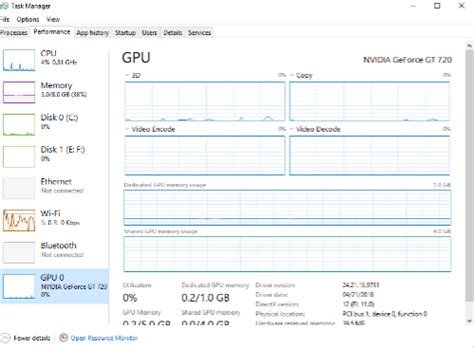
4. Background Processes and Software Conflicts
- The Culprit: Other applications running in the background (web browsers, streaming software, antivirus, system updates) can consume valuable CPU, RAM, and GPU resources.
- The Symptom: Performance dips randomly, or is noticeably worse when other applications are open.
5. Overheating Components
- The Culprit: When your CPU or GPU gets too hot, they automatically throttle their performance to prevent damage. This is a common cause of sudden FPS drops.
- The Symptom: Performance degrades over time during a gaming session, often accompanied by loud fan noises.
6. Power Management Settings
- The Culprit: Windows’ default power settings might prioritize energy saving over maximum performance, inadvertently limiting your hardware.
- The Symptom: Consistent underperformance even with seemingly adequate hardware.
Quick Fixes and Solutions
Now that you know the common causes, let’s look at how to tackle them:
1. Update Your Graphics Drivers (Crucial!)
- Action: Visit the official website for your GPU manufacturer (NVIDIA, AMD, Intel) and download the latest drivers for your specific card. Perform a clean installation if possible.
- Benefit: Often provides significant performance boosts and better compatibility with new games.
2. Adjust In-Game Graphics Settings
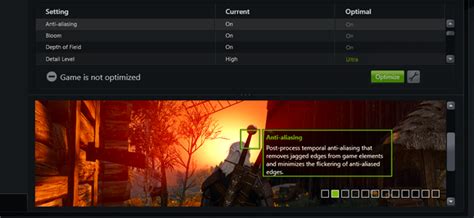
- Action: Start by lowering demanding settings like Anti-Aliasing, Shadow Quality, Volumetric Fog, and Ray Tracing. Experiment with presets (e.g., ‘High’ to ‘Medium’) and resolutions.
- Benefit: Finds the sweet spot between visual fidelity and playable FPS.
3. Close Background Applications
- Action: Open Task Manager (Ctrl+Shift+Esc), go to the ‘Processes’ tab, and close any unnecessary applications consuming significant CPU or RAM before launching your game.
- Benefit: Frees up system resources for your game.
4. Monitor Temperatures
- Action: Use software like HWMonitor or MSI Afterburner to keep an eye on your CPU and GPU temperatures while gaming. If temps consistently exceed 85-90°C, you have an overheating issue.
- Benefit: Helps diagnose thermal throttling. Clean your PC’s internal components, ensure good airflow, and consider reapplying thermal paste or upgrading cooling solutions if needed.
5. Optimize Power Settings
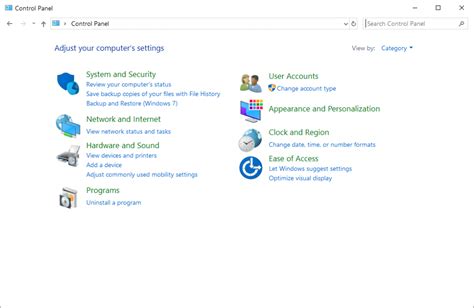
- Action: In Windows, go to ‘Control Panel’ > ‘Hardware and Sound’ > ‘Power Options’ and select the ‘High performance’ or ‘Ultimate Performance’ plan.
- Benefit: Ensures your CPU and GPU aren’t being held back by power-saving measures.
6. Verify Game Files
- Action: Most game launchers (Steam, Epic Games, GOG, Battle.net) have an option to verify the integrity of game files. Corrupt files can lead to performance issues.
- Benefit: Repairs any damaged or missing game files.
Conclusion
Low FPS in new PC games can be disheartening, but it’s rarely a death sentence for your gaming experience. By systematically addressing common causes like outdated drivers, aggressive settings, background processes, and thermal issues, you can often restore your games to smooth, enjoyable framerates. Start with the easiest and most impactful fixes first, monitor your system’s performance, and don’t be afraid to experiment with settings. Happy gaming!


