





FPS drops during Warzone! How to optimize GPU settings for max performance?

Conquering FPS Drops in Warzone: A Deep Dive into GPU Optimization
Warzone, with its sprawling maps and intense firefights, demands a lot from your PC. Experiencing FPS drops can turn an exciting match into a frustrating struggle. While a powerful GPU is a great start, optimizing its settings is crucial for extracting every last frame and ensuring a smooth, competitive experience. This guide will walk you through the essential steps to fine-tune your GPU settings for maximum performance in Warzone.
1. Update Your Graphics Drivers Regularly
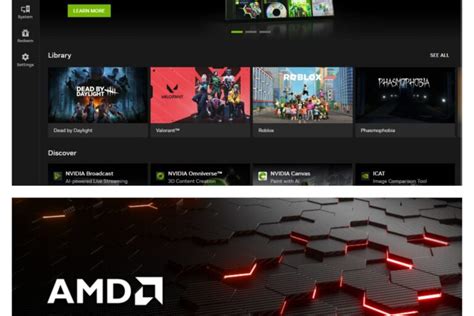
This is often the most critical and overlooked step. GPU manufacturers like NVIDIA and AMD constantly release driver updates that include performance optimizations specifically for popular games like Warzone. Running outdated drivers can significantly hinder your FPS.
- NVIDIA: Use GeForce Experience to check for and install the latest Game Ready Drivers.
- AMD: Use the Radeon Software application to find and install the recommended drivers.
Always perform a clean installation if the option is available to prevent potential conflicts with older driver files.
2. Optimize In-Game Warzone Graphics Settings
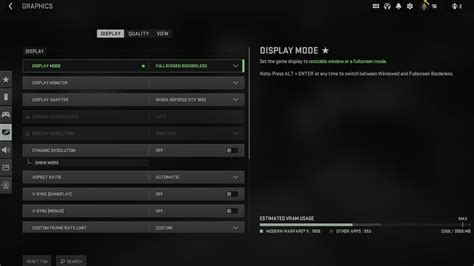
Warzone offers a wealth of graphics options, and understanding which ones to tweak can make a huge difference to your FPS without sacrificing too much visual fidelity.
- Display Mode: Always set to Fullscreen Exclusive for best performance.
- Render Resolution: Set to 100%. Lowering this blurs the image, but increasing it demands more from your GPU.
- Texture Resolution: Based on your VRAM. If you have 8GB+ VRAM, you can go High; 6GB, Normal; 4GB or less, Low.
- Texture Filter Anisotropic: Set to Normal or Low.
- Particle Quality: Set to Low. Reduces the impact of explosions and smoke.
- Bullet Impacts & Sprays: Disable if you prioritize performance.
- Shader Quality: Set to Low or Medium.
- Shadow Map Resolution: Set to Low. Shadows are resource-intensive.
- Cache Spot & Sun Shadows: Enable for better performance if your CPU can handle it, otherwise disable.
- Anti-Aliasing: SMAA T2X or Filmic SMAA T2X are good balanced options. If struggling, disable or use the lowest setting.
- Depth of Field, World Motion Blur, Weapon Motion Blur: Disable these immediately. They offer no competitive advantage and consume resources.
- DLSS/FSR (if available): If you have an RTX or newer AMD card, enable NVIDIA DLSS or AMD FSR. Set to ‘Performance’ or ‘Balanced’ for a significant FPS boost.
3. Fine-Tune Your GPU Control Panel (NVIDIA/AMD)
Beyond in-game settings, your GPU’s control panel offers system-wide adjustments that can impact Warzone.
For NVIDIA Users (NVIDIA Control Panel):
- Manage 3D Settings > Program Settings: Select Call of Duty: Warzone.
- Power Management Mode: Set to ‘Prefer maximum performance’. This ensures your GPU runs at full clock speed.
- Low Latency Mode: Set to ‘On’ or ‘Ultra’. This can reduce input lag, especially beneficial in competitive titles.
- Texture filtering – Quality: Set to ‘High performance’.
- Vertical Sync: Set to ‘Off’ (unless you experience severe screen tearing and don’t have G-Sync/FreeSync).
- Shader Cache Size: Set to ‘Unlimited’ or ‘Driver Default’.
- Anisotropic Filtering: Set to ‘Application-controlled’.
- Threaded Optimization: Set to ‘On’.

For AMD Users (Radeon Software):
- Gaming > Games: Select Call of Duty: Warzone.
- Radeon Anti-Lag: Enable. Reduces input lag.
- Radeon Boost: Enable. Dynamically reduces resolution during fast motion for higher FPS.
- Radeon Image Sharpening: Experiment with this. Can make the game look clearer at a slight performance cost.
- Texture Filtering Quality: Set to ‘Performance’.
- Tessellation Mode: Set to ‘Override application settings’ and ‘Off’ or ‘AMD Optimized’.
- Vertical Refresh: Always off, unless experiencing severe tearing.
4. Optimize Windows Settings for Gaming
Don’t forget the operating system itself! A few Windows tweaks can free up resources for Warzone.
- Game Mode: Ensure Windows Game Mode is enabled (Settings > Gaming > Game Mode).
- Graphics Settings (Hardware-accelerated GPU scheduling): (Settings > System > Display > Graphics > Change default graphics settings) Enable ‘Hardware-accelerated GPU scheduling’ if available on your system. Requires a restart.
- Power Plan: Set your power plan to ‘High performance’ (Control Panel > Hardware and Sound > Power Options).
- Disable Background Apps: Close any unnecessary applications running in the background while playing Warzone (browsers, Discord overlays, etc.).
5. Monitor and Test Your Changes
Optimization is an iterative process. After making changes:
- Use an FPS counter (like the one in Warzone’s interface or NVIDIA GeForce Experience/AMD Radeon Overlay) to monitor your frame rate.
- Change one setting at a time, test it in-game, and observe the results. This helps you identify which changes have the biggest impact.
- Run benchmarks or play a few matches to see if the changes translate to a smoother experience.

Conclusion
By diligently applying these GPU and system optimizations, you should notice a significant improvement in your Warzone performance. Remember that every system is unique, so some experimentation might be required to find the perfect balance between visual quality and buttery-smooth frame rates. Happy gaming!


