





My gaming PC randomly crashes during intense gameplay. What’s the common fix?
Understanding the Frustration: Why Your PC Crashes
There’s nothing more frustrating than being in the middle of an intense gaming session, only for your PC to suddenly crash. This common issue can range from a full system freeze and blue screen of death (BSOD) to an immediate power off. While seemingly random, these crashes almost always have a root cause related to hardware, software, or system stability. Identifying the culprit is key to finding a lasting solution.
Common Culprits Behind Random Crashes
Several factors can lead to a gaming PC crashing during demanding tasks. Understanding these common causes is the first step toward effective troubleshooting.
1. Overheating: The Silent Killer
One of the most frequent reasons for crashes during intense gameplay is overheating. Your CPU and GPU generate significant heat under load, and if your cooling system isn’t up to par, these components can reach critical temperatures. Modern components are designed to throttle performance or shut down entirely to prevent damage, leading to a crash.

Factors contributing to overheating include: dusty fans and heatsinks, poor airflow within the case, dried-out thermal paste, or inadequate aftermarket cooling solutions.
2. Insufficient or Failing Power Supply (PSU)
Your power supply unit (PSU) is crucial for delivering stable and sufficient power to all your components. An underpowered PSU, an aging PSU struggling to deliver its rated wattage, or a faulty PSU can lead to instability under heavy load. When your GPU or CPU demands more power than the PSU can provide, especially during spikes in intense gameplay, the system can become unstable and crash.
3. Outdated, Corrupt, or Incompatible Drivers
Drivers are essential software that allows your operating system to communicate with your hardware. Graphics card drivers, in particular, are frequently updated for performance and stability. An outdated driver, a corrupted installation, or an incompatibility between your driver version and a new game or Windows update can easily cause crashes during gameplay.
4. Unstable Overclocking
If you’ve overclocked your CPU, GPU, or RAM for extra performance, instability can arise. Even a seemingly stable overclock during benchmarks might falter under the specific demands of an intense game. Overclocking pushes components beyond their factory settings, and subtle instability can manifest as crashes.
5. RAM Issues
Faulty RAM modules, incorrectly configured RAM (e.g., wrong speeds or timings in BIOS), or simply not enough RAM for the game can cause system instability and crashes. While less common than overheating, RAM problems can be elusive to diagnose.
6. Software Conflicts or OS Instability
Sometimes the issue isn’t hardware at all. Background applications consuming excessive resources, conflicts between different software, or even a corrupted Windows installation can lead to crashes. Recent Windows updates can also sometimes introduce new bugs or incompatibilities.
Step-by-Step Troubleshooting and Fixes
Now that you know the common causes, here’s how to systematically troubleshoot and fix your crashing PC.
1. Monitor Temperatures
Download monitoring software like HWMonitor, MSI Afterburner, or NZXT CAM. Run a demanding game and keep an eye on your CPU and GPU temperatures. If they consistently hit 85-90°C or higher, you likely have an overheating issue. Clean out dust from your fans, heatsinks, and case filters. Consider reapplying thermal paste to your CPU or GPU if cleaning doesn’t help.
2. Verify Power Supply
Check your PSU’s wattage rating and compare it to the recommended wattage for your CPU and GPU (manufacturer websites are a good source). Ensure all power cables are securely connected. If your PSU is old (5+ years), consider testing it or replacing it with a new, reputable brand PSU with adequate wattage.
3. Update Drivers (Especially GPU)
Perform a clean installation of your graphics card drivers. For NVIDIA, use DDU (Display Driver Uninstaller) in safe mode before installing the latest drivers from NVIDIA’s website. For AMD, use their cleanup utility. Also, ensure your chipset drivers and other critical drivers are up to date from your motherboard manufacturer’s website.

4. Test Memory
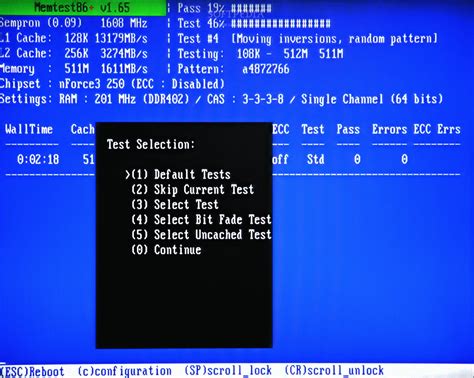
Run a memory diagnostic. Windows has a built-in tool (type “Windows Memory Diagnostic” in the search bar). For a more thorough test, use MemTest86 from a bootable USB drive. If errors are found, try testing RAM sticks individually to identify a faulty module.
5. Revert Overclocks
If you’ve overclocked any components, revert them to their stock settings in your BIOS/UEFI or through your overclocking software. Test your system for stability. If crashes stop, gradually re-apply overclocks with smaller increments or consider them the source of instability.
6. Check Game Files and Software
Verify the integrity of your game files through the game launcher (Steam, Epic Games, etc.). This can fix corrupted game data. Close all unnecessary background applications before launching a game to rule out software conflicts. Check for any recent Windows updates that might be causing issues.

7. Consider Professional Help
If you’ve exhausted these troubleshooting steps and your PC continues to crash, it might be time to consult a professional PC technician. They have advanced diagnostic tools and expertise to identify more complex hardware failures.
Conclusion
Random PC crashes during intense gameplay are a common but solvable problem. By systematically checking for overheating, power supply issues, driver problems, and other potential culprits, you can often pinpoint the cause and implement an effective fix. Patience and methodical troubleshooting are your best tools in getting your gaming rig back to peak performance.


