




Gaming PC slow? How to optimize Windows for better FPS in new titles.

Revitalize Your Gaming Rig: The Ultimate Windows Optimization Guide
Even with powerful hardware, your gaming PC can sometimes feel sluggish, especially when tackling the latest graphically intensive titles. While component upgrades are often the go-to solution, a significant performance boost can frequently be achieved through smart Windows optimization. Your operating system, when not properly configured, can consume valuable resources that your games desperately need. This guide will walk you through essential steps to fine-tune Windows for maximum Frames Per Second (FPS) and a smoother gaming experience.
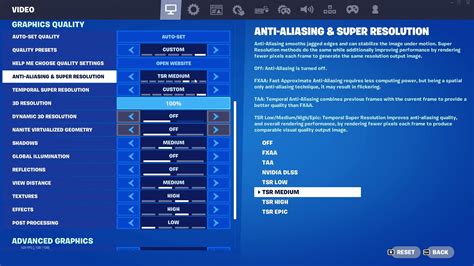
1. Driver Updates: The Foundation of Performance
Outdated or corrupt drivers are a common culprit for poor gaming performance. Always ensure your graphics card drivers are up-to-date, as manufacturers frequently release game-ready drivers optimized for new titles. Beyond your GPU, check for updates for your chipset, audio, and network drivers as well. These can impact system stability and overall efficiency.
- Graphics Drivers: Download directly from NVIDIA (GeForce Experience) or AMD (Radeon Software).
- Chipset Drivers: Visit your motherboard manufacturer’s website.
- Other Drivers: Use Windows Update or your PC/laptop manufacturer’s support page.
2. Managing Background Processes and Startup Programs
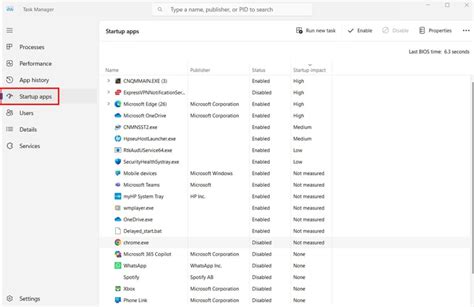
Many applications launch automatically with Windows and continue to run in the background, quietly eating away at your CPU, RAM, and disk I/O. Identifying and disabling unnecessary startup programs can free up substantial resources.
How to:
- Open Task Manager (Ctrl+Shift+Esc).
- Go to the ‘Startup’ tab.
- Disable any non-essential programs by right-clicking and selecting ‘Disable’. Be cautious with system-critical applications.
- Additionally, check ‘Background apps’ in Windows Settings > Privacy to toggle off apps you don’t need running silently.
3. Windows Gaming-Specific Settings
Windows 10 and 11 come with built-in features designed to improve gaming performance. Make sure you’re utilizing them effectively.
Game Mode
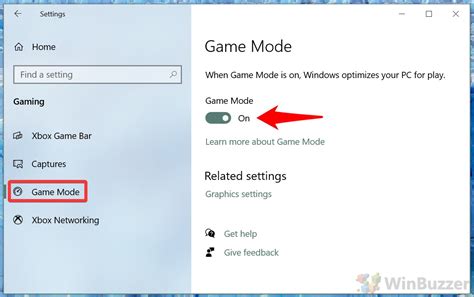
Game Mode prioritizes your game by stopping background activities like Windows updates and notifications. It’s generally safe to keep this enabled.
How to: Go to Windows Settings > Gaming > Game Mode and ensure it’s turned ‘On’.
Graphics Settings & Hardware-Accelerated GPU Scheduling
This setting can reduce latency and improve performance in some systems, especially newer ones. You can also specify performance preferences for individual games.
How to:
- Windows Settings > System > Display > Graphics.
- Toggle ‘Hardware-accelerated GPU scheduling’ ‘On’ (requires restart).
- Under ‘Default graphics settings’, you can add specific games (desktop apps or Microsoft Store apps) and set their graphics preference to ‘High performance’.
4. Optimize Power Plan and Visual Effects
Your PC’s power plan directly impacts its performance. Ensure it’s set to deliver maximum power when gaming, not conserve energy.
Power Plan
How to:
- Search for ‘Edit power plan’ in the Windows search bar and open it.
- Click ‘Power Options’ in the address bar.
- Select ‘High Performance’ or ‘Ultimate Performance’ (if available, often requires manual activation via Command Prompt or specific hardware).
- Click ‘Change plan settings’ > ‘Change advanced power settings’ and ensure ‘Processor power management’ is set to 100% for both minimum and maximum processor state.
Adjust Visual Effects
Windows offers various visual bells and whistles, but these can consume GPU and CPU cycles. Disabling some can yield minor performance gains.
How to:
- Search for ‘Adjust the appearance and performance of Windows’.
- In the ‘Performance Options’ dialog, select ‘Adjust for best performance’ or customize by unchecking unnecessary options like ‘Animate windows when minimizing and maximizing’ or ‘Fade or slide menus into view’.
5. Storage Optimization and Network Tweaks
Maintaining a healthy storage drive and optimizing network settings can also contribute to a smoother gaming experience, especially with loading times and online multiplayer.
SSD Maintenance (if applicable)
If you have an SSD, ensure TRIM is enabled (it usually is by default). Avoid traditional defragmentation, as it’s unnecessary and can reduce SSD lifespan.
How to: Search for ‘Defragment and Optimize Drives’ and verify the status of your SSDs. Schedule optimization should be ‘On’ for SSDs, which initiates TRIM.
Network Optimization (Disabling Nagle’s Algorithm)
For some online games, disabling Nagle’s Algorithm can slightly reduce network latency by sending smaller packets more frequently, though this should be approached with caution as it can increase bandwidth usage.
How to: This requires editing the Windows Registry. Proceed only if you’re comfortable. (A detailed guide on how to do this for your specific network adapter can be found online, typically involving creating a new DWORD value named ‘TcpNoDelay’ and setting it to 1 within the adapter’s settings.)
Conclusion: Consistent Maintenance for Peak Performance
Optimizing Windows for gaming isn’t a one-time task; it’s an ongoing process. Regularly check for driver updates, clean up unnecessary files, manage startup programs, and revisit your settings to ensure your PC is always ready to deliver the best possible gaming performance. With these tweaks, you’ll be able to enjoy higher FPS and a more immersive experience in your favorite new titles.



